
How do I add a discount to my checkout page in Flodesk Checkout?
Running a promotion? Celebrating a milestone? Planning a seasonal sale like Black Friday or Small Business Saturday? 🛍
Flodesk Checkout makes it easy to create and manage discount codes for your products and services—no complicated setup required.
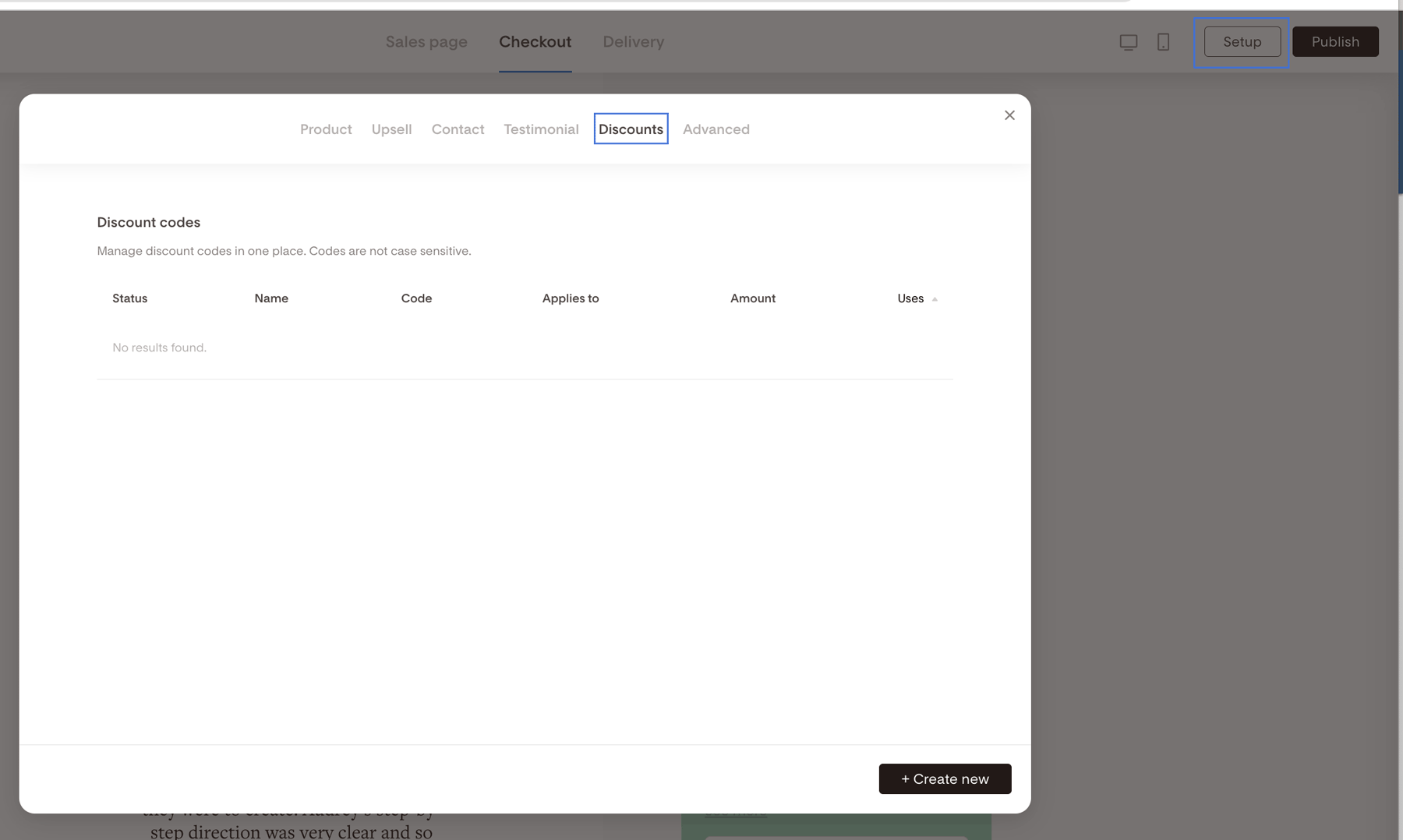
Where to find the Discounts tab
Open your checkout page in the Checkout builder
Click Setup in the top-right corner
Select the Discounts tab
This is where all discount codes for that specific checkout live.
How to create a discount code
Follow these steps to add a new discount:
Step 1: Create a new discount
Click + Create new in the bottom-right corner of the Discounts tab
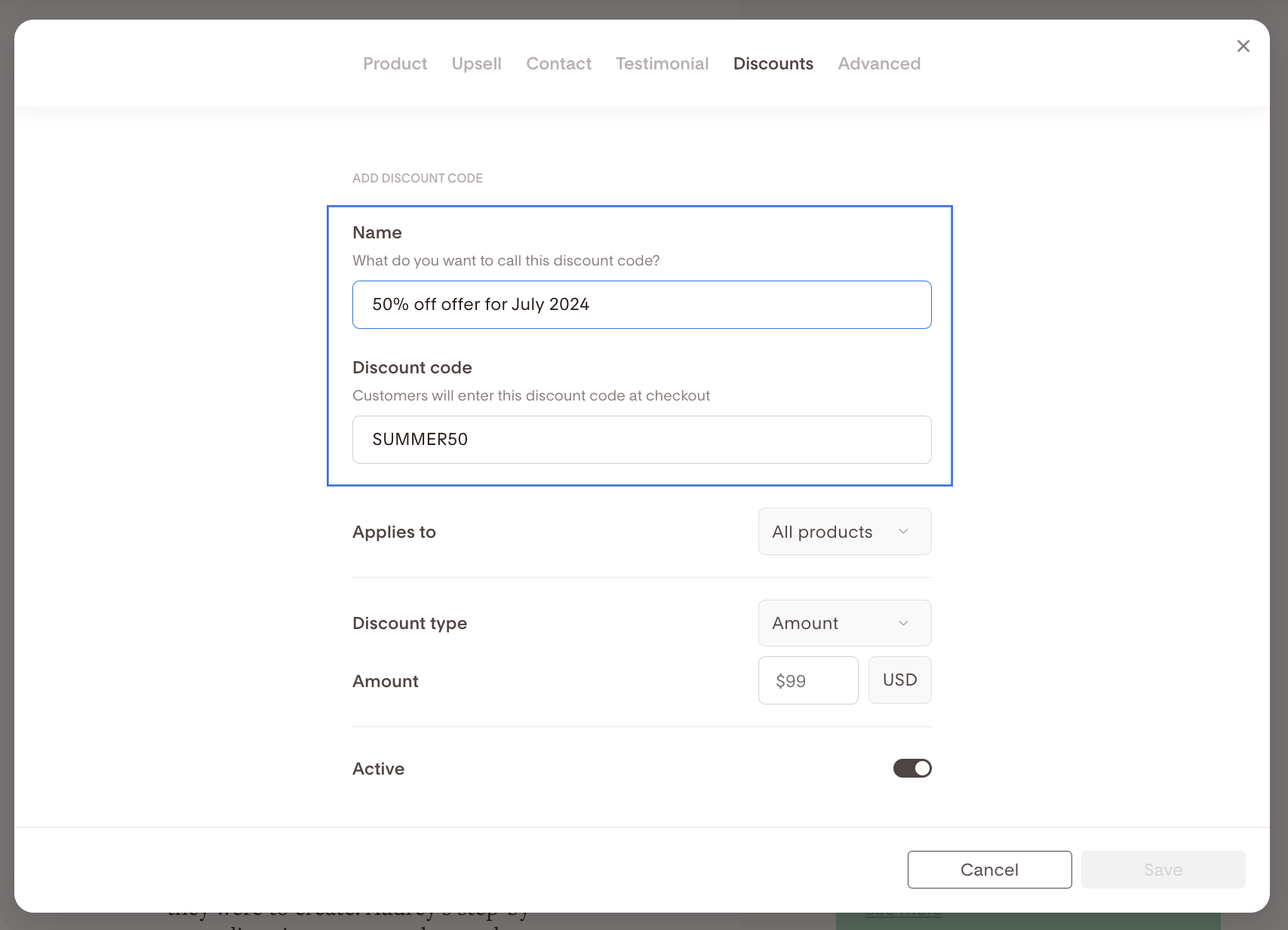
Step 2: Name your discount
Click the Name field
Add an internal name (for example: Black Friday 2026)
This name is for your reference only. Customers won’t see it.
Step 3: Set the discount code
Click into the Discount code field
Enter the code customers will type at checkout
(examples:HALFOFF,SUMMER50,WELCOME10)
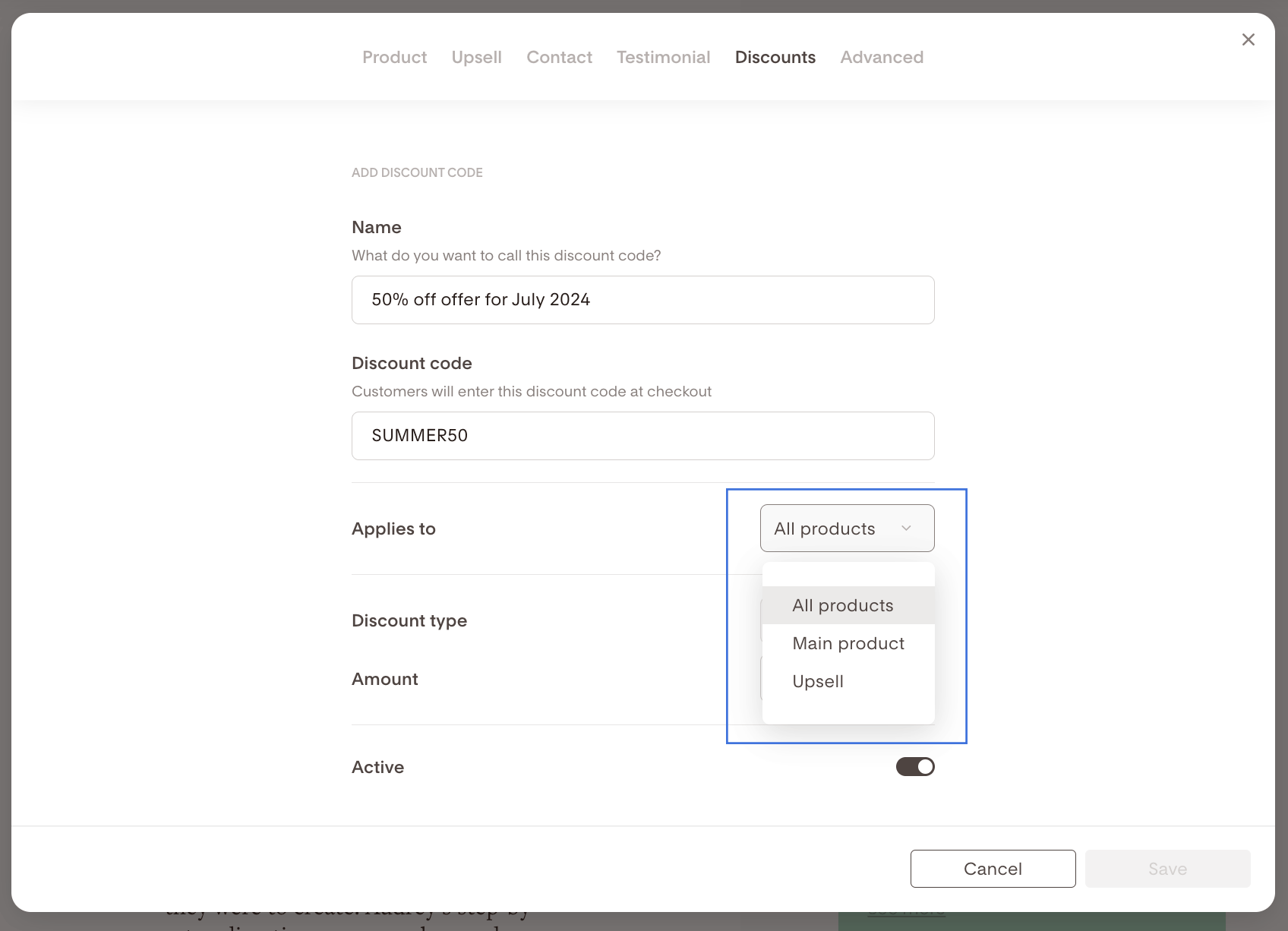
Step 4: Choose what the discount applies to
Use the Applies to dropdown to select:
Main product only
Upsell only
Both main product and upsell
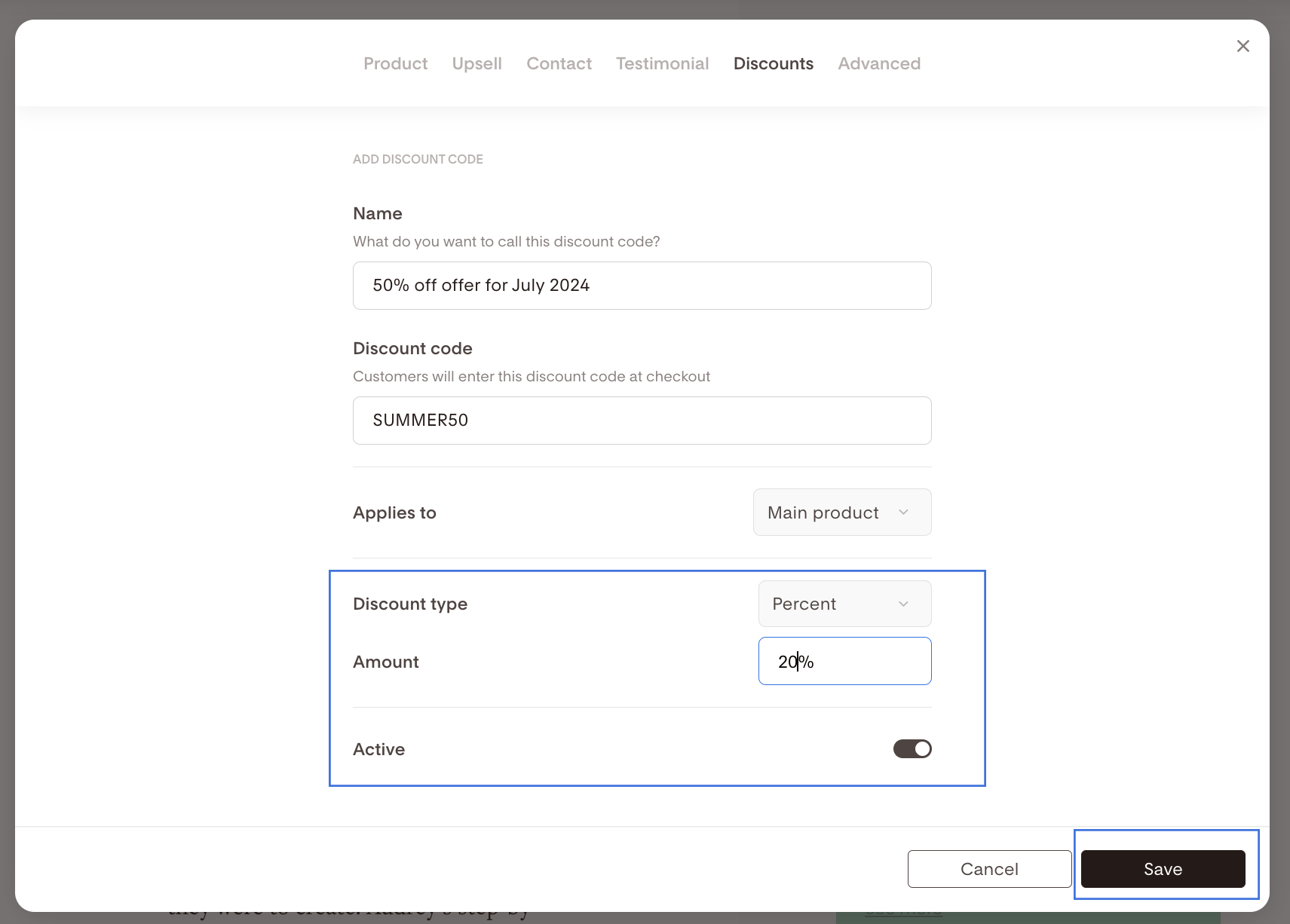
Step 5: Choose the discount type
Under Discount type, select:
Percentage (for example: 20% off)
Amount (for example: $10 off)
Then enter the value in the Amount field. For example, if you want to give 20% off, you’d type 20.
Step 6: Activate and save
Toggle Active on
Click Save
Click the X in the top right corner of the pop-up module to return to your checkout page
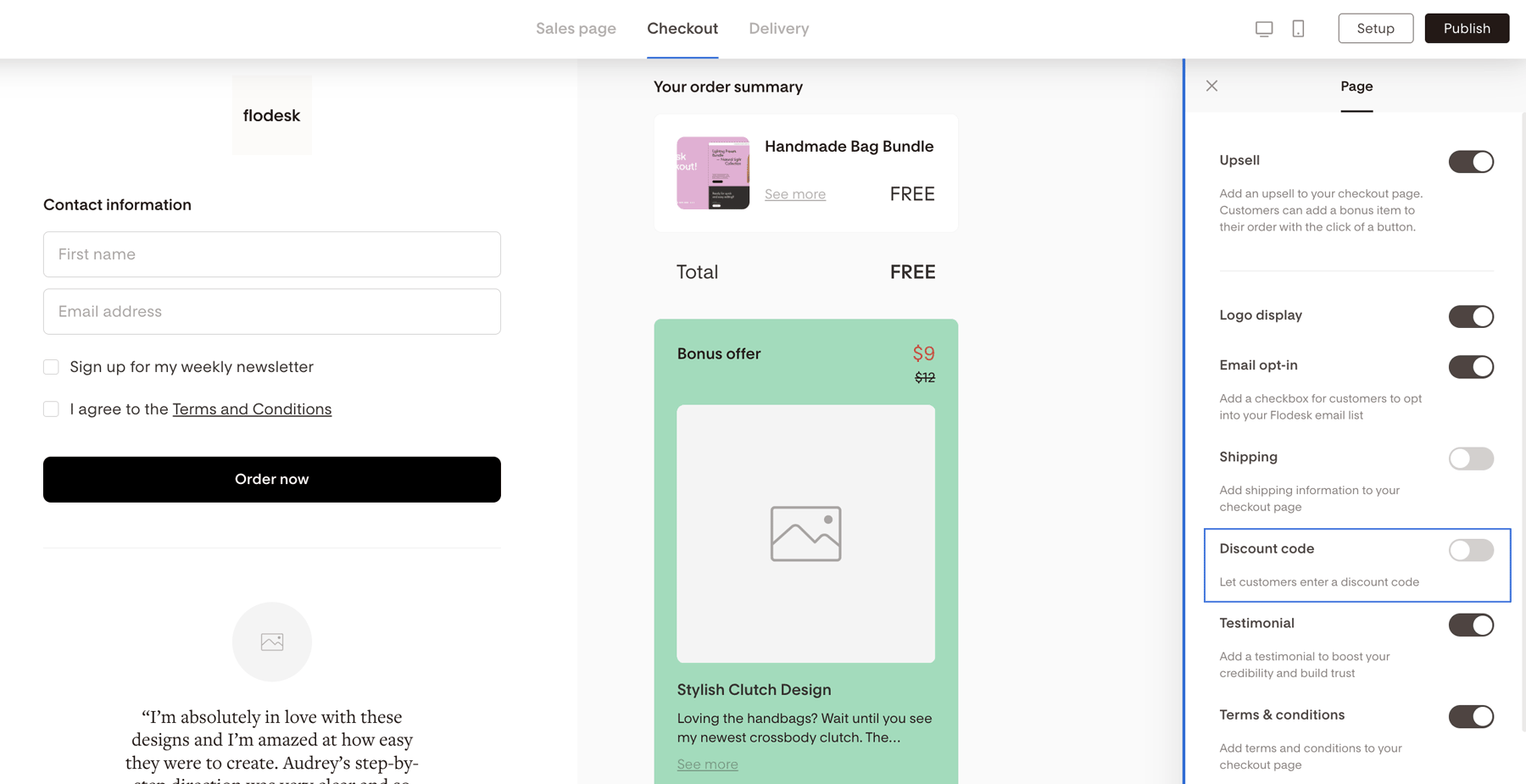
Make sure customers can enter discount codes
Discounts won’t work unless the Discount code block is enabled on your checkout page.
To check this:
Click anywhere in the background of your checkout page
Open Page settings
Turn Discount code block ON
If you don’t want customers to use discount codes, simply turn this block OFF.
Important note for subscription products
Before adding discounts to a subscription checkout, review this dedicated guide:
How Discount Codes Work for Subscription Products
This ensures you fully understand how discount codes behave with recurring payments.
Important note for products with payment plans
Before adding discounts to a checkout with payment plans, review this dedicated guide: How discounts work with payment plans
This ensures you fully understand how discount codes behave with payment plans.
Summary
Open Setup → Discounts in the checkout builder
Create a discount code with a name and customer-facing code
Choose whether it applies to the main product, upsell, or both
Set the discount as a percentage or fixed amount
Enable the Discount code block so customers can enter the code
FAQ
Can I create more than one discount code?
Yes. You can create and manage multiple discount codes from the Discounts tab.
How many discount codes (coupons) can I add to a checkout?
Your checkout can have up to 20 active discount codes, with a total of 50 discount codes. This means you can have 50 total discount codes per checkout, with 30 inactive (historic) codes for your reference if needed.
Can a discount apply only to an upsell?
Yes. Use the Applies to dropdown and select Upsell only.
Do discount codes expire automatically?
Discounts stay active until you turn them off. You control when they’re active.
Why isn’t my discount code working?
Make sure the discount is active and the Discount code block is enabled in Page settings.
Do discounts work with subscription products?
Yes, but they follow specific rules. Always review the subscription setup guide before applying discounts.
Do discounts work with payment plans?
Yes, but they follow specific rules. Always review the payment plan setup guide before applying discounts.
Can I hide the discount code field?
Yes. Turn off the Discount code block in Page settings if you don’t want customers to enter codes.