
How to add a testimonial to your Flodesk Checkout page
Overview
Adding a customer testimonial to your checkout page is a simple way to build trust with potential buyers right at the point of purchase. You can include the testimonial text, the customer's name, and a photo to make it feel more personal and credible.
How to access the Testimonial tab
Open your checkout in Flodesk
Click the Setup button in the top-right corner
Select the Testimonial tab
How to edit the testimonial
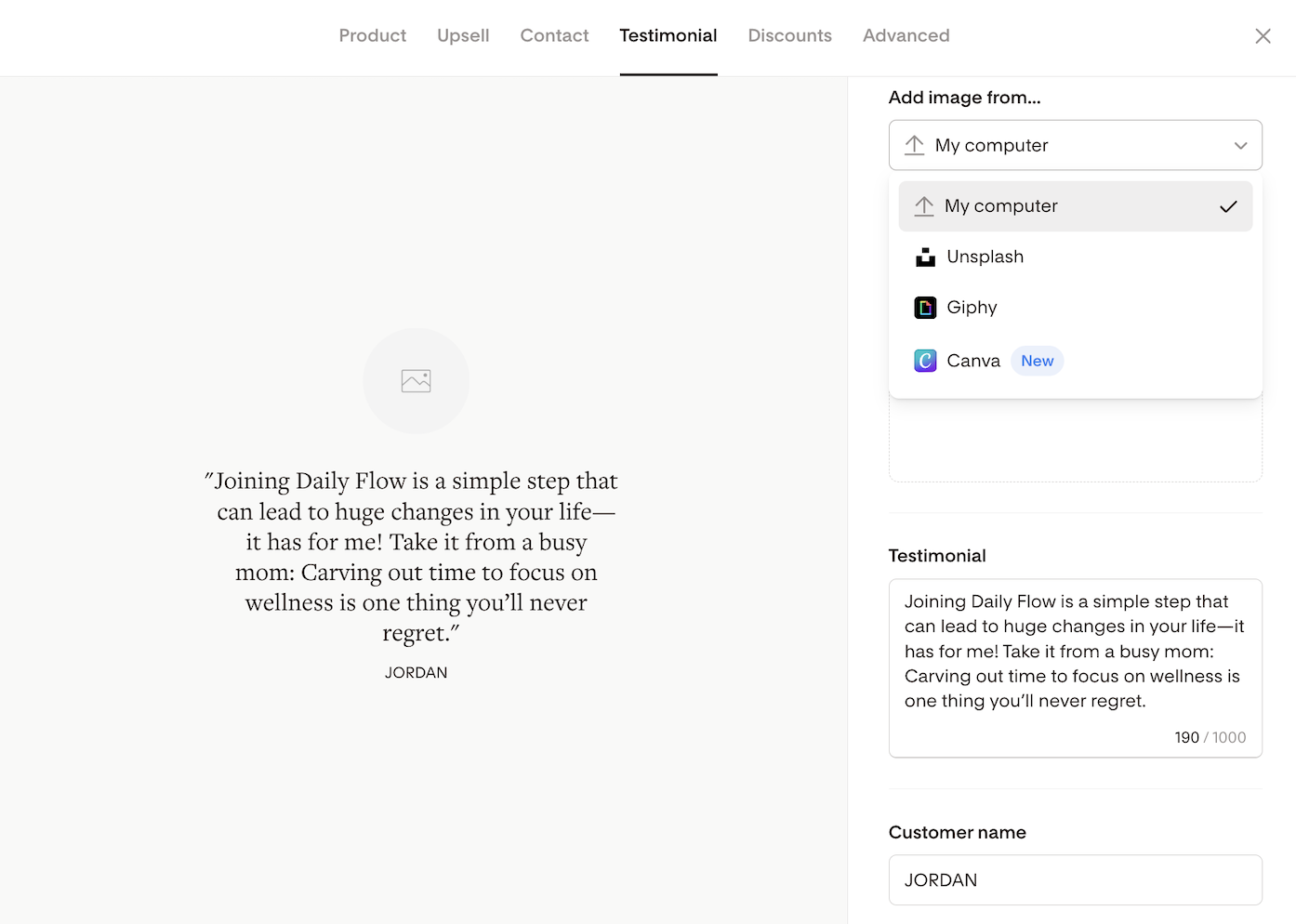
Click into the Testimonial and Customer name fields to replace the placeholder text with your own content.
To add a photo, you can upload an image from your computer or pull one in from Unsplash, Giphy, or your connected Canva account. A photo alongside the testimonial makes the social proof feel more genuine and personal.
As you make changes, the preview on the left side of the editor updates automatically so you can see exactly how it will look.
How to hide the testimonial block
If you'd prefer not to show a testimonial on your checkout page:
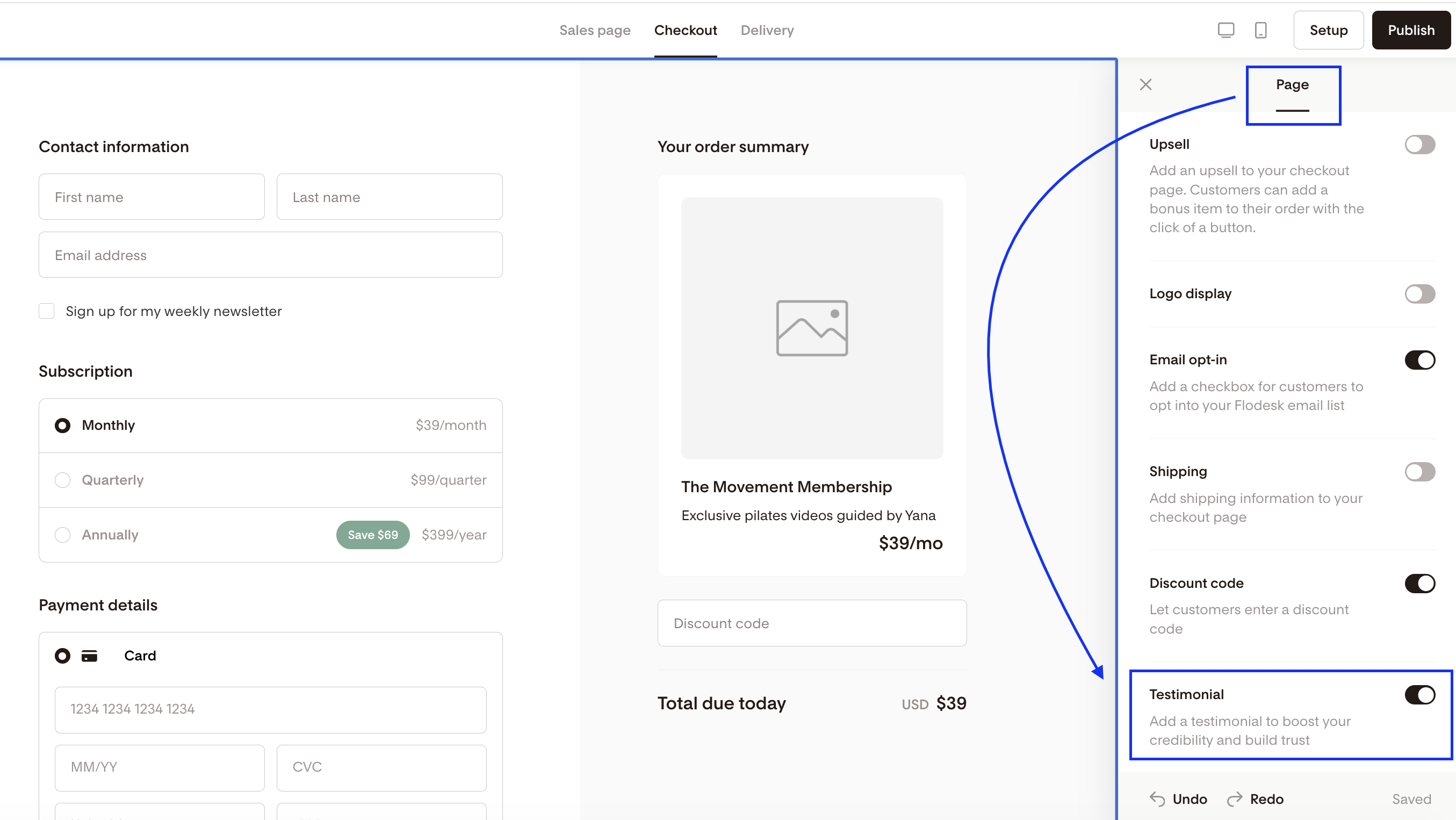
Click anywhere on the background of the checkout page to open the Page settings panel
Toggle off the Testimonial block
The testimonial won't appear to buyers, but your content will be saved if you decide to turn it back on later.
FAQ
How do I add a testimonial to my Flodesk Checkout page?
Open your checkout, click Setup in the top-right corner, and select the Testimonial tab. Click into the text fields to add the testimonial and the customer's name, and upload a photo if you have one. Changes appear in the preview automatically.
Can I add a photo to the testimonial on my checkout page?
Yes. In the Testimonial tab, you can upload a photo from your computer or choose one from Unsplash, Giphy, or your connected Canva account.
How do I remove or hide the testimonial from my checkout page?
Click on the background of your checkout page to open the Page settings panel, then toggle off the Testimonial block. Your content will be saved, so you can turn it back on at any time.
Can I add more than one testimonial to my checkout page?
The Testimonial tab supports one testimonial at a time. If you want to feature multiple testimonials, you can use testimonial blocks on your sales page to include additional quotes.