
How to add a refund policy to your Flodesk Checkout
Overview
If you sell products or services through Flodesk Checkout, having a clear refund policy in place is good practice. It sets expectations for buyers upfront and helps reduce disputes and chargebacks down the line.
There are two places in Flodesk to include your refund policy: your Terms and Conditions and your checkout sales page. Adding it to both gives buyers the best chance of seeing it before they purchase.
Important: Flodesk can't provide legal advice. Consult with an attorney to make sure your Terms and Conditions and Privacy Policy comply with your local laws and regulations.
How to add your refund policy to your Terms and Conditions
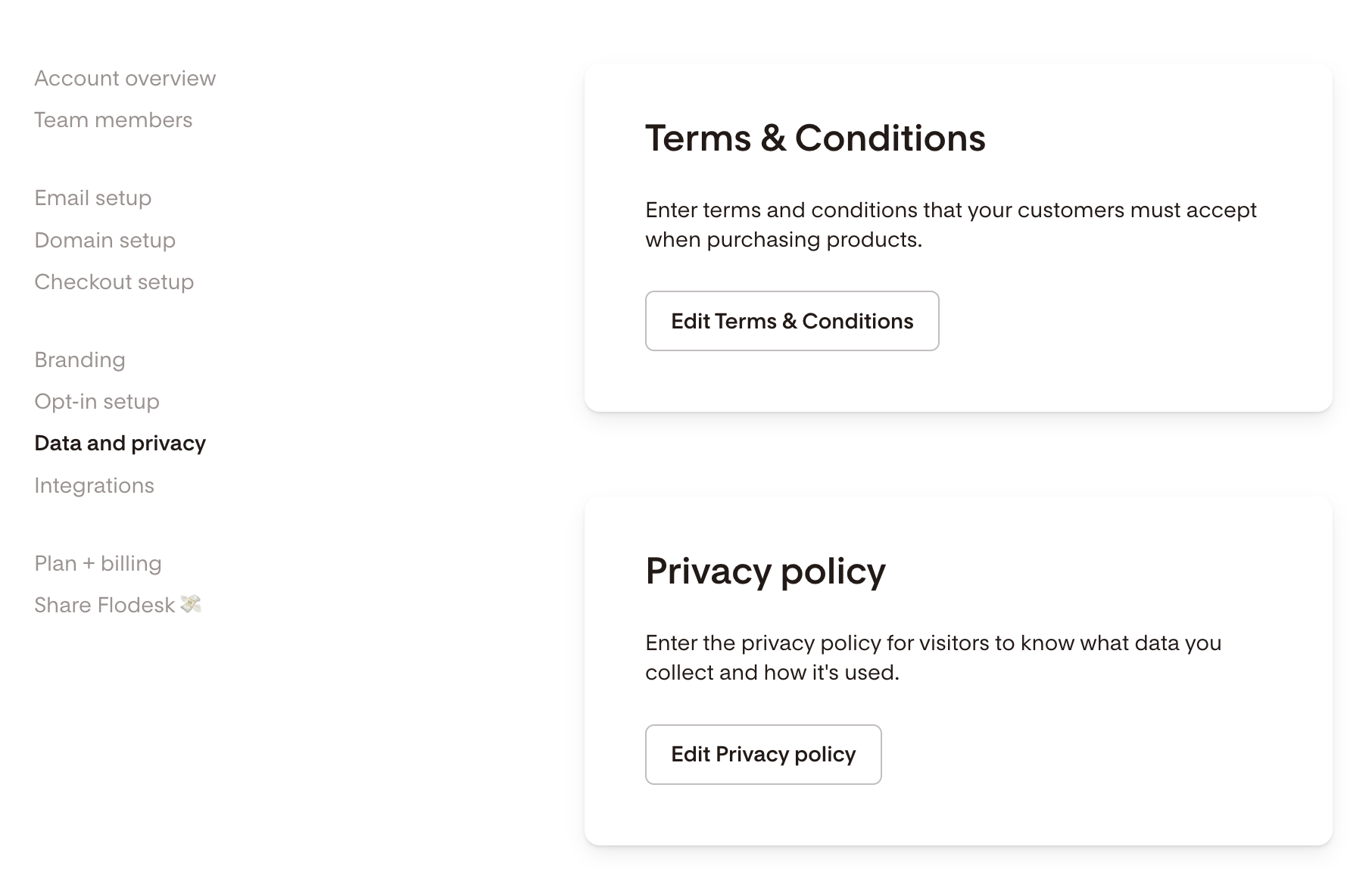
Go to My Account > Data and privacy
Click Edit Terms & Conditions
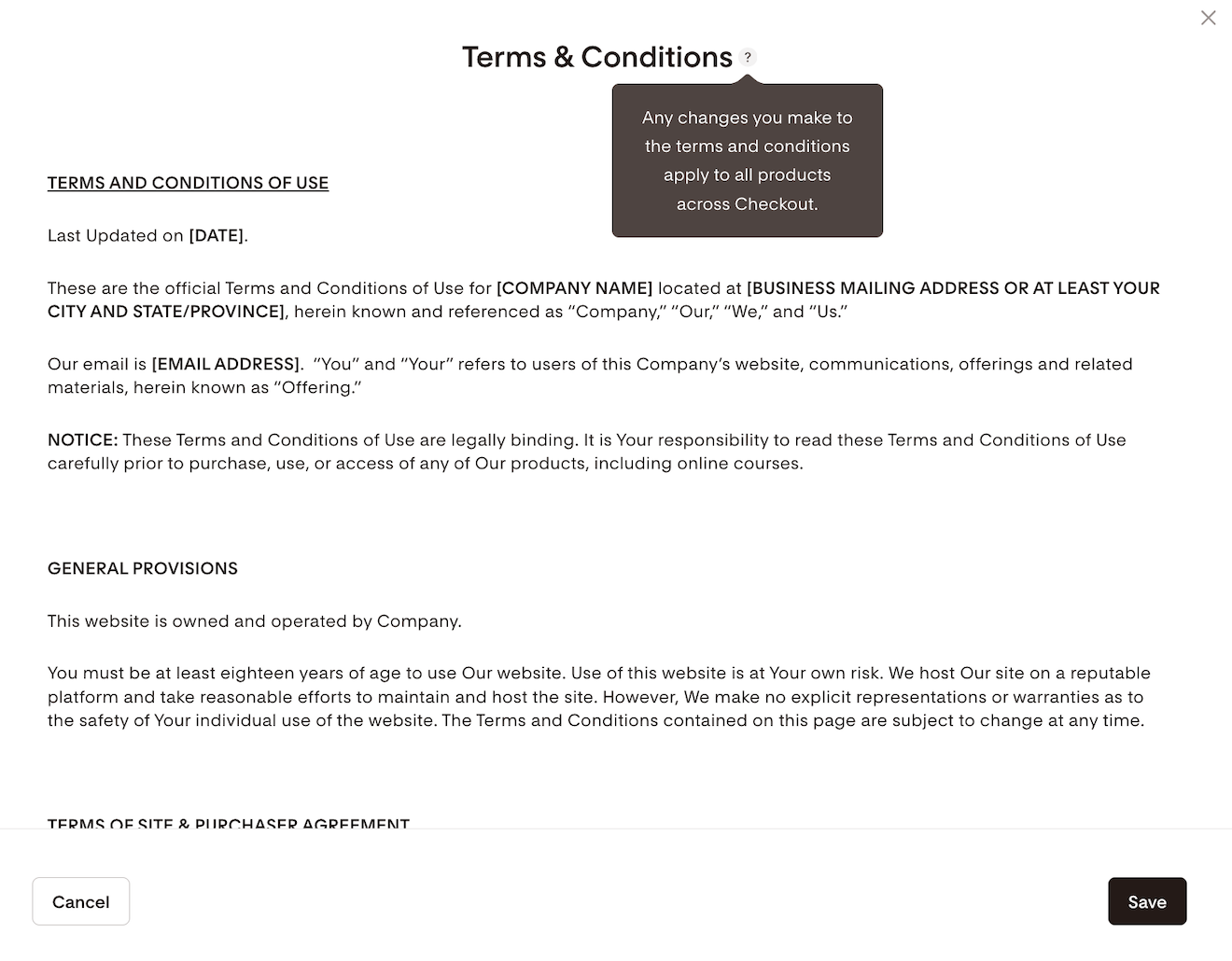
If you don't have a Terms and Conditions document yet, Flodesk provides a generic template to get you started. Replace the highlighted placeholder values at the top with your business information and edit the document as needed, including adding your refund policy.
If you already have your own Terms and Conditions, delete the preloaded version and paste in your own.
Click Save when you're done.
How to enable your Terms & Conditions in Flodesk Checkout
Go to the Checkout dashboard and select a Checkout to edit it
Click Setup > Advanced
Toggle ON the Terms & Conditions and the Privacy policy
You can also make acceptance required, which adds a mandatory checkbox before buyers can complete their purchase
How to add your refund policy to your sales page
You can also add your refund policy directly on your checkout sales page so buyers see it before they reach the checkout step.
Open your checkout and go to the Sales page tab in the editor
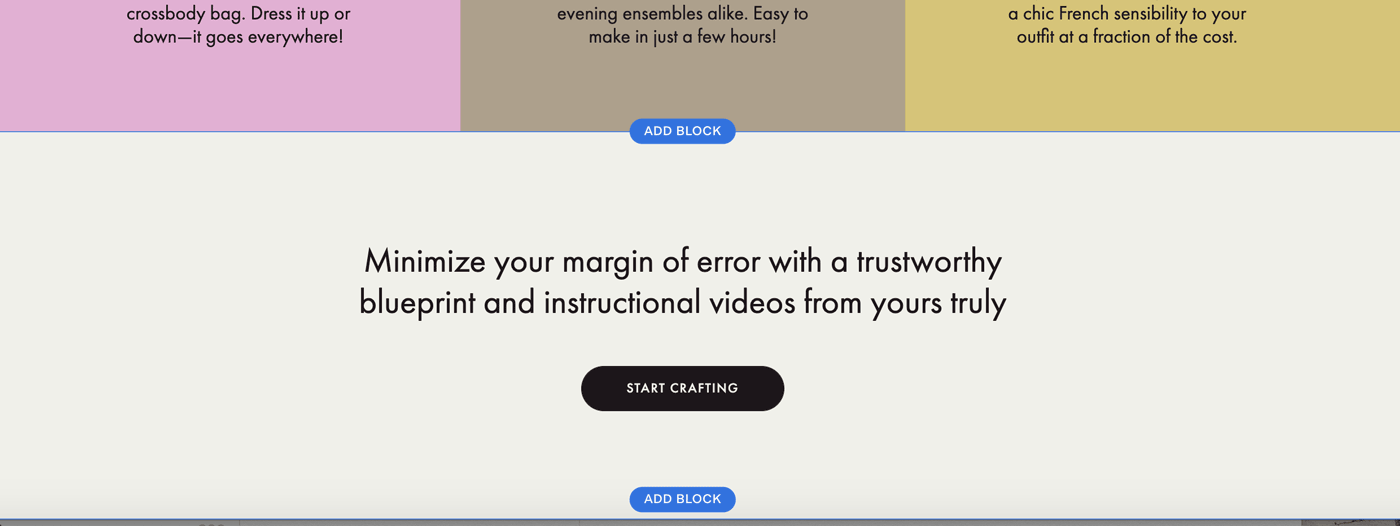
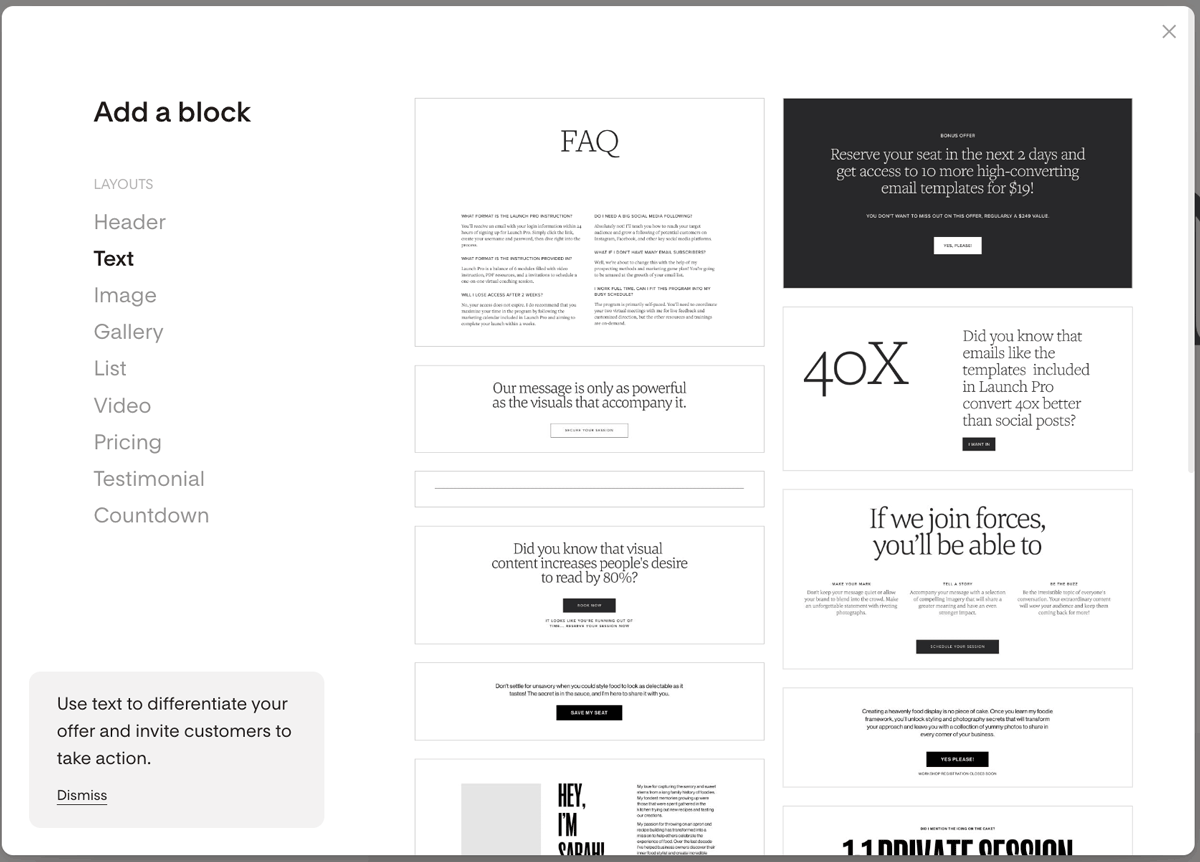
Click Add block at the point on the page where you want the refund policy to appear
Choose a Text block from the available options
Edit the text block to include your refund policy
You can place this block anywhere on the sales page, such as near the bottom before the checkout button, so it's visible without being intrusive.
FAQ
Where do I add my refund policy in Flodesk?
There are two recommended places: your Terms and Conditions (go to My Account > Data and privacy > Edit Terms & Conditions) and your checkout sales page (add a Text block via the Add block button in the sales page editor). Adding it to both means buyers are more likely to see it before purchasing.
Does Flodesk have a Terms and Conditions template I can use?
Yes. If you don't have your own Terms and Conditions document, Flodesk provides a generic template. Go to My Account > Data and privacy and click Edit Terms & Conditions. Replace the highlighted placeholder values with your own business information and edit the document to include your refund policy. If you already have your own Terms and Conditions, you can delete the preloaded version and replace it entirely with yours.
Can I write my own Terms and Conditions instead of using Flodesk's template?
Yes. In My Account > Data and privacy, delete the preloaded Terms and Conditions and paste in your own document. Save your changes when done.
Can Flodesk help me write my refund policy or Terms and Conditions?
No. Flodesk can't provide legal advice. For guidance on what your Terms and Conditions and refund policy should include, consult with an attorney who can advise based on your business type and local laws.
Will buyers see my Terms and Conditions during checkout?
Yes, if you've enabled them. To turn them on, go to your Checkout dashboard, select the checkout you want to edit, and go to Setup > Advanced. Toggle on Terms & Conditions and Privacy policy. You can also turn on the required acceptance option, which adds a mandatory checkbox that buyers must check before they can complete their purchase.
Is it necessary to add the refund policy to the sales page as well as the Terms and Conditions?
It's not required, but it's good practice. Including it on the sales page means buyers see it before they even reach the checkout step, which sets clear expectations early and can reduce disputes.