
How to customize the delivery page in Flodesk Checkout
Overview
After a customer completes a purchase, they land on your delivery page. This is a built-in page where they can access their product, view their order details, and see what to do next. You can customize it to match your brand and tailor it to your product type, whether that's an ebook, a workshop, a digital template, or a service.
This article walks you through each block on the delivery page and how to edit it.
What is the delivery page?
The delivery page is the first thing your customer sees after checkout. It acts as a hub for:
Accessing or downloading their product
Viewing their order confirmation and summary
Receiving next steps or special instructions
Accessing any bonus items or upsell content they purchased
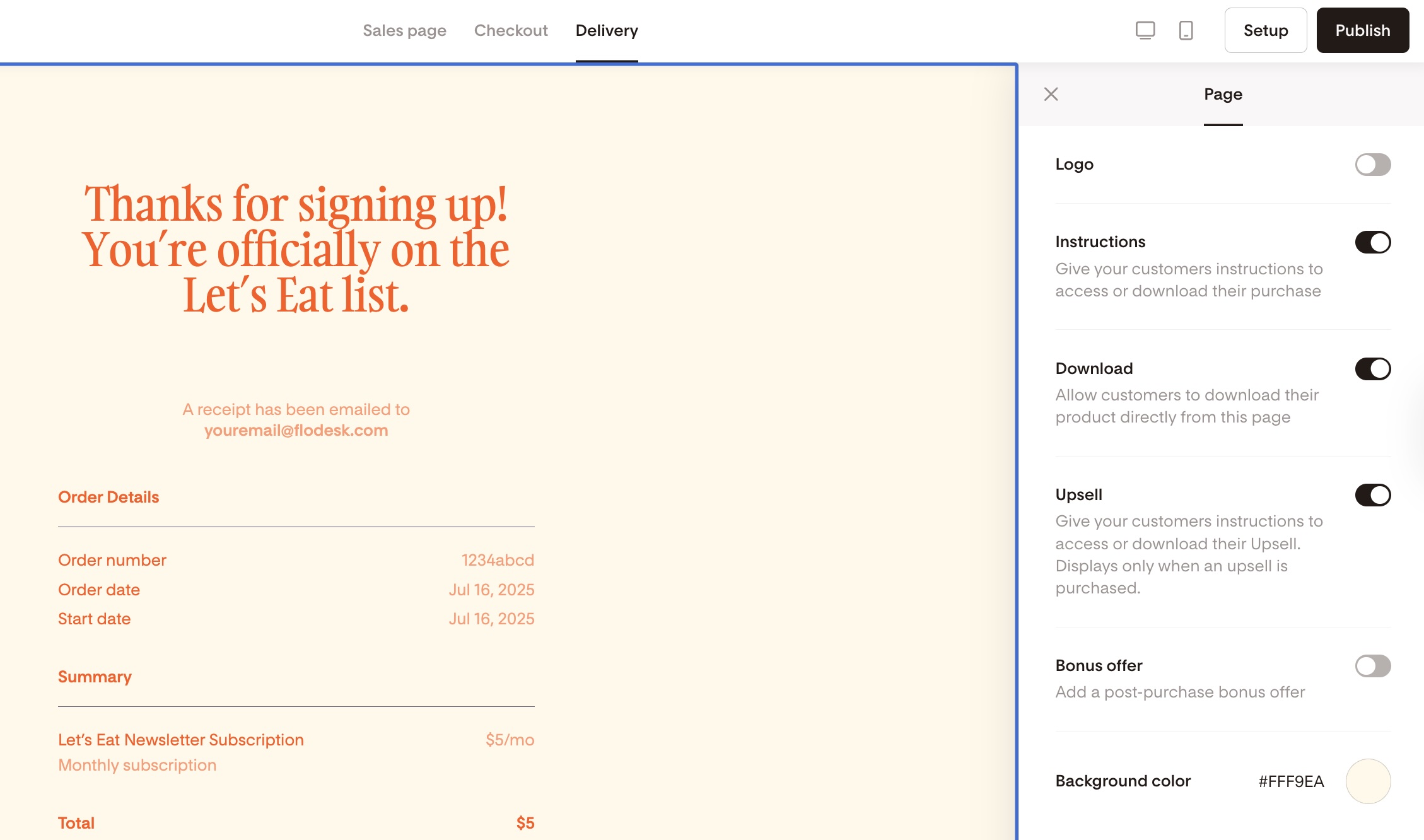
Most blocks on the page can be turned on or off and styled to fit your brand. The only exception is the Receipt block, which is required and can't be removed.
How to edit your delivery page
To get started, open your checkout and click the Delivery tab at the top of the editor. From there, you can customize each block below.

Logo block
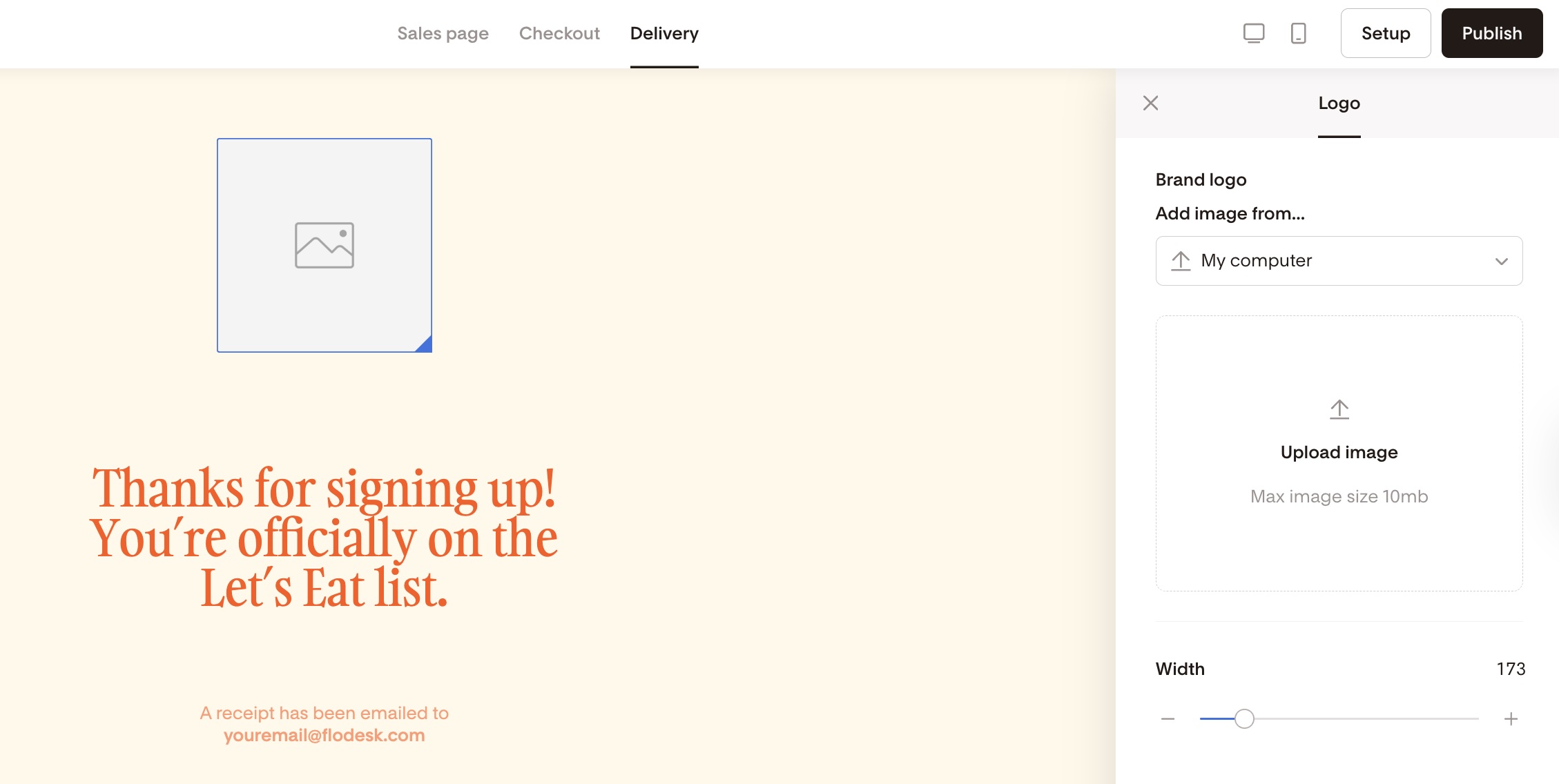
Add your logo to the top of the delivery page to keep your branding consistent from checkout through to delivery.
Click the logo block at the top of the page
Upload your logo (maximum file size: 10 MB)
Use the width slider to resize it
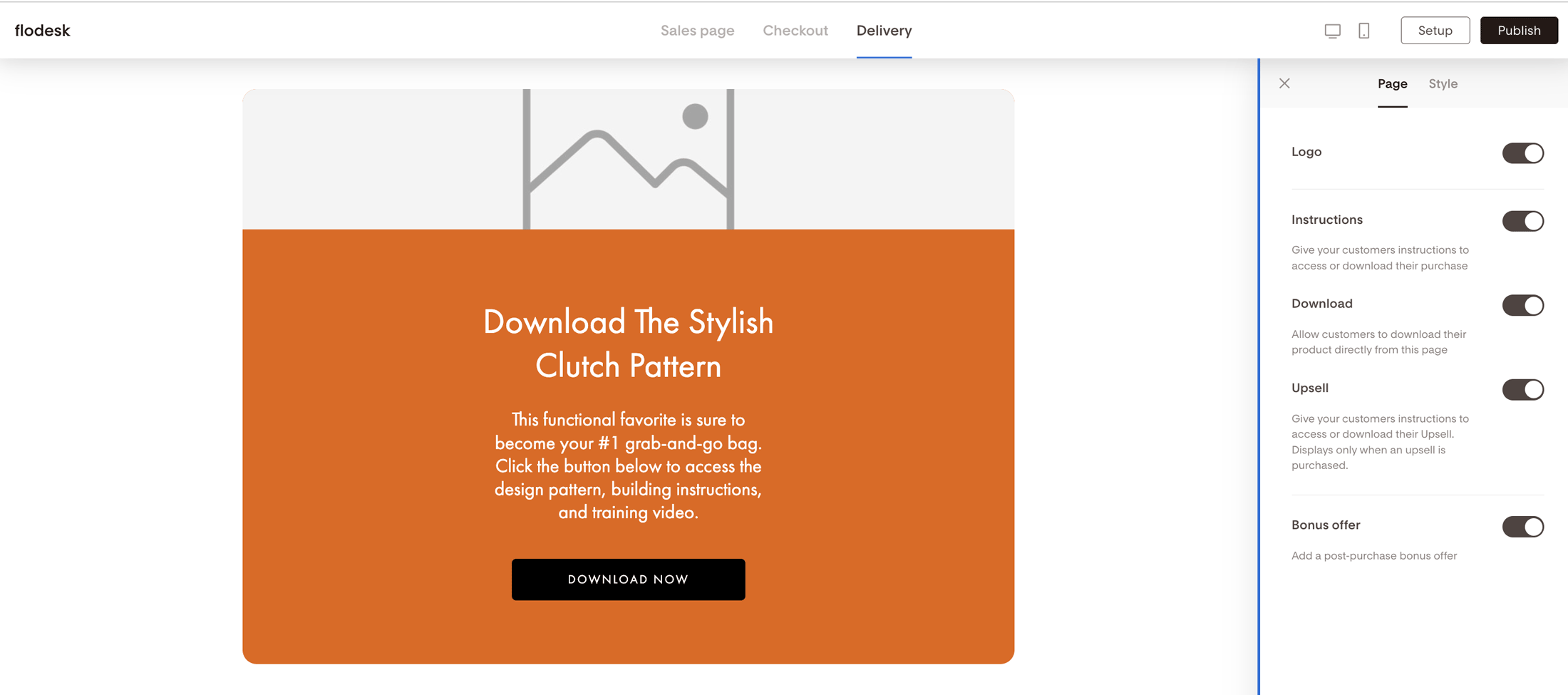
To hide the logo, click the background area to open Page settings and toggle it off
Receipt block
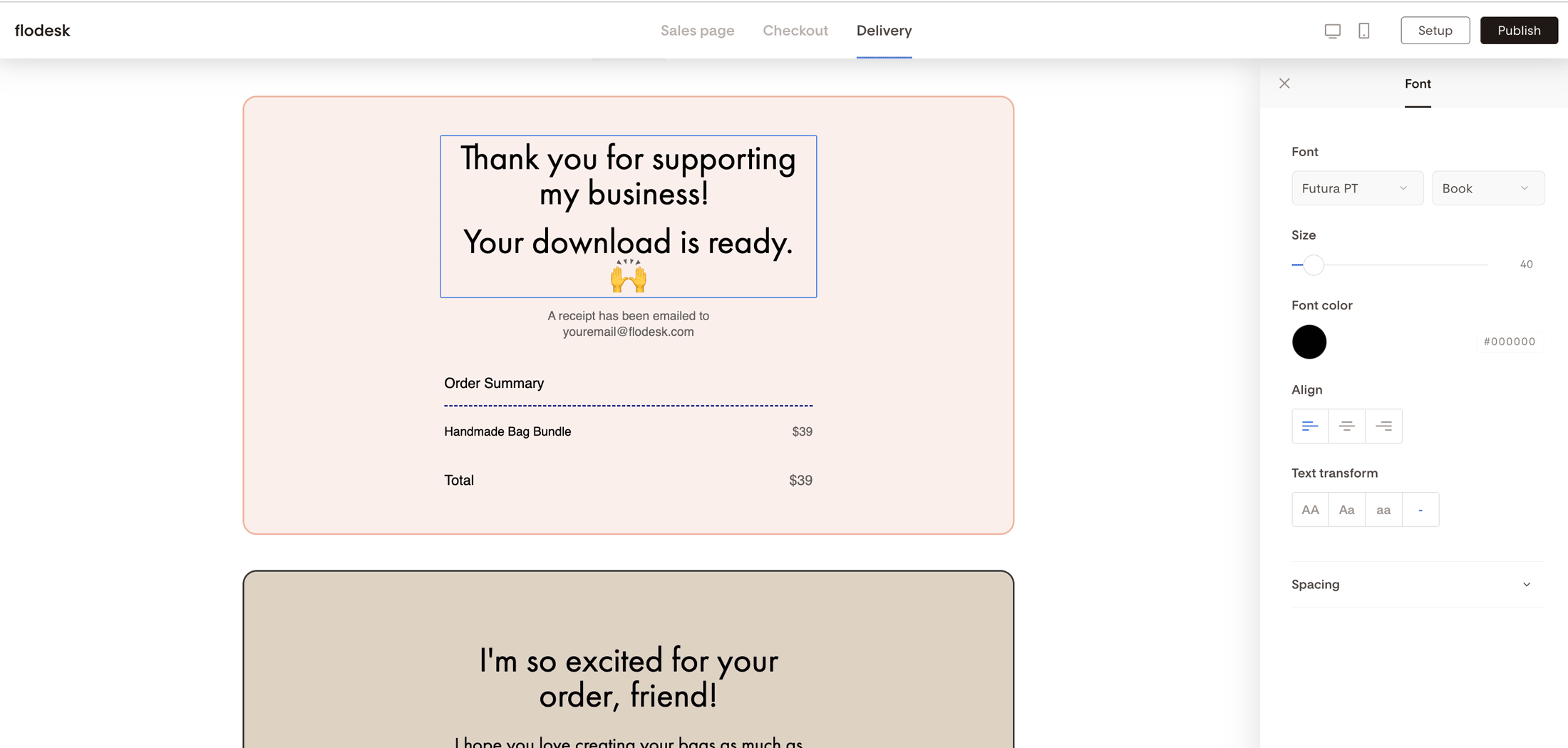
This block confirms the customer's order and is automatically generated. It includes the product image (optional), order summary (auto-generated), and itemized pricing details (non-editable).
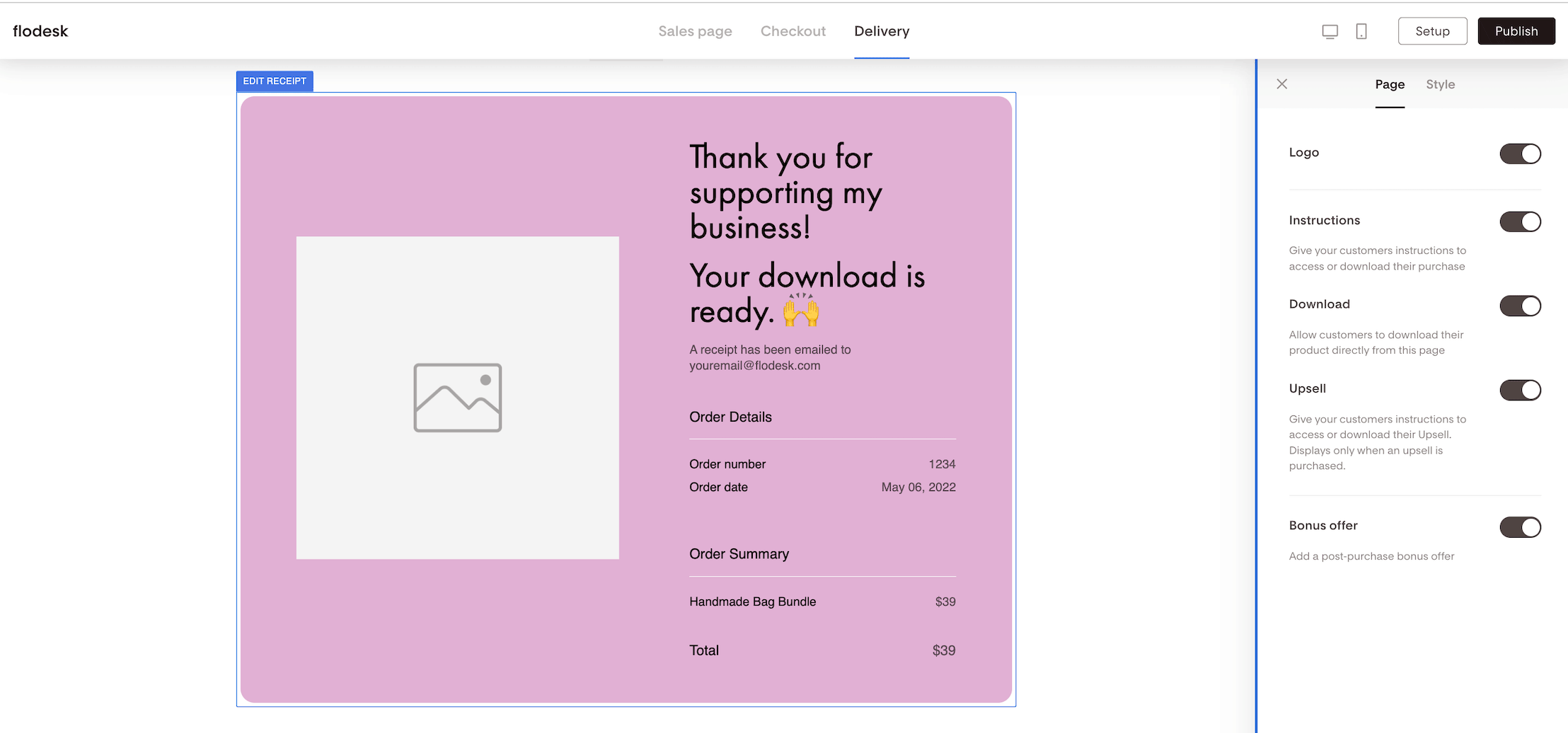
Note: the Receipt block is required and can't be removed from the delivery page. You can, however, customize its appearance:
Background and text color
Block border and divider line
Section title font, size, and alignment
Toggle the product image on or off under Block settings
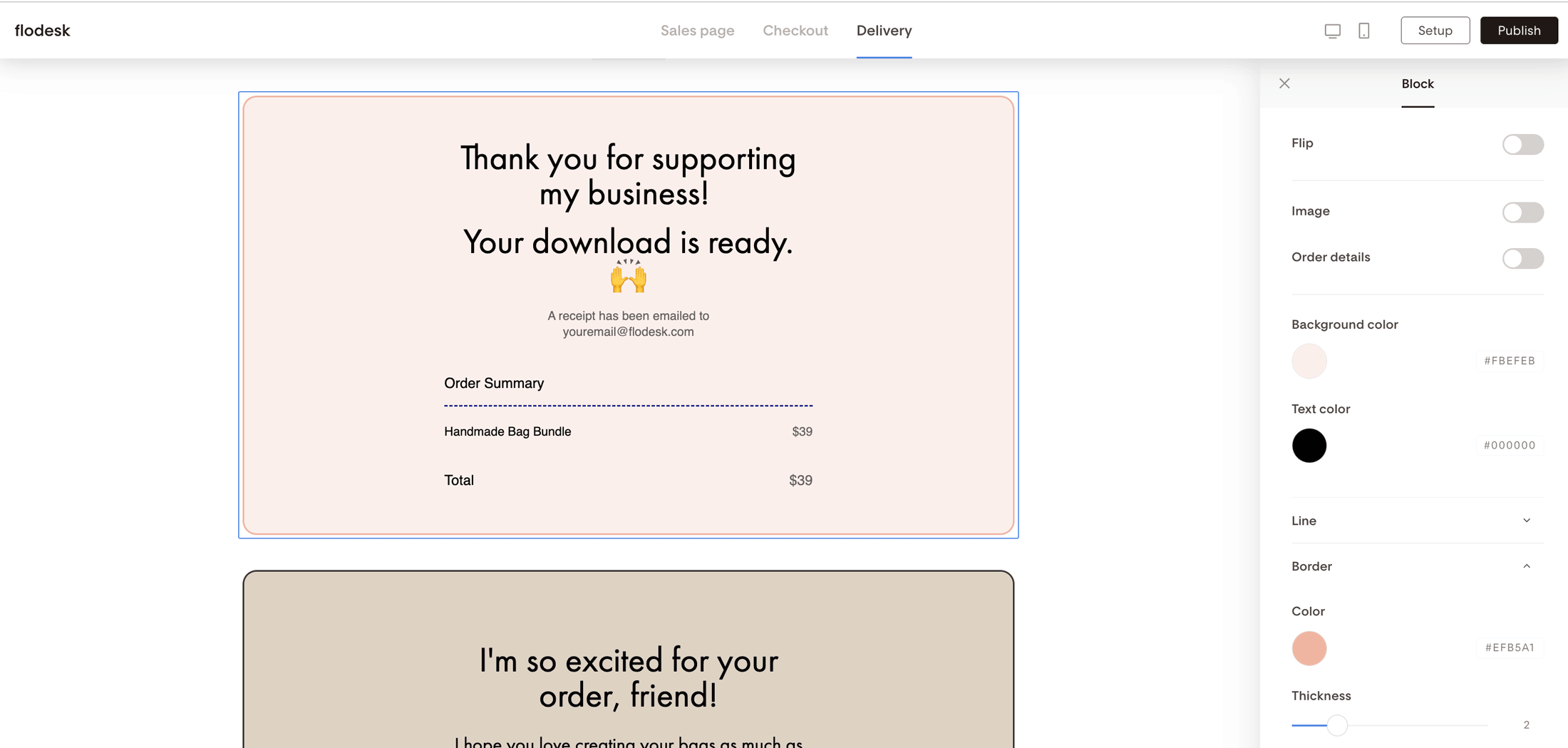
Remember to update any placeholder text so it reflects your brand voice.
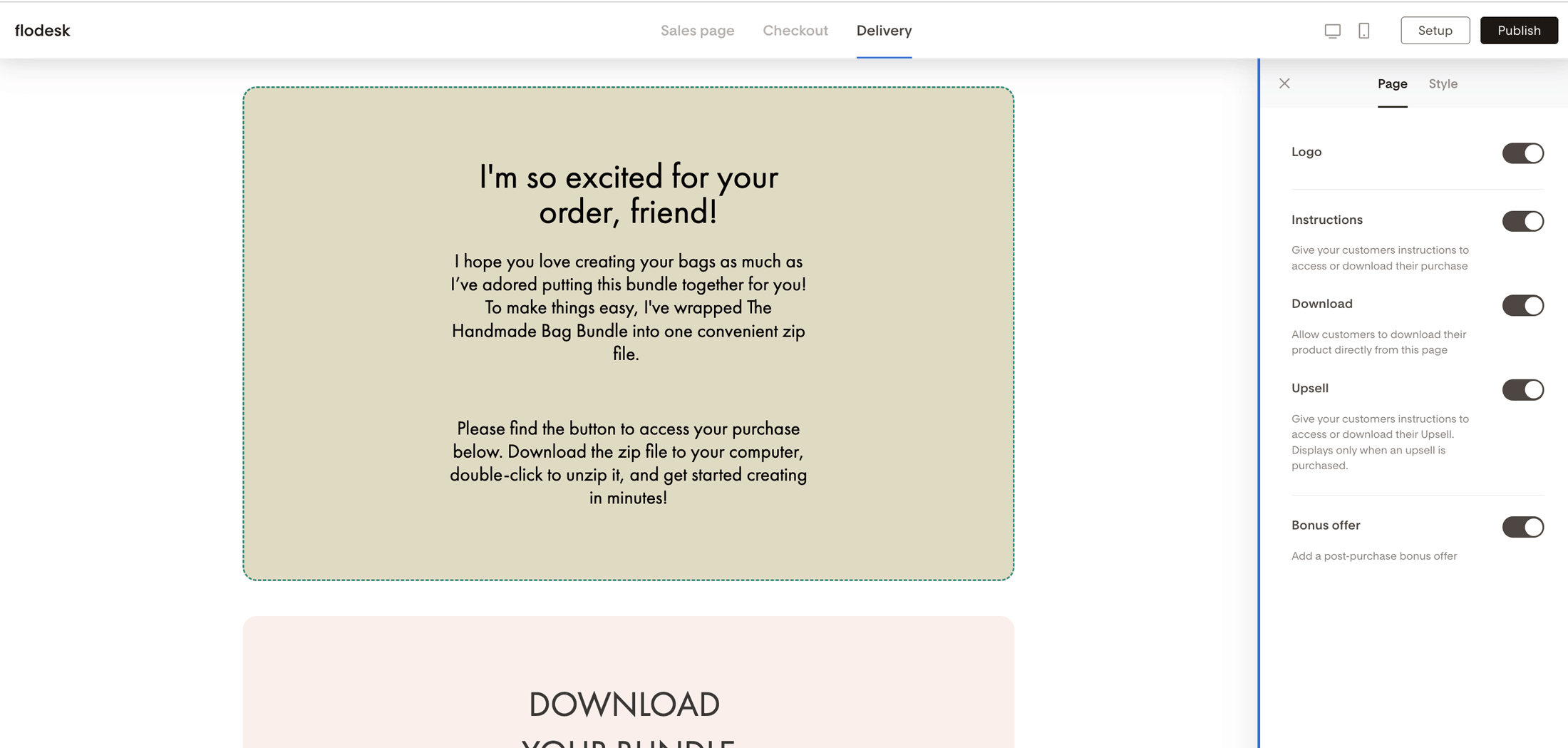
Instructions block
Use this block to tell customers what to do next. It's a good place to include things like how to join a webinar, log in to a course portal, or download a toolkit.
The block includes a header, paragraph, and button. You can remove any of these elements individually under Block settings, or hide the entire block via Page settings.
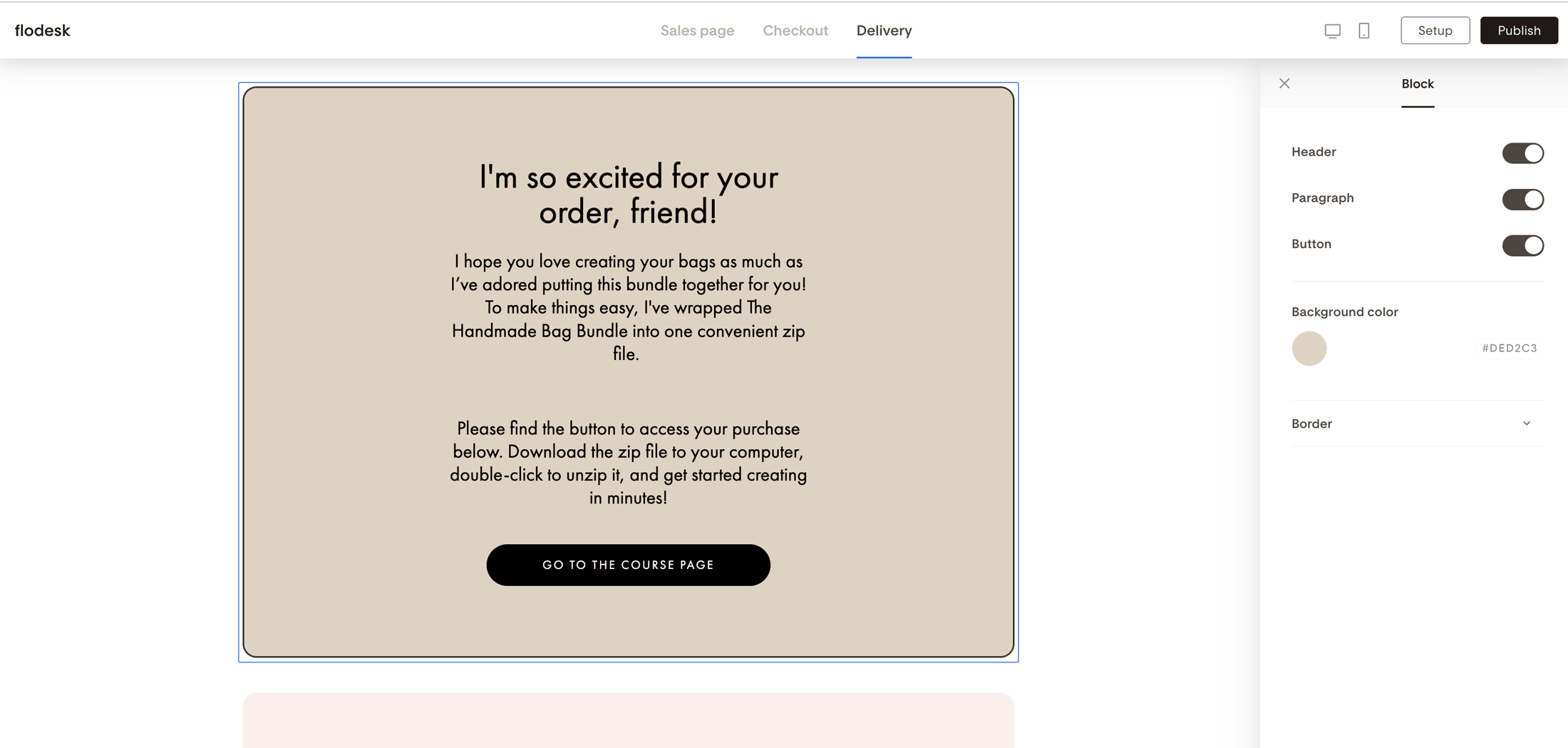
Customization options:
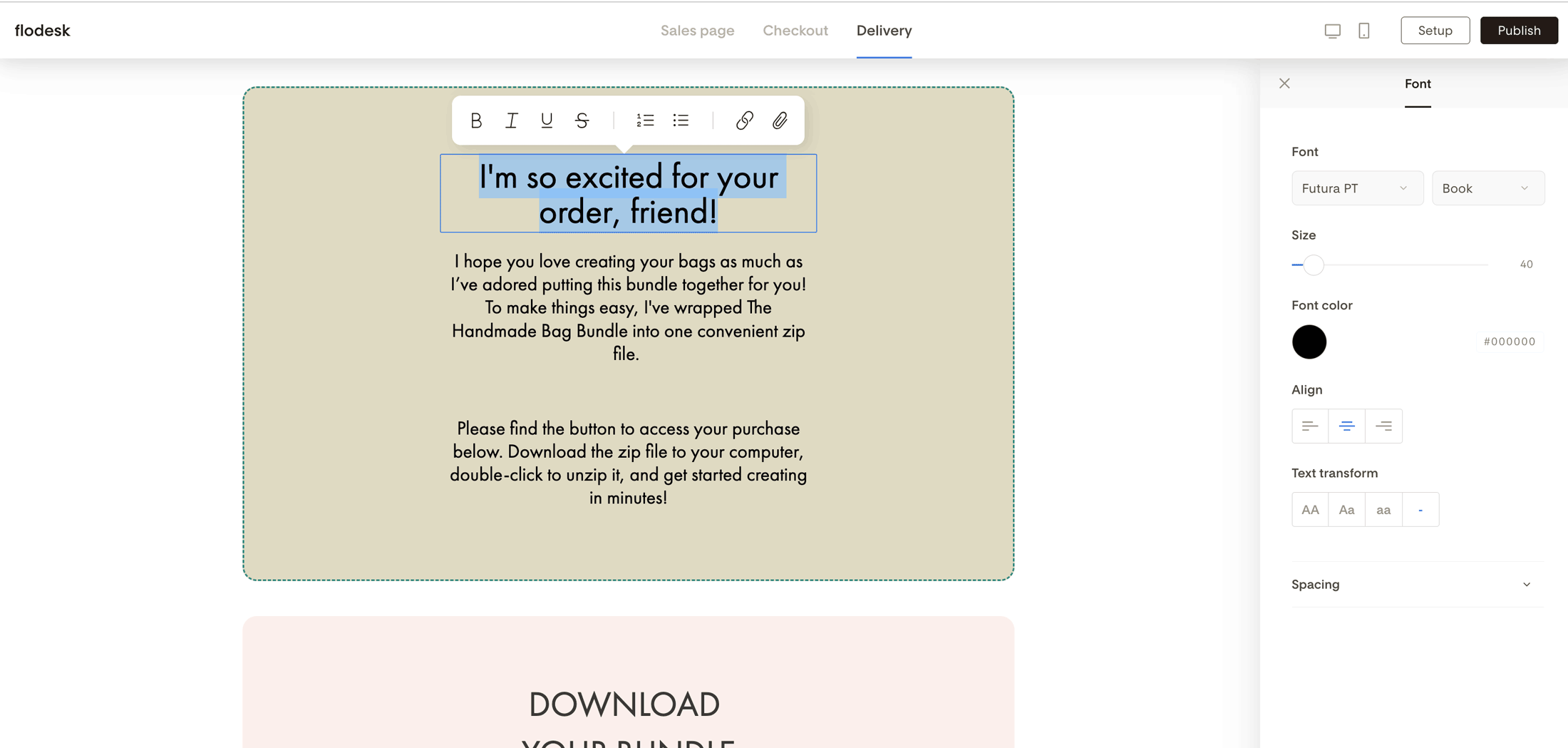
Fonts and colors
Toggle off any elements you don't need
Edit the placeholder text to match your message
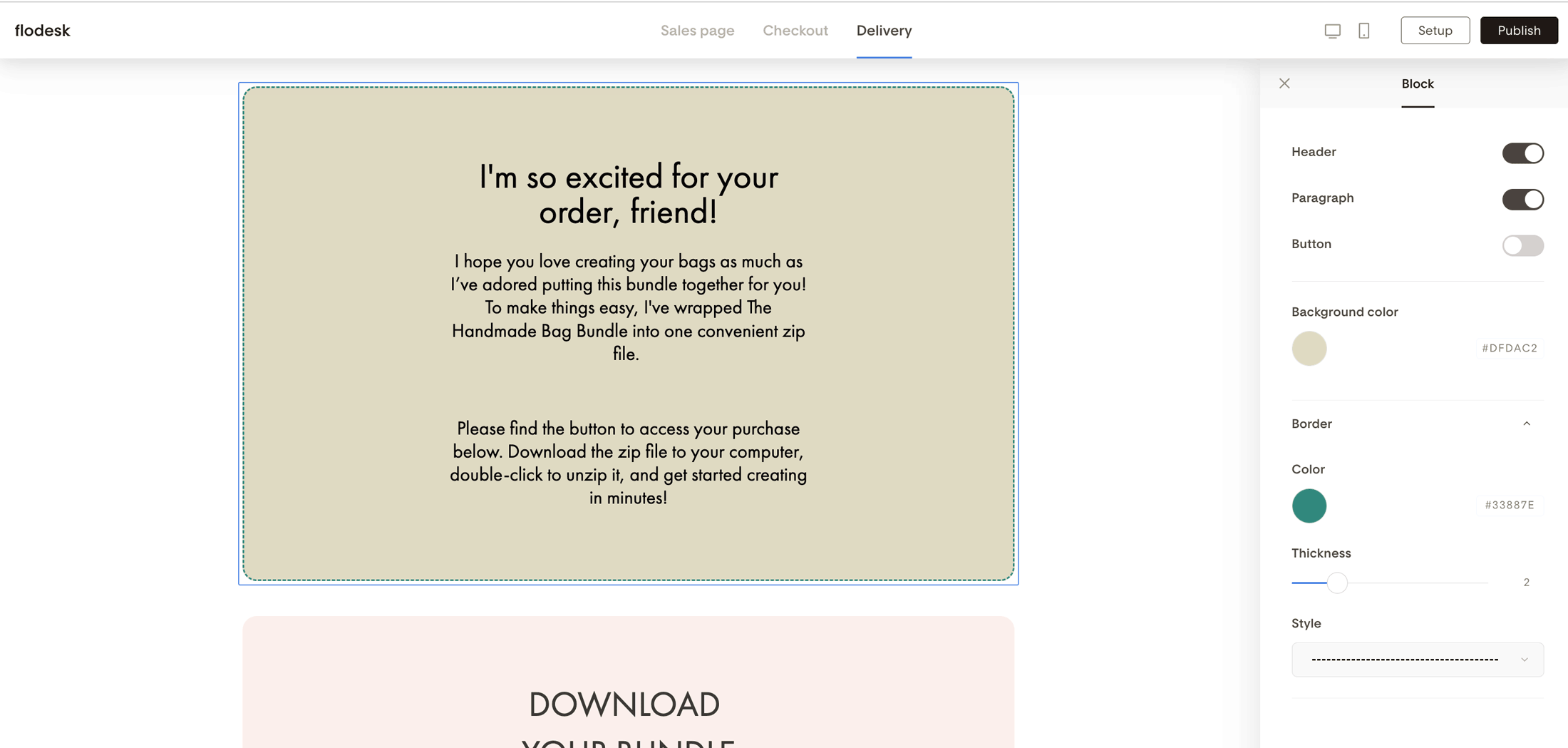
Note: You can hide the entire Instructions block on your delivery page by toggling it off under Page settings.
Download block
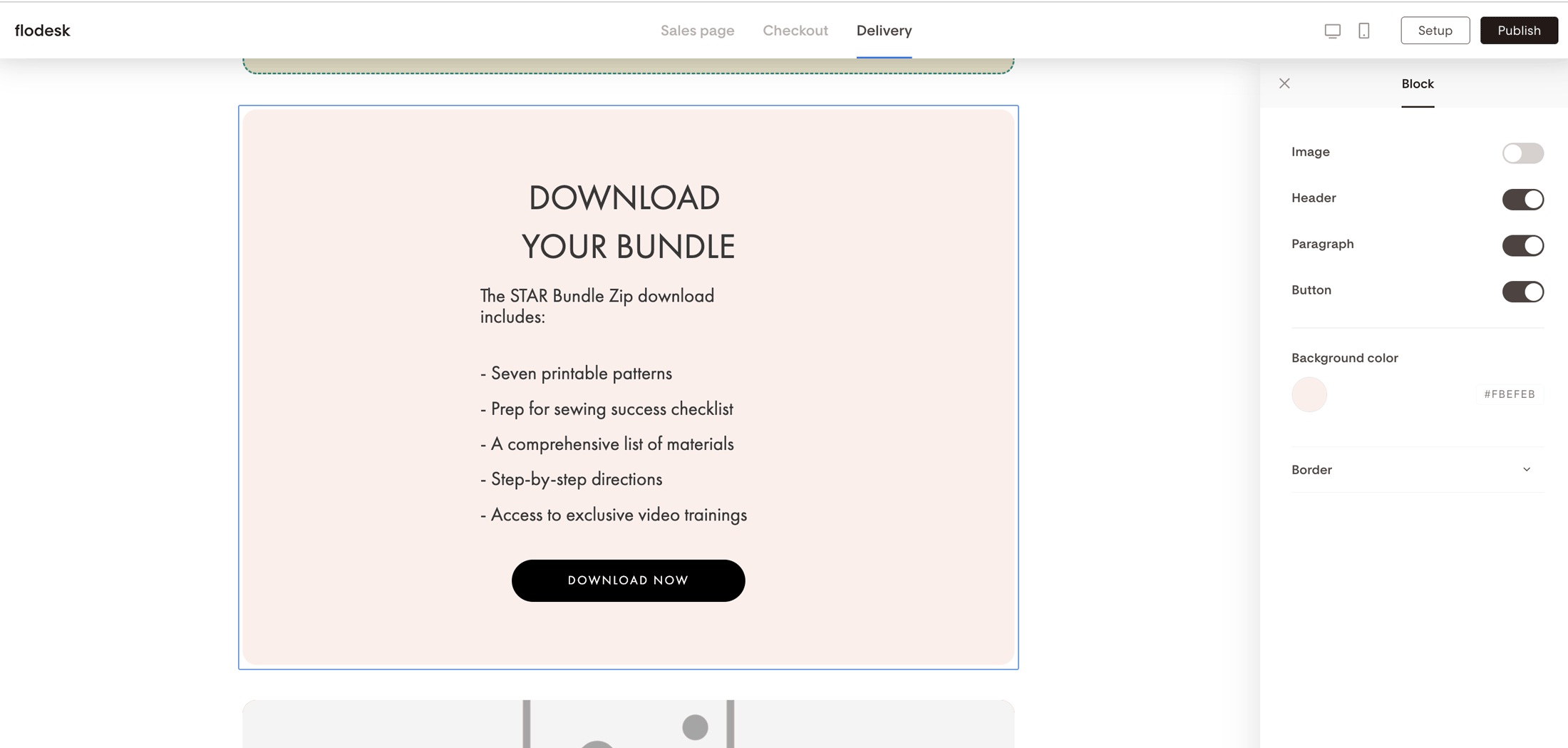
If your product is a digital file, this block gives customers a direct way to download it from the page.
The block includes a product image, header, paragraph, and a call-to-action button.
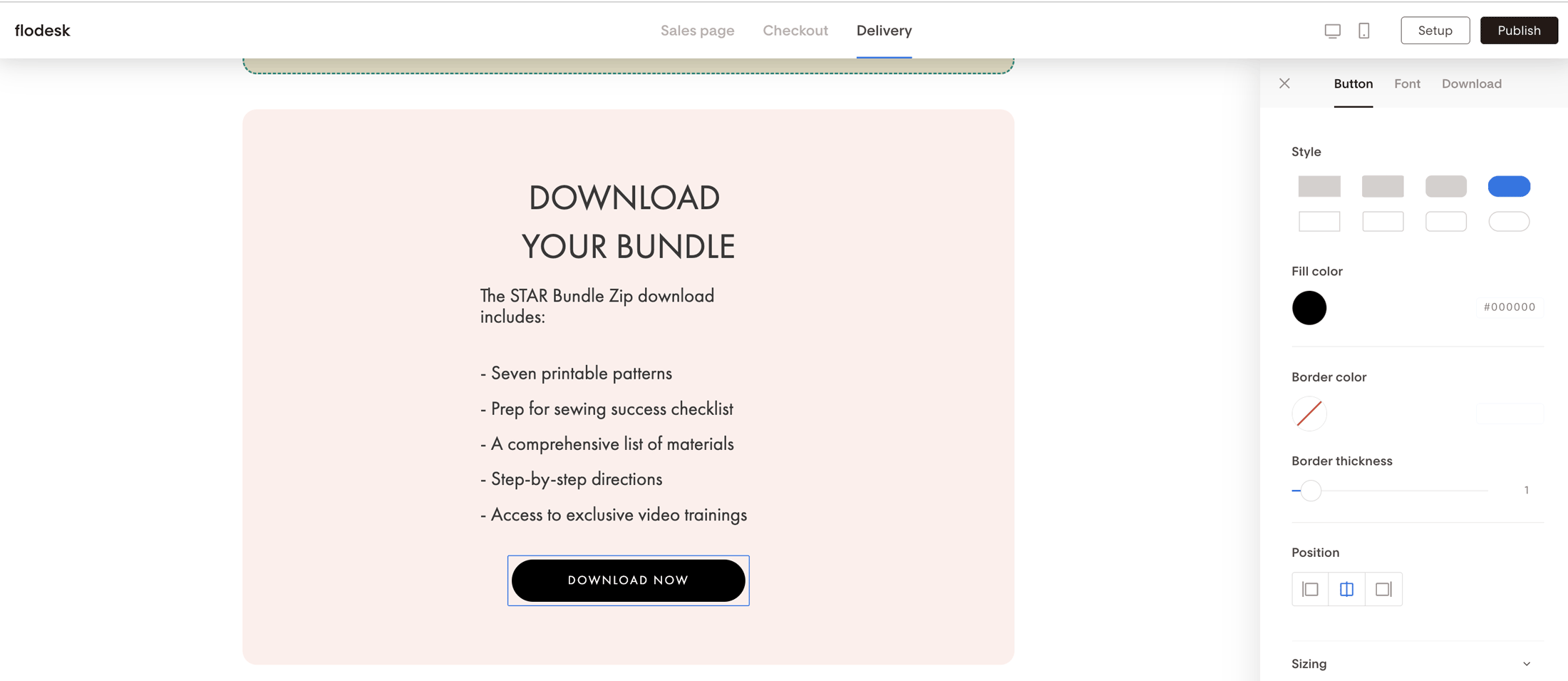
To set it up:
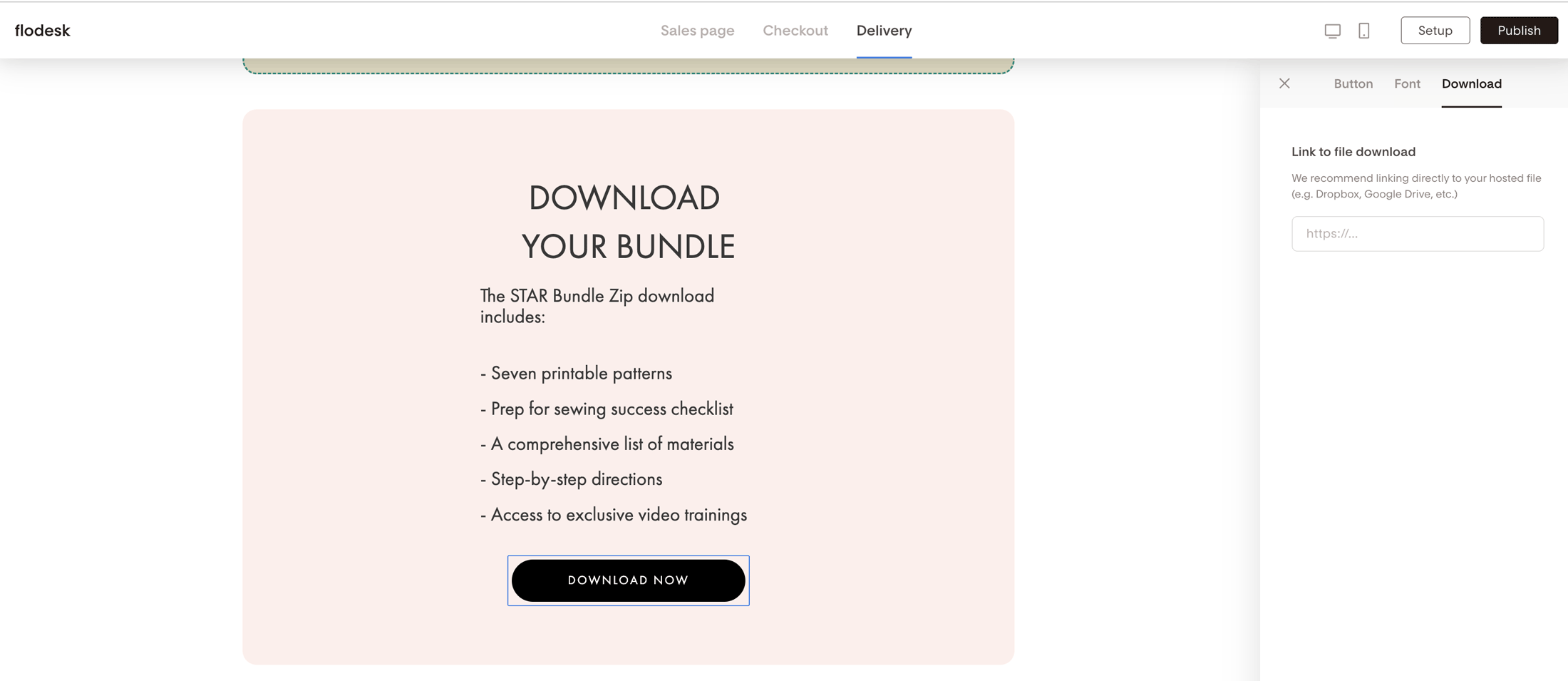
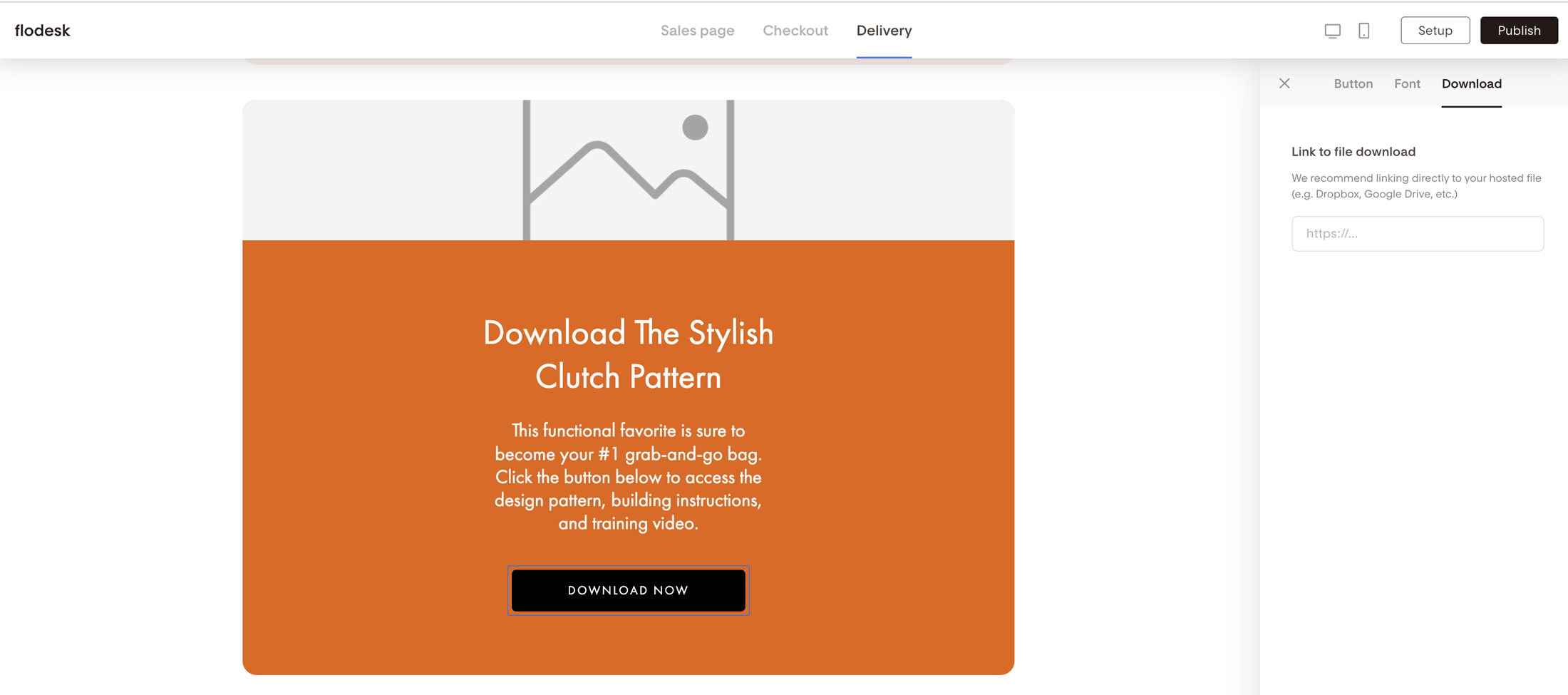
Link the download button to your hosted file (for example, a Dropbox or Google Drive link)
Make sure your download link starts with https://
Adjust fonts and styling to match your brand
Remove any elements you don't need under Block settings
Upsell block (optional)
This block only appears to customers who purchased an upsell. Customers who bought only your main product won't see it.
Use it to deliver bonus content, onboarding instructions, or a thank-you message for upsell buyers. It includes an image, header, paragraph, and a button linked to the upsell download.
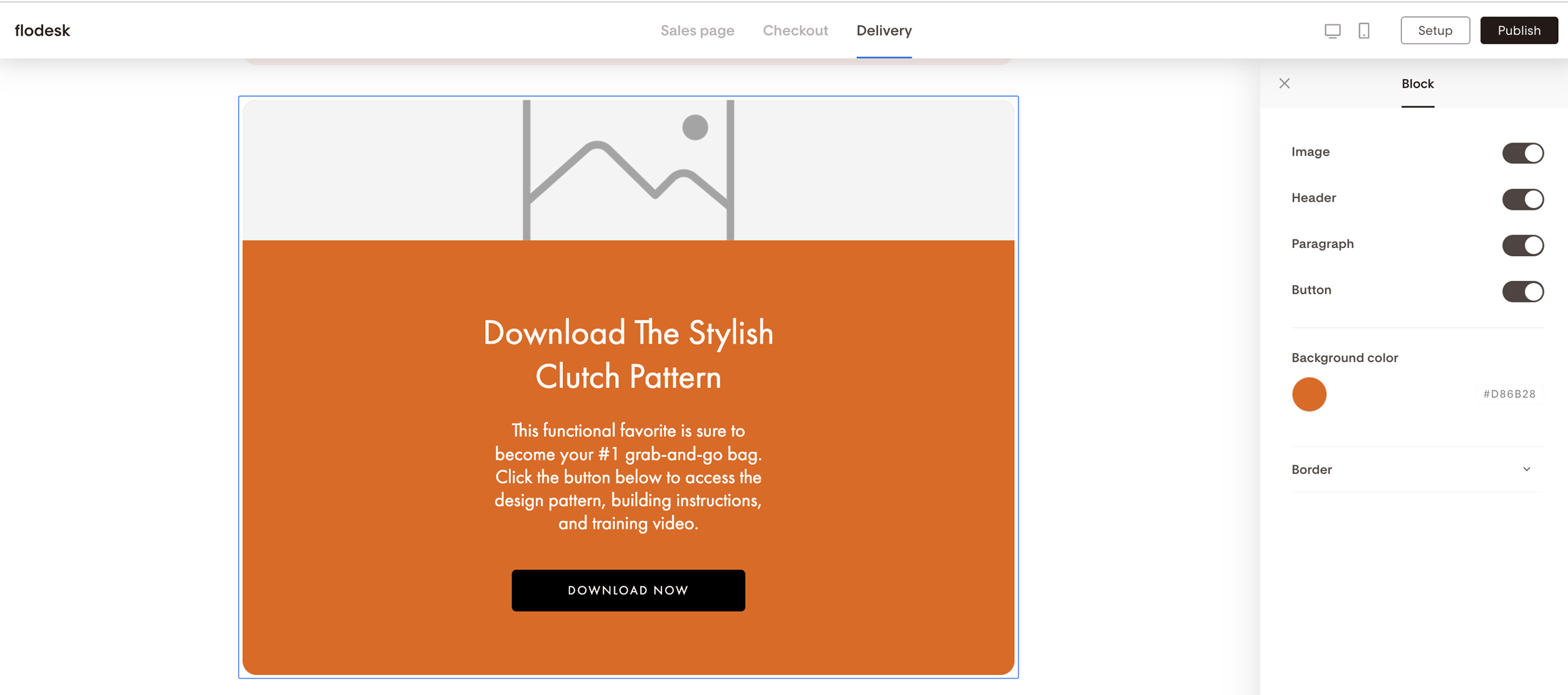
To set it up:
Link your upsell file under the CTA button's Download tab
Style it the same way you would the Download block
If you're not using upsells, you can disable this block via Page settings
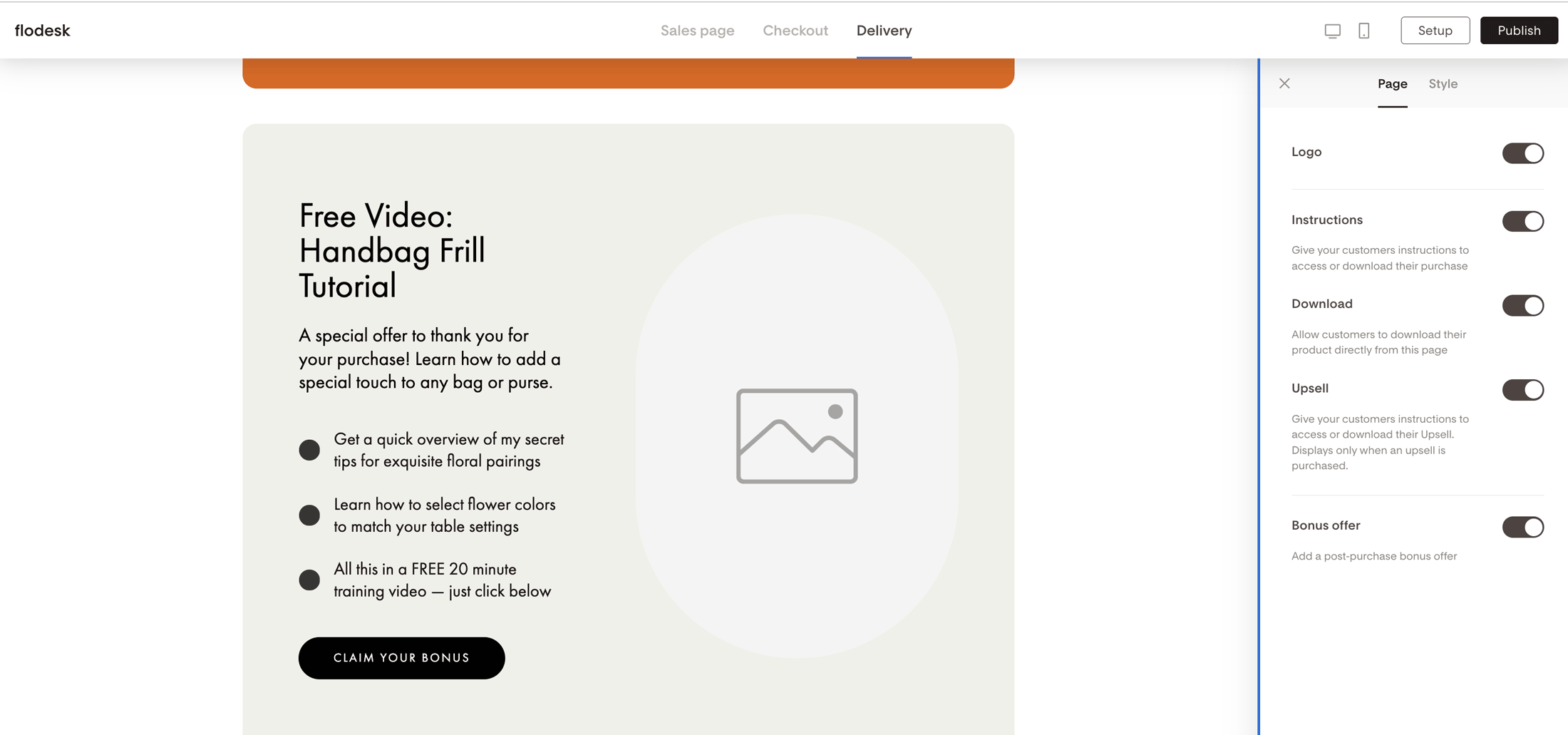
Bonus offer block (optional)
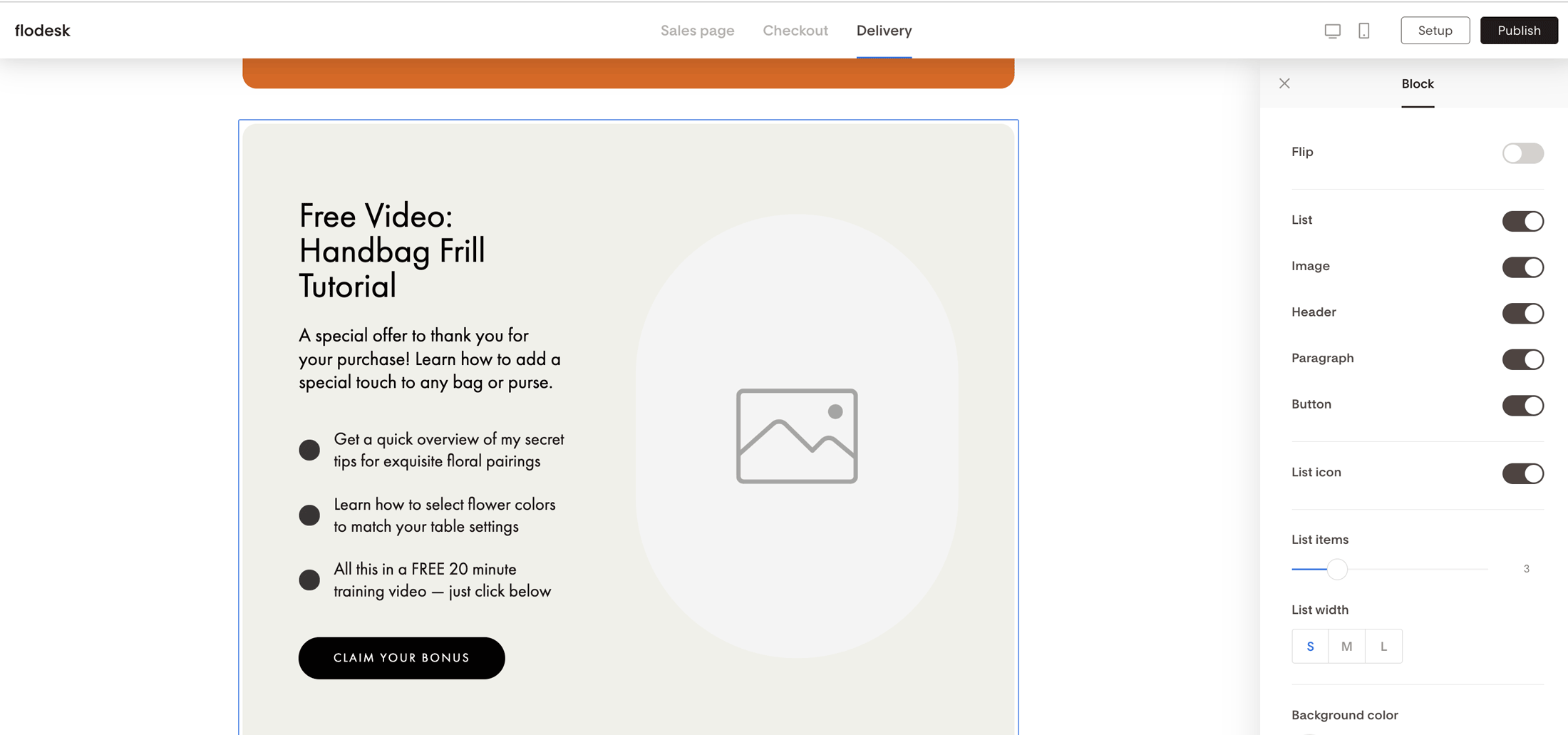
The Bonus offer block is a great way to give customers a little extra, such as an exclusive guide, a playlist, or any additional content you want to include.
The block includes a header, paragraph, a customizable list of items, an image, and a button.
You can:
Customize the list design and width
Link the button to your bonus content
Turn this block off anytime in Page settings
FAQ
What is the delivery page in Flodesk Checkout?
The delivery page is the page your customer sees immediately after completing a purchase. It's where they can access or download their product, view their order confirmation, read any next-step instructions, and see bonus or upsell content. You can fully customize it to match your brand.
Can I remove the Receipt block from the delivery page?
No. The Receipt block is required and can't be removed. It contains the order confirmation and itemized pricing details that your customer needs after purchase. You can customize its appearance (colors, fonts, borders, and whether the product image shows), but the block itself will always be there.
How do I add a download link to my delivery page?
Go to the Download block on your delivery page and click the call-to-action button. Link it to the hosted file you want customers to access, such as a Dropbox or Google Drive link. Make sure the link starts with https:// before saving.
Will all customers see the Upsell block?
No. The Upsell block only appears to customers who purchased an upsell. Customers who bought only the main product won't see it at all.
How do I hide a block on my delivery page?
Click the background area of the delivery page to open Page settings. From there, you can toggle individual blocks on or off. The only block that can't be hidden is the Receipt block.
Can I customize the text on my delivery page?
Yes. Every block that includes text (the Instructions block, Download block, Upsell block, and Bonus offer block) has editable placeholder text. Click into any text element to update it with your own copy, instructions, or brand voice.
What's the difference between the Instructions block and the Download block?
The Instructions block is for communicating next steps, such as how to join a webinar, access a course, or get started with your product. The Download block is specifically for giving customers a button to download a digital file. You can use both, either, or neither depending on your product type.
Where do I find the delivery page editor?
Open your checkout in Flodesk and click the Delivery tab at the top of the editor. All the blocks for your delivery page are managed from there.
Can I use the delivery page for non-digital products or services?
Yes. You can turn off blocks that don't apply (like the Download block) and use the Instructions block to share whatever your customer needs to know next, such as how to book a call, what to expect, or how to get in touch.