
Mobile form builder
Create and edit Full page forms and Link in bio forms right from your phone
Need to launch a form while you’re out and about? You can create, edit, and share Full page forms and Link in bio forms directly from your mobile device — no desktop required.
Just log in to your Flodesk account from your mobile browser, head to your Forms dashboard, and start building.
Good to know: On mobile, you can create and edit Full page forms and Link in bio forms only. To work with Popup or Inline forms, log in from a desktop.
What you can do on mobile
With the mobile form builder, you can:
Create new Full page or Link in bio forms
Edit text, fonts, and colors
Upload images from your phone
Choose or change segments
Edit Link in bio links
Preview and share your form
Customize your form link (URL)
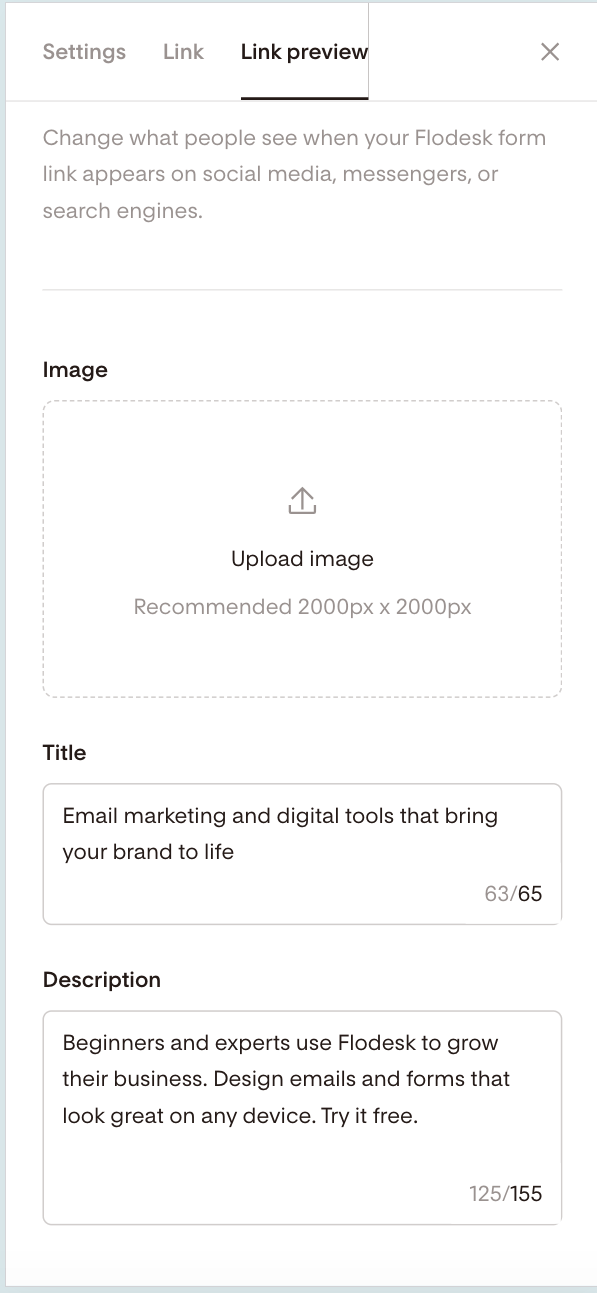
Update link preview (meta image, title, description)
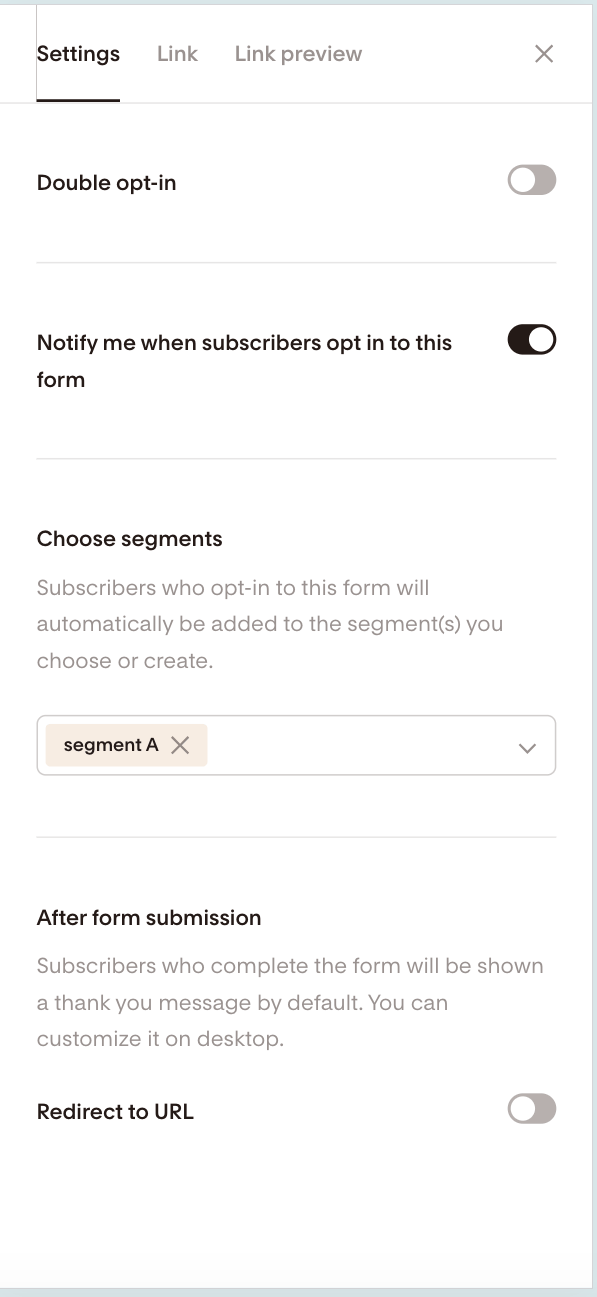
Access key form settings (like double opt-in and notifications)
How to create and publish a full page or link in bio form on mobile
Step 1: Log in and open your Forms dashboard
Open your mobile browser, log in to Flodesk, and tap Forms in the main menu.
Step 2: Tap “+ New form”
At the bottom of the screen, tap the + New form button.
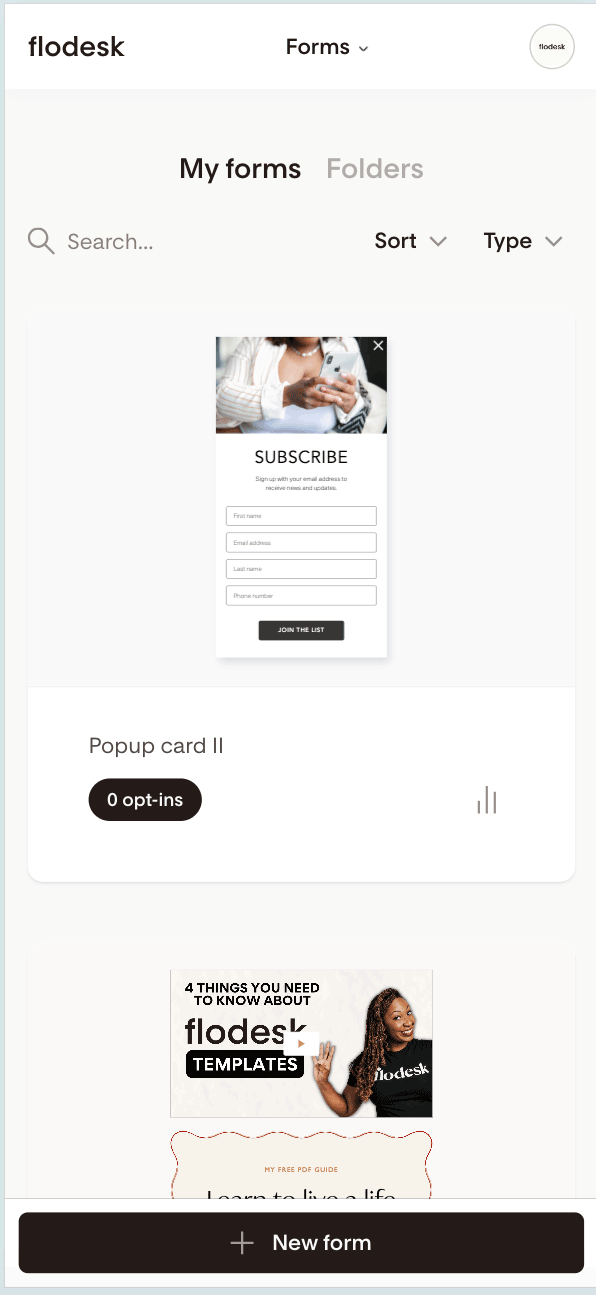
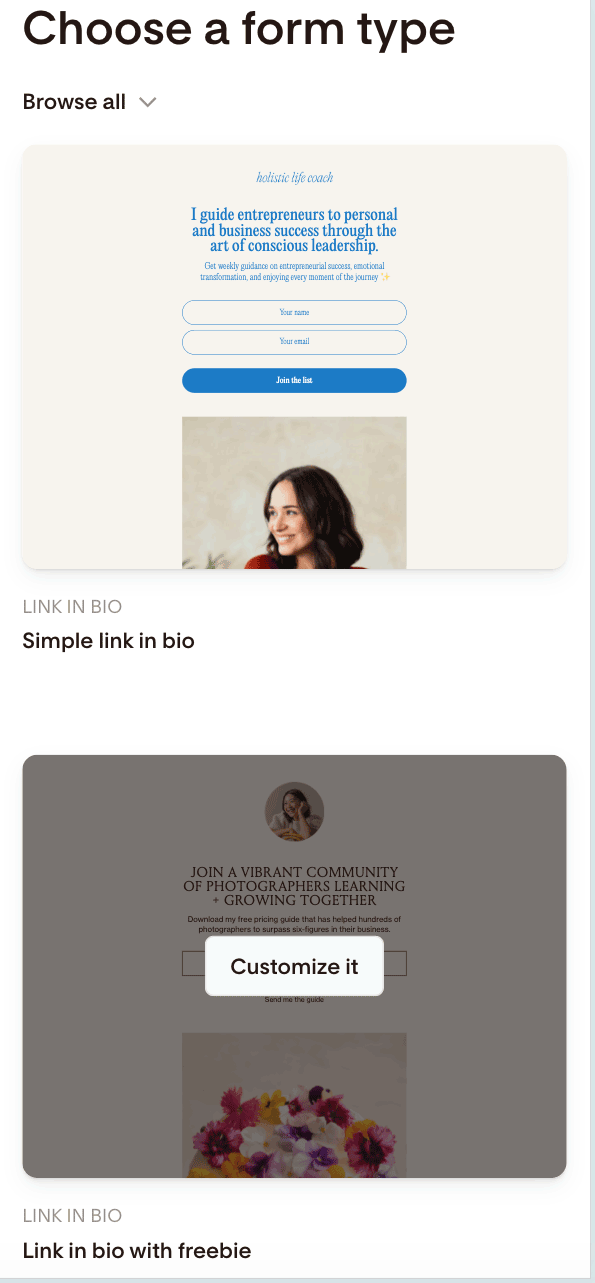
Step 3: Choose a template
Select a Full page form or Link in bio form template.
Tap the template card, then tap Customize it.
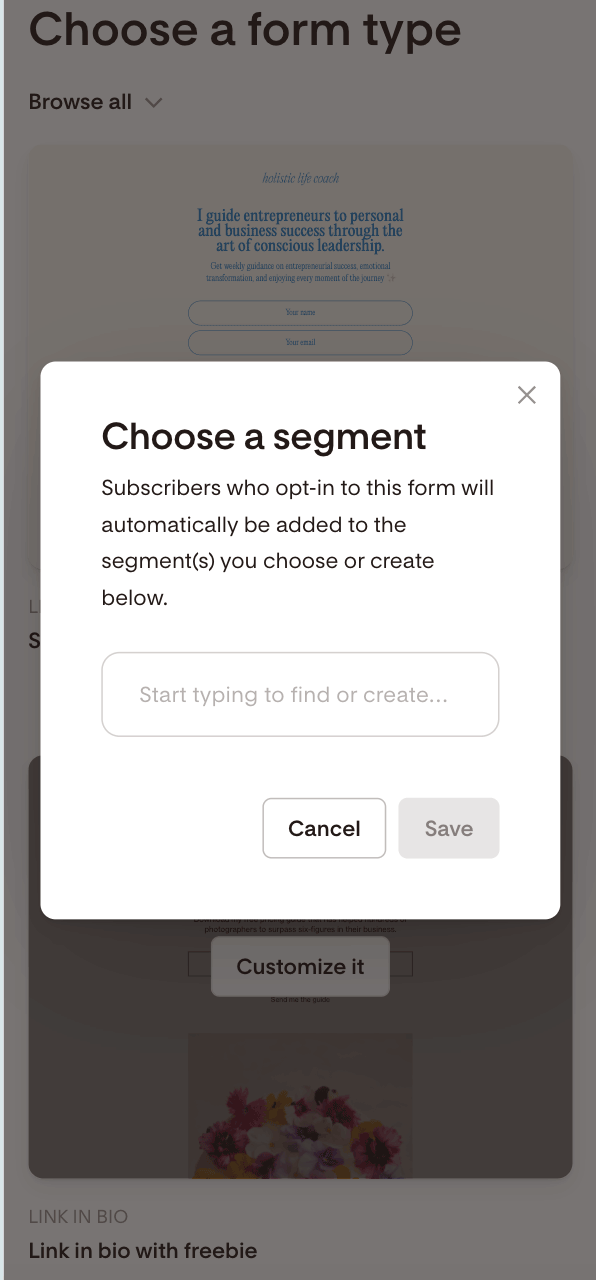
Step 4: Choose a segment
Select the segment where new subscribers should be added.
Anyone who signs up through this form will automatically be added to the segment(s) you choose here.
Tap Save when you're done.
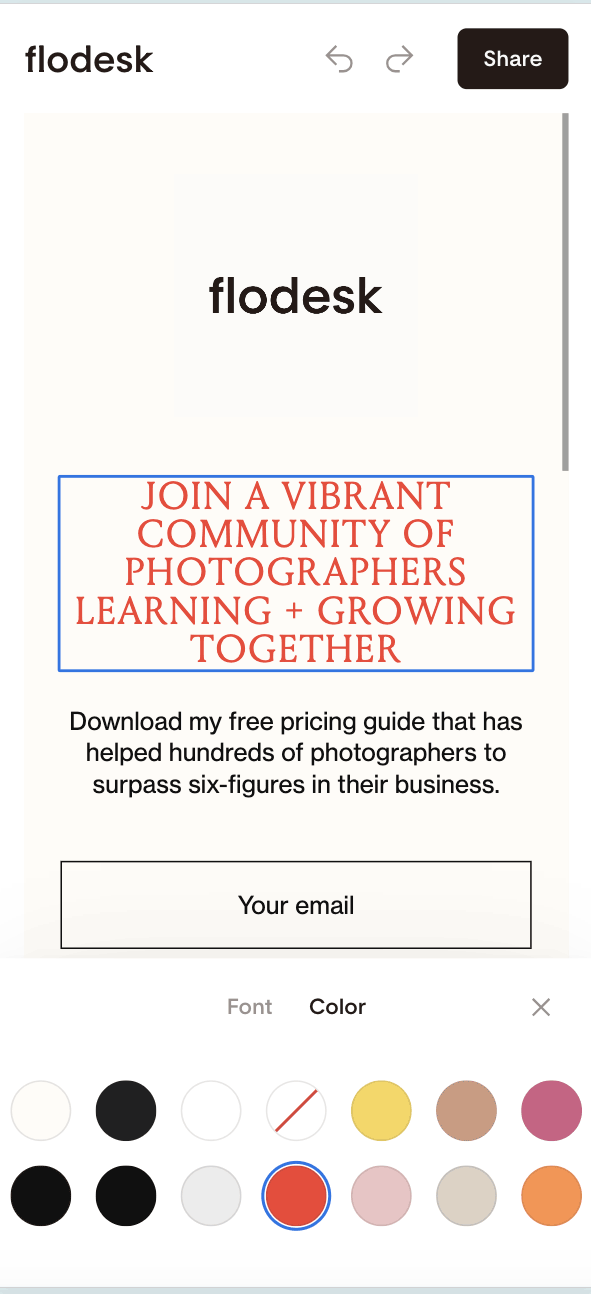
Step 5: Edit text
Tap on any heading or body text.
Editing options (Font and Color) will appear at the bottom of your screen.
Double-tap the text to replace it with your own copy.
Keep your text clear and simple, so subscribers immediately understand what they’re signing up for.
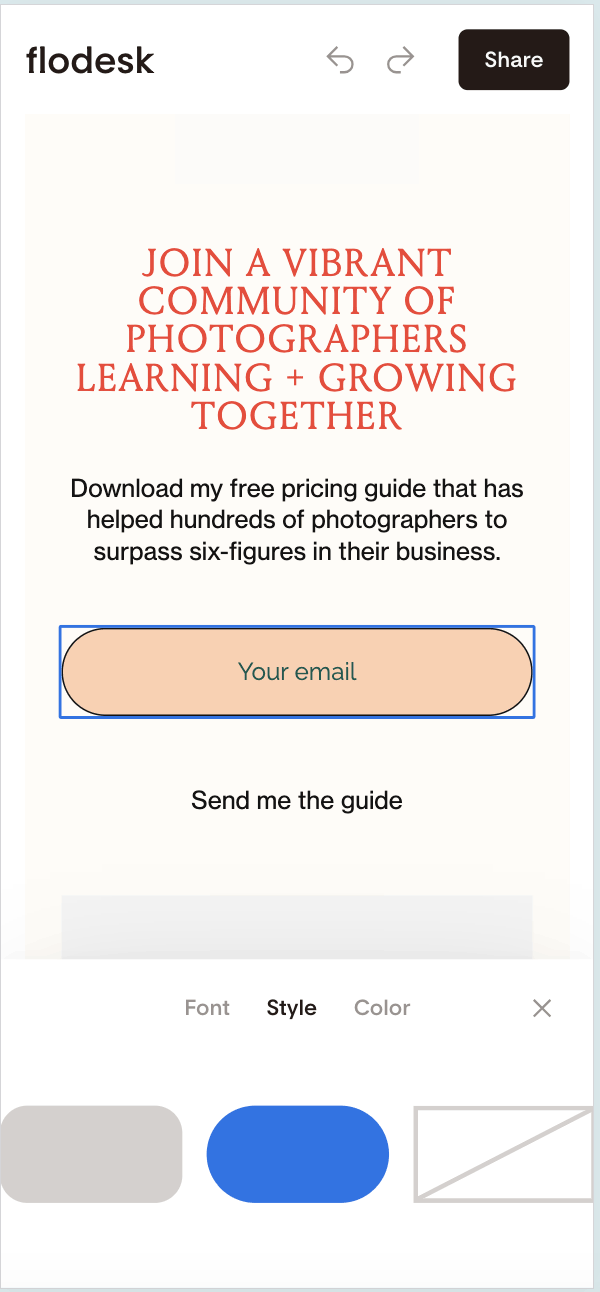
Step 6: Customize the email field and button
Tap the email field or button to:
Change font
Adjust style
Update color
Edit placeholder or button text (double-tap to overwrite)
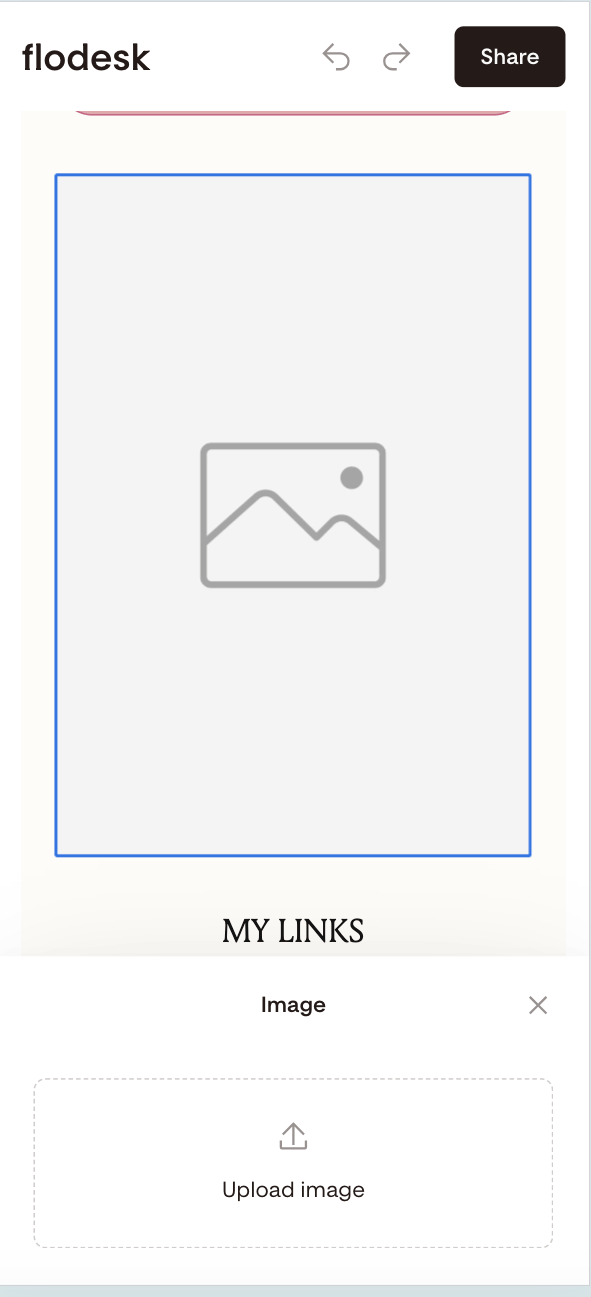
Step 7: Upload an image
Tap the image placeholder to upload a photo directly from your mobile device.
Important: You can’t access Unsplash or Giphy on mobile.
If you’d like to add stock images or GIFs, log in from a desktop and edit your form there.
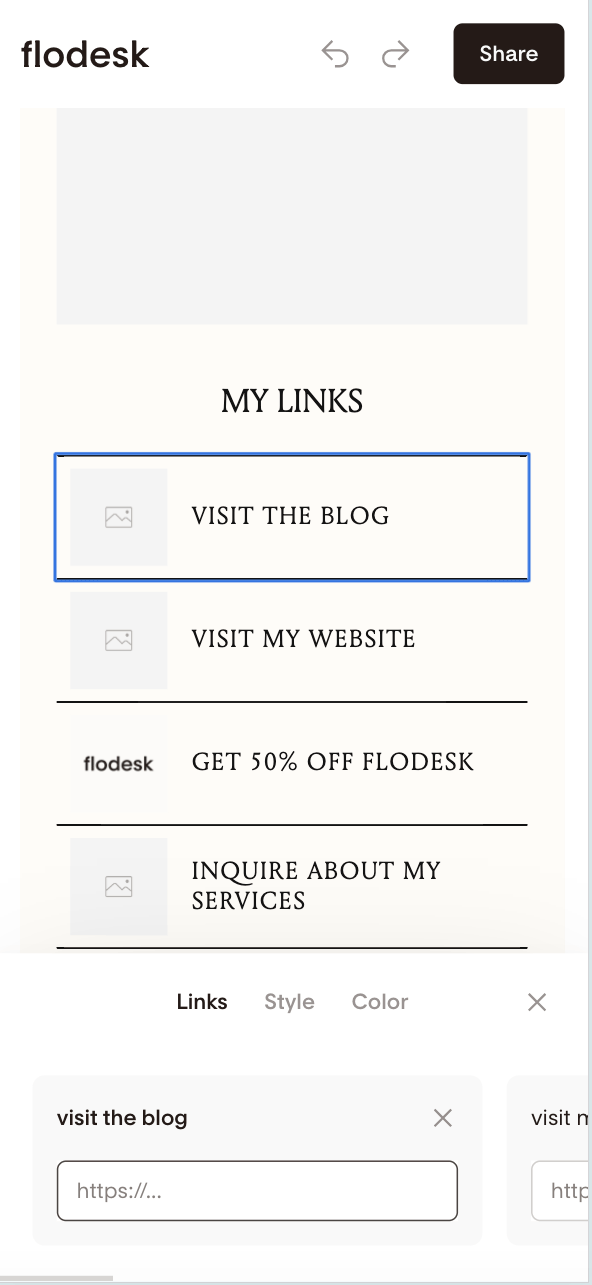
Step 8: Edit Link in bio links
If you’re working on a Link in bio form:
Tap each link block
Enter the correct URL
Double-tap placeholder text to edit it
Adjust font and color as needed
Upload an image from your device (optional)
Note: You can’t reorder links on mobile.
To change the order of links, use a desktop.
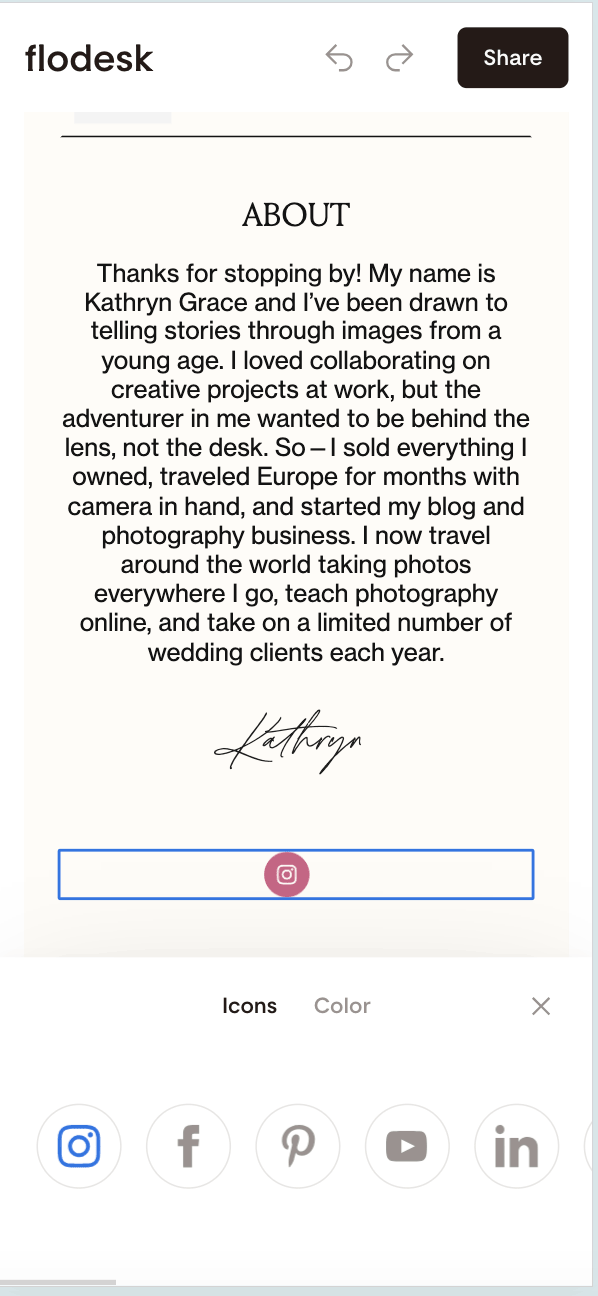
Step 9: Edit social icons
Tap the social icon block to:
Update linked accounts
Change the icon color
Share your form
Once you’re done customizing:
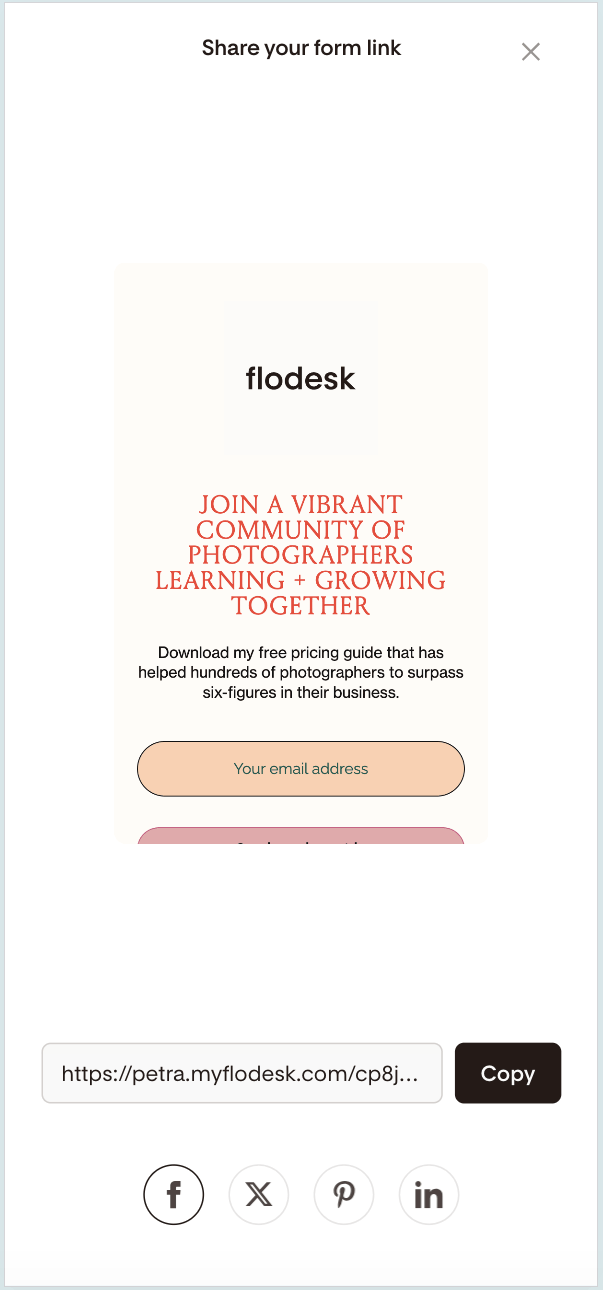
Tap the Share button in the top right corner.
You’ll see:
A preview of your form
A Copy link button
Social sharing options
Copy your link and start sharing.
How to customize your form link (URL)
Want a shorter, more on-brand link?
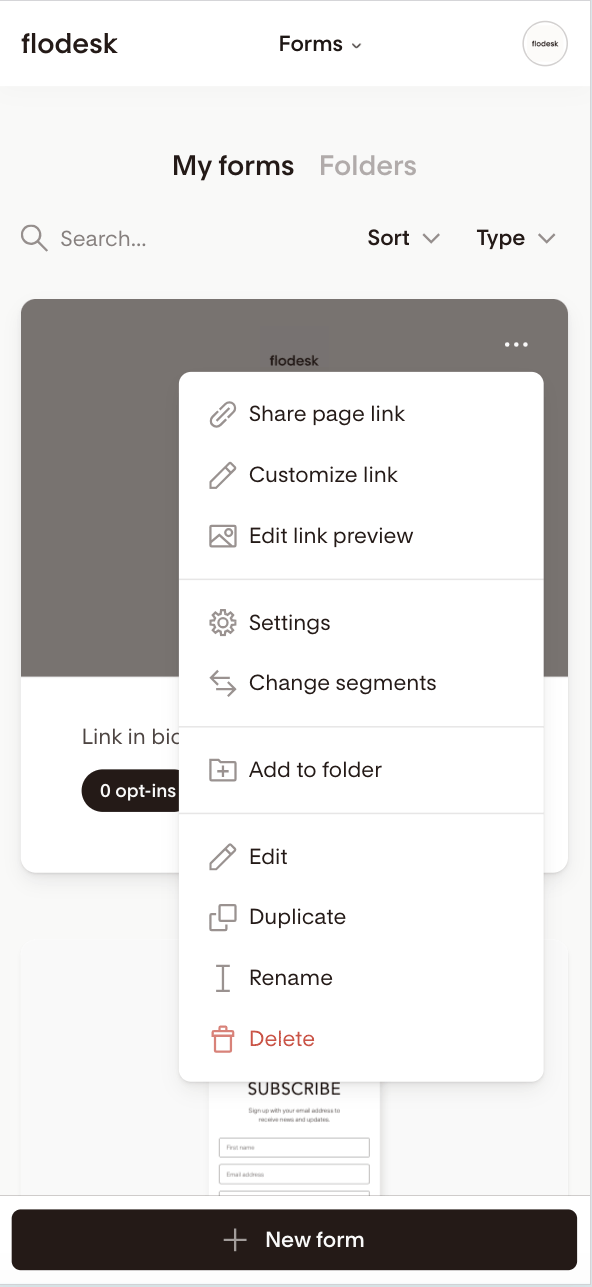
Go to your Forms dashboard
Tap the form card
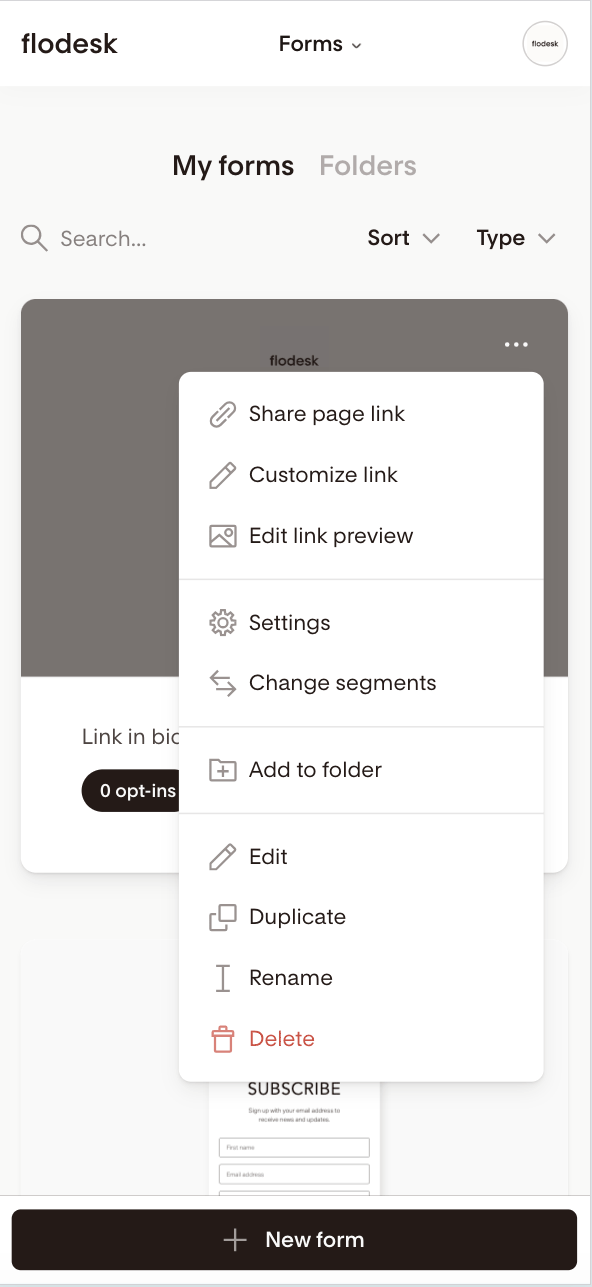
Tap the three dots (…) in the top right corner
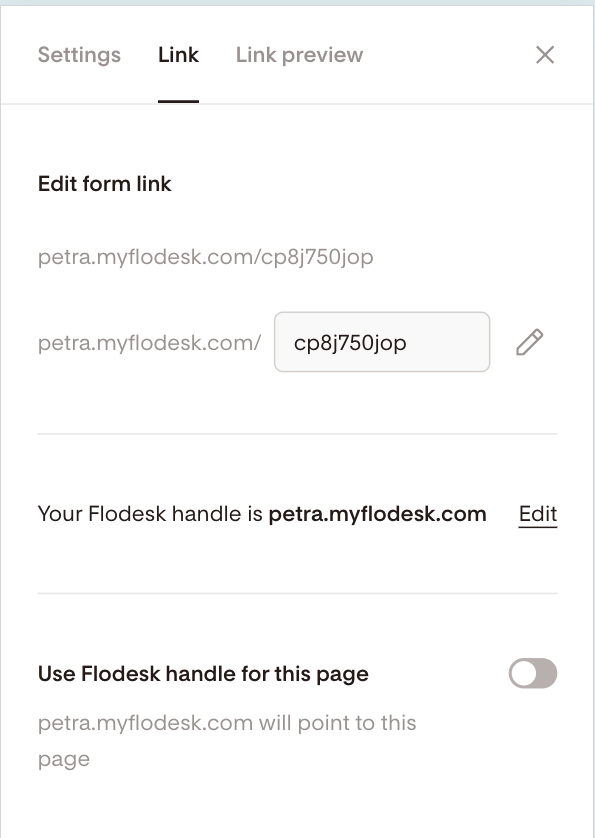
Select Customize link
Tap the pencil icon to edit the URL
Make it clean, simple, and easy to remember.
How to edit your link preview (meta image, title, description)
This controls what people see when you share your form on social media or messaging apps.
Go to your Forms dashboard
Tap the form card
Tap the three dots (…)
Select Edit link preview
Upload your meta image
Edit the meta title and description
A clear title and strong image can increase clicks when sharing your form.
Form settings you can access on mobile
You can manage these settings from your phone:
Turn double opt-in on or off
Turn subscriber notifications on or off
Change the main segment
Set a redirect URL
To access settings:
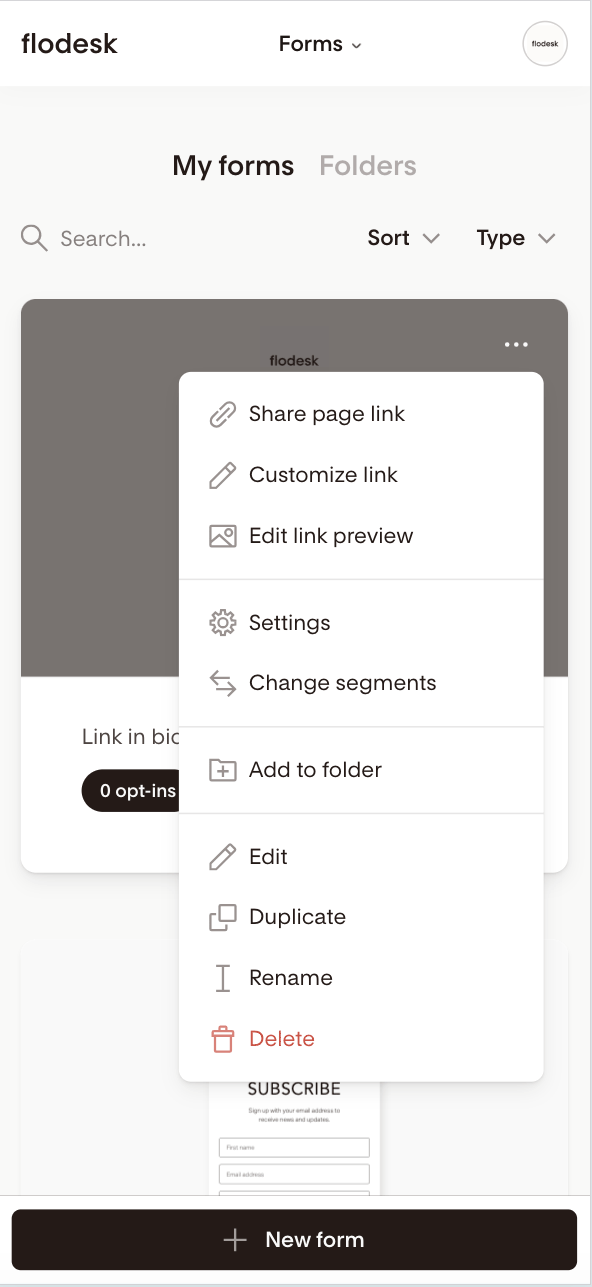
Go to your Forms dashboard
Tap the form card
Tap the three dots (…)
Select Settings
What you can’t do on mobile
Some advanced features require a desktop.
On mobile, you cannot:
Edit the Thank you message
Toggle blocks or elements on/off
Upload from Unsplash or Giphy
Add or adjust the number of custom fields
Update brand settings
Reorder Link in bio links
If you need any of these, log in from a desktop to continue editing.
Summary
To create and publish a form on mobile:
Log into Flodesk on your phone
Go to Forms
Tap + New form
Customize your form
Tap Share and copy your link
That’s it — your form is ready to go.
FAQ
Can I create forms from my phone?
Yes. You can create and edit Full page forms and Link in bio forms on mobile.
Can I create Popup or Inline forms on mobile?
No. Popup and Inline forms must be created and edited from a desktop.
Can I upload images from my phone?
Yes. You can upload images stored on your mobile device.
However, Unsplash and Giphy are only available on desktop.
Can I change the order of links in my Link in bio form on mobile?
No. Link reordering requires a desktop.
Can I turn on double opt-in from my phone?
Yes. Go to your form’s Settings from the three dots menu.
Can I edit the Thank you message on mobile?
No. Editing the Thank you message requires a desktop.
Can I change my form link (URL) on mobile?
Yes. Use the Customize link option from the three dots menu on your form card.
If you need more advanced customization, simply switch to a desktop — but for quick edits and publishing on the go, the mobile form builder has you covered.