
How to add an inline form to your WordPress website with Divi Builder
A step-by-step guide to embedding a Flodesk inline form on your WordPress website using Divi Builder.
Flodesk opt-in forms help you capture your visitors’ email addresses so you can grow your list and stay connected with your audience.
Inline forms are the most common type of signup form on websites. They appear directly inside a page, blog post, sidebar, or footer and stay visible as part of the page layout.
To add a Flodesk inline form to your WordPress website with Divi Builder, you’ll need to add two pieces of code:
The header code (added once to your website)
The inline code (added where the form should appear on the page)
Both are required for the form to work properly.
Before you start
Make sure you have:
An inline form created in Flodesk
Access to your WordPress dashboard
The Divi theme or Divi Builder installed on your website
Permission to edit Divi Theme Options
Step 1: Create and customize your inline form
Log in to your Flodesk account.
Go to Forms.
Create a new Inline Form or open an existing one.
Customize the design, text, and fields to match your brand.
When your form is ready, you’ll add it to your website.
Step 2: Copy your embed codes from Flodesk
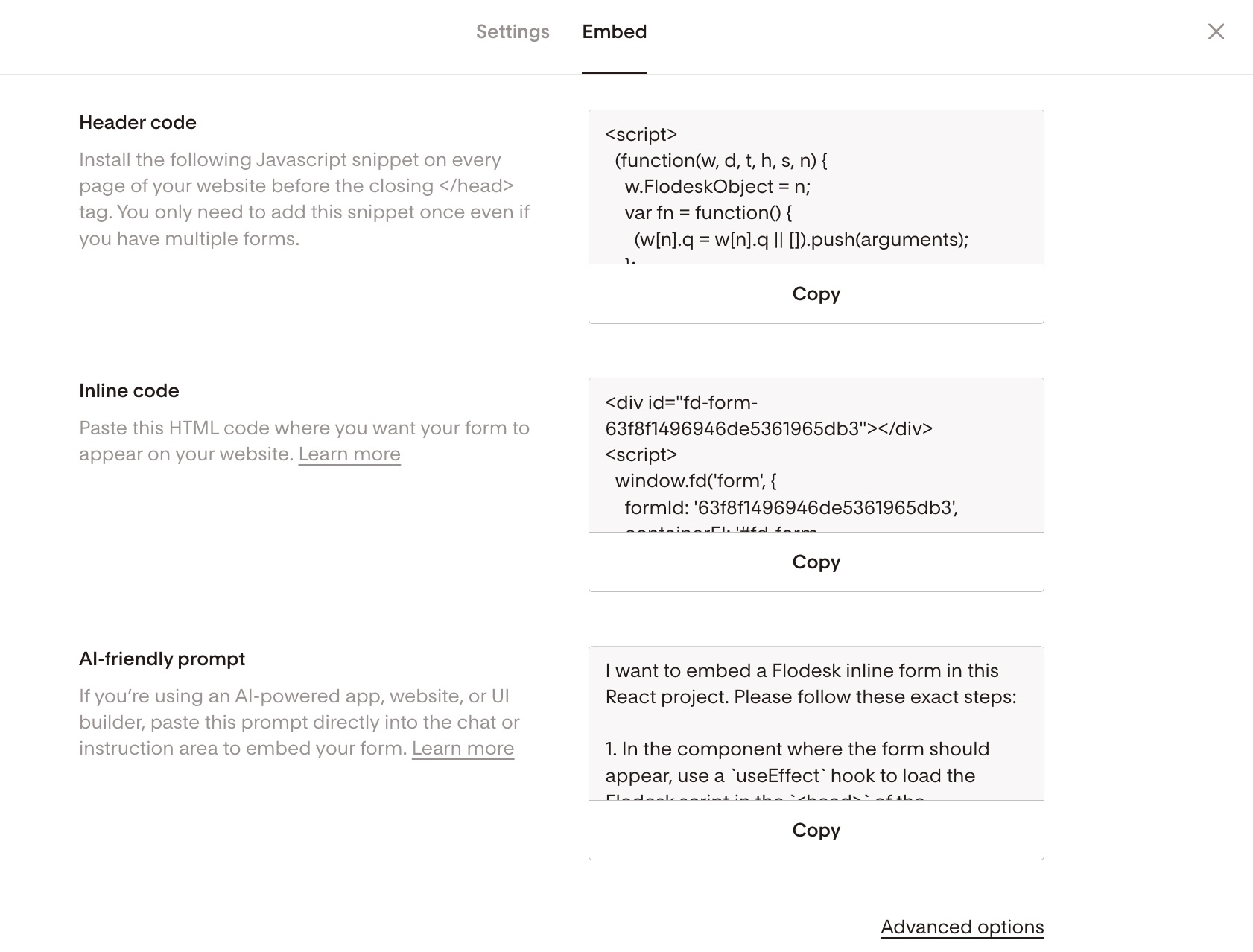
Click Embed.
A window will appear showing two code snippets:
Header code
Inline code
Keep this window open or copy both codes. You’ll need them in the next steps.
Important:
Both the header code and inline code must be added to your website. Adding only one of them will prevent the form from working.
Step 3: Add the header code in Divi Theme Options
The header code only needs to be added once to your website.
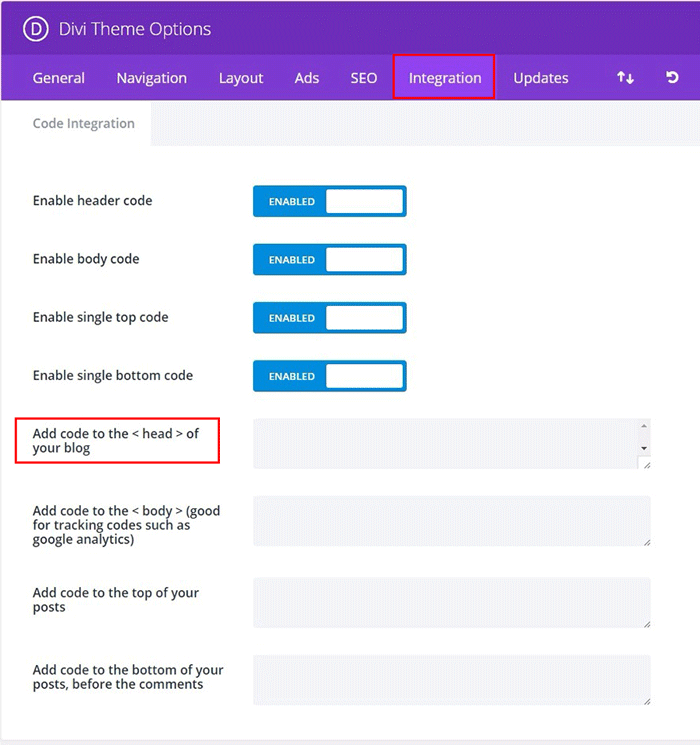
In your WordPress dashboard, go to Divi → Theme Options.
Click the Integration tab.
Enable the option Add code to the
<head>of your blog.Paste the header code from Flodesk into the field labeled:
Add code to the <head> of your blog
Click Save Changes.
Your website is now ready to display Flodesk forms.
For additional details, see the official Divi documentation:
https://www.elegantthemes.com/documentation/divi/theme-options/
Step 4: Add the inline code using the Divi Code module
Next, you’ll add the form to the page where you want it to appear.
Open the page in Divi Builder.
Add a Code module to the section where you want the form to display.
Paste the inline code snippet from Flodesk into the module.
Save the module and update the page.
Your inline form will now appear on that page.
For more details about the Divi Code module, see:
https://www.elegantthemes.com/documentation/divi/code/
Note:
Code modules are not visible in the Visual Builder preview. You may need to exit the Visual Builder to see them in the page layout.
Troubleshooting
The inline form isn’t appearing on my page
Check the following:
Make sure both the header code and inline code were added.
Confirm the header code was placed in Divi → Theme Options → Integration.
Make sure the inline code is inside a Divi Code module.
The header code doesn’t seem to work in Divi
If the form still does not appear after adding the header code, try adding it using a headers and footers plugin instead.
Plugins like Insert Headers and Footers allow you to add the header code globally to your WordPress site.
Summary
To add a Flodesk inline form to a WordPress website using Divi Builder:
Create and customize your inline form in Flodesk.
Copy the header code and inline code from the Embed window.
Add the header code in Divi → Theme Options → Integration.
Add the inline code to your page using a Divi Code module.
Once both codes are added, your inline form will appear on your website and visitors can start subscribing to your email list.
FAQ
Do I need to add both the header code and inline code?
Yes. The header code loads the form script for your site, while the inline code tells WordPress where the form should appear.
Do I only need to add the header code once?
Yes. After it’s added to your site, you can embed additional forms without adding the header code again.
Where should I place the inline form on my page?
Inline forms are commonly placed:
Within blog posts
On landing pages
In the middle or bottom of long content
In sidebars or footers
Choose a location where visitors naturally engage with your content.
Why can’t I see the code module in Divi Visual Builder?
Divi’s Code modules are invisible in the visual preview. The form will appear on the live page after saving and exiting the builder.
Can I add multiple Flodesk forms to my website?
Yes. Once the header code is installed, you can add as many inline forms as you like by inserting their inline code on different pages.