
How to add an inline form to your Squarespace website
Flodesk inline forms let you collect email subscribers directly from your website. These forms are embedded into your page content, so they appear as a natural part of your site—unlike popup forms, which appear over the page.
Inline forms are commonly used on:
Website pages
Blog posts
Sidebars
Footers
They are always visible and ideal for consistent, low-friction list growth.
Squarespace offers a few ways to add custom code, and the options you have depend on your Squarespace plan. Learn more about it here: https://support.squarespace.com/hc/en-us/articles/205815928-Adding-custom-code-to-your-site
In this help article, we’ll show you how to add custom code using Code Injection.
How embedding an inline form works
To display a Flodesk inline form on a Squarespace website, you must add two code snippets:
Header code – added once to your site
Inline code – added wherever you want the form to appear
Both snippets are required. Adding only one will prevent the form from showing or functioning correctly.
Step-by-step: How to add an inline form to Squarespace
Step 1: Create your inline form in Flodesk
In your Flodesk account, create a new inline form
Customize the design, text, and fields
Save your form
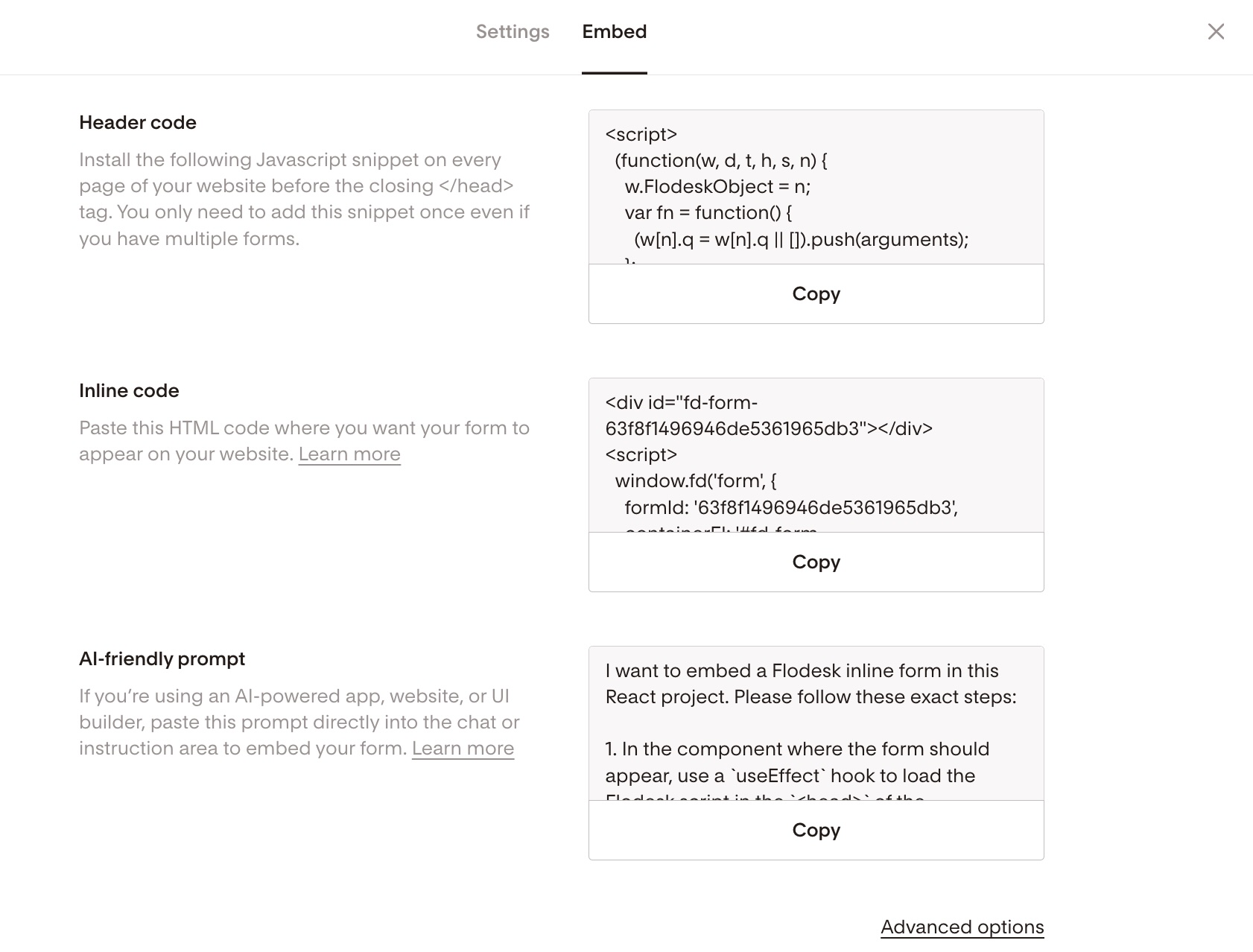
Step 2: Copy the embed codes from Flodesk
Click the Embed button in the top-right corner of the form builder
You will see two code snippets:
Header code
Inline code
Keep this window open or copy both snippets somewhere safe
Step 3: Add the header code to Squarespace
Log in to your Squarespace account
Go to Settings → Advanced → Code Injection
Paste the Flodesk header code into the Header field
Click Save
You only need to add the header code once per website.
Step 4: Add the inline code where the form should appear
Navigate to the page or post where you want the form to display
Click Edit
Click Add Block (or an insert point)
Select the Code block (
</>)Click the pencil icon to open the block editor
Paste the Flodesk inline code into the text field
Click Apply, then Save
Refresh the page to confirm the form appears
Troubleshooting checklist
If your inline form does not appear:
Confirm both the header code and inline code were added
Make sure the header code is in Settings → Advanced → Code Injection
Ensure the inline code is inside a Code block, not a Text block
Refresh the page or clear your browser cache
Summary
To add a Flodesk inline form to your Squarespace website:
Create and customize an inline form in Flodesk
Copy both the header code and inline code
Paste the header code into Squarespace Code Injection
Paste the inline code into a Code block where the form should appear
Once published, your inline form will begin collecting subscribers directly from your website.
FAQ: Adding inline forms to Squarespace
How do I add a Flodesk inline form to Squarespace?
You embed it using two code snippets from Flodesk: a header code added to Squarespace’s Code Injection area, and an inline code added to a Code block on the page.
Do I need both the header code and inline code?
Yes. The header code loads the form functionality, and the inline code displays the form. Both are required.
Where do I paste the inline form code in Squarespace?
Paste the inline code into a Code block (</>) on the page, post, or footer where you want the form to appear.
Can I add the same inline form to multiple pages?
Yes. Add the header code once, then reuse the inline code in Code blocks on any page where you want the form to appear.
Why isn’t my inline form showing up?
This usually happens when:
The header code is missing
The inline code was added to a Text block instead of a Code block
The page was not saved or refreshed