
How to add an inline form to your WordPress website with Gutenberg editor
Inline forms are one of the most common ways to grow your email list. They appear directly inside your webpage content—like in a blog post, sidebar, or footer—so visitors can subscribe without leaving the page.
With WordPress and the Gutenberg editor, adding a Flodesk inline form only takes a few minutes. You simply copy two code snippets from Flodesk and place them in the right spots on your site.
What you’ll need before you start
A customized and ready Flodesk inline form
Access to your WordPress dashboard
Permission to install plugins (recommended method)
Both the Header code and the Inline code must be added for the form to display correctly.
Step 1: Create your inline form in Flodesk
Log in to your Flodesk account.
Go to Forms.
Create a new Inline Form or open an existing one.
Customize the design, text, and segments as needed.
When you're ready to add it to your website, move to the next step.
Step 2: Copy the embed code from Flodesk
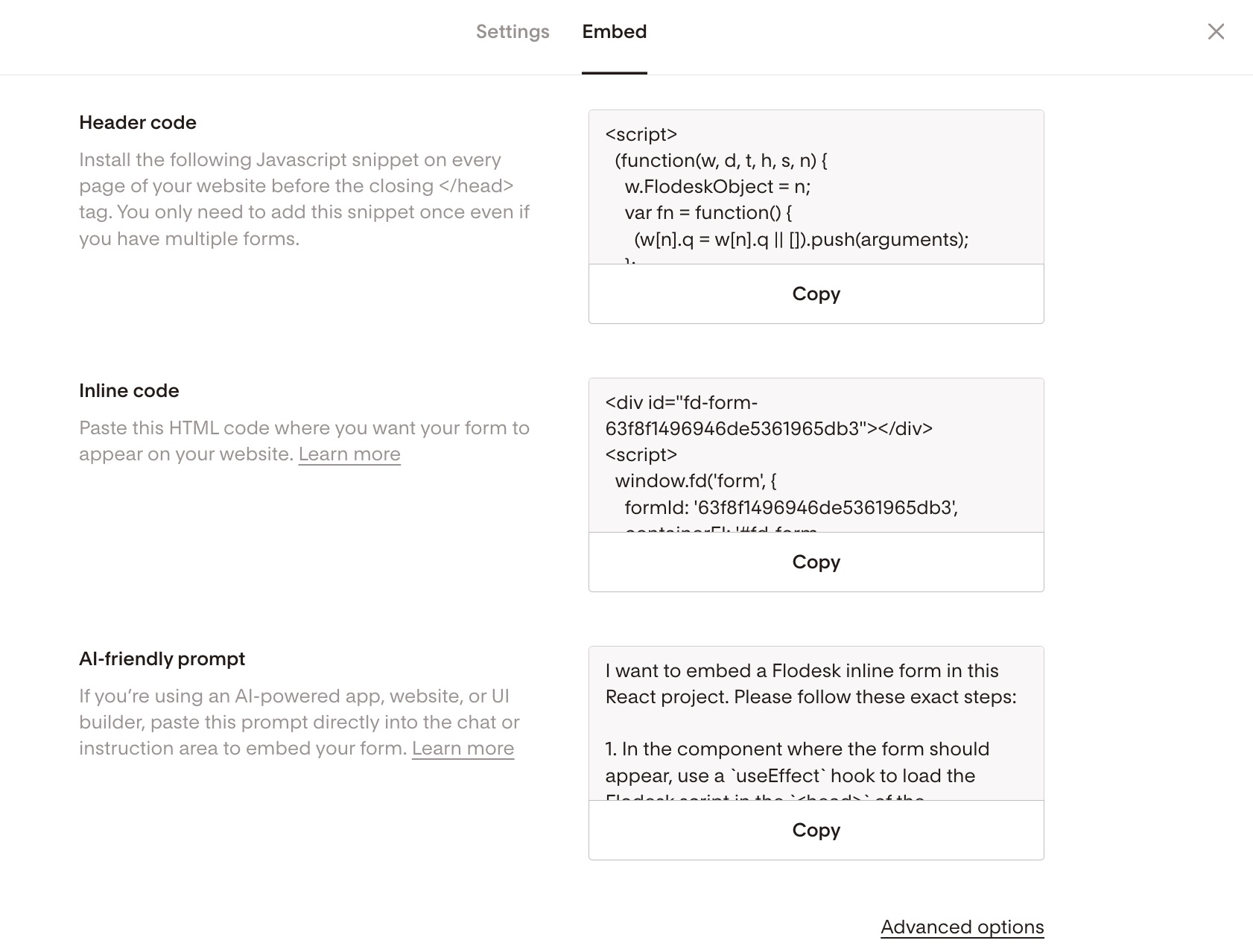
Inside the form editor, click Embed.
You will see two code snippets:
Header code
Inline code
You will add them to WordPress in the next steps.
Important:
Both snippets are required. The header code loads the form script, and the inline code tells your page where to display the form.
Step 3: Add the Header code to WordPress
The header code only needs to be added once to your website.
There are two ways to do this.
Option 1 (Recommended): Use a plugin
Using a plugin is the easiest and safest option.
Log in to your WordPress Dashboard.
Go to Plugins → Add New.
Search for Insert Headers and Footers.
Click Install Now.
Click Activate.
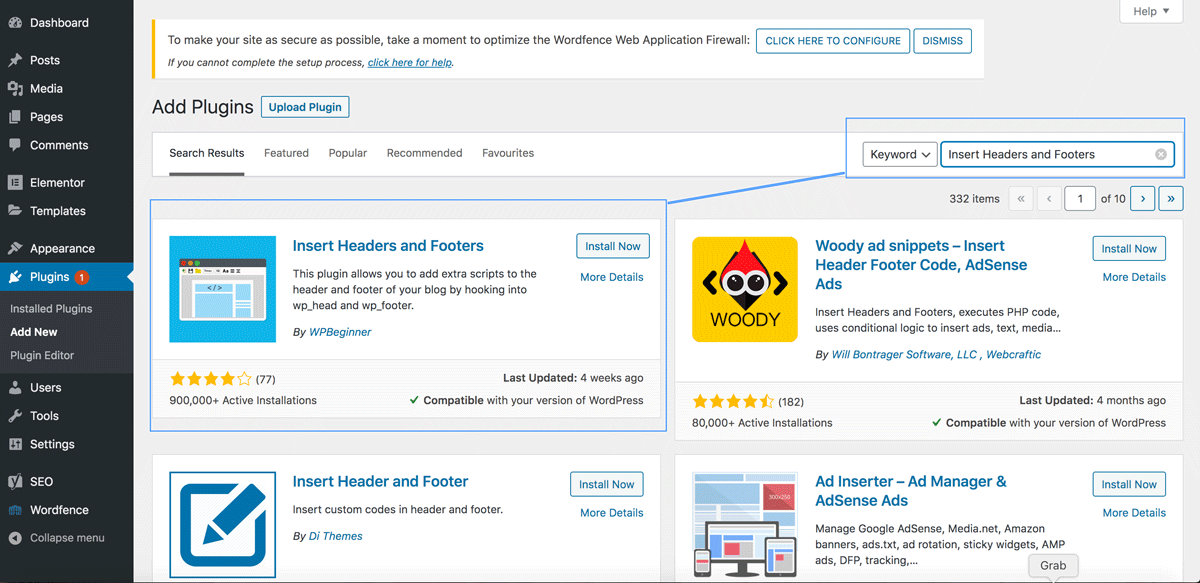
Once you’ve installed and activated the plugin it will appear under Settings.
After installing:
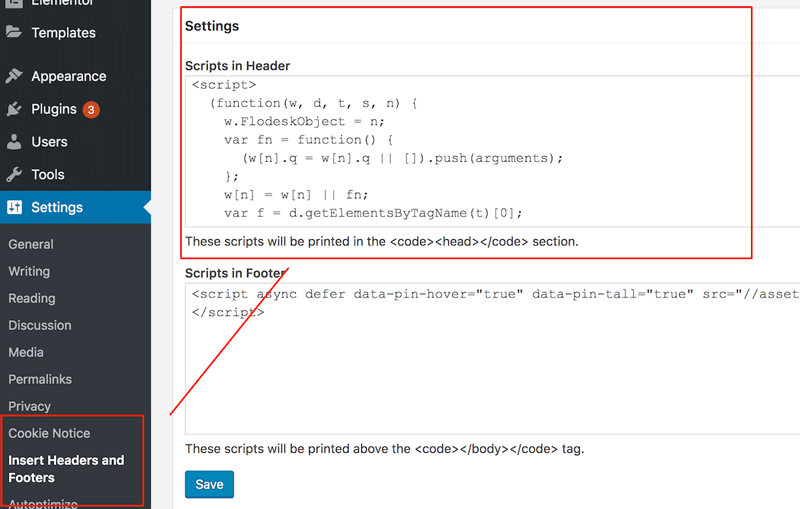
Go to Settings → Insert Headers and Footers.
Find the Scripts in Header field.
Paste the Flodesk header code into that box.
Click Save.
Note: Your settings screen may look slightly different depending on your installed plugins. This is normal.
You can also use other similar plugins if you prefer.
Option 2: Add the header code manually (advanced)
Advanced users can add the code directly to their theme’s functions.php file.
This method requires editing theme code and is not recommended unless you're comfortable working with WordPress files.
Learn how to add code to your theme's functions.php file here.
Step 4: Add the inline form to a page with Gutenberg
Once the header code is installed, you can place the form anywhere on your website.
Copy the Inline code snippet from Flodesk.
Open the WordPress page or blog post where you want the form.
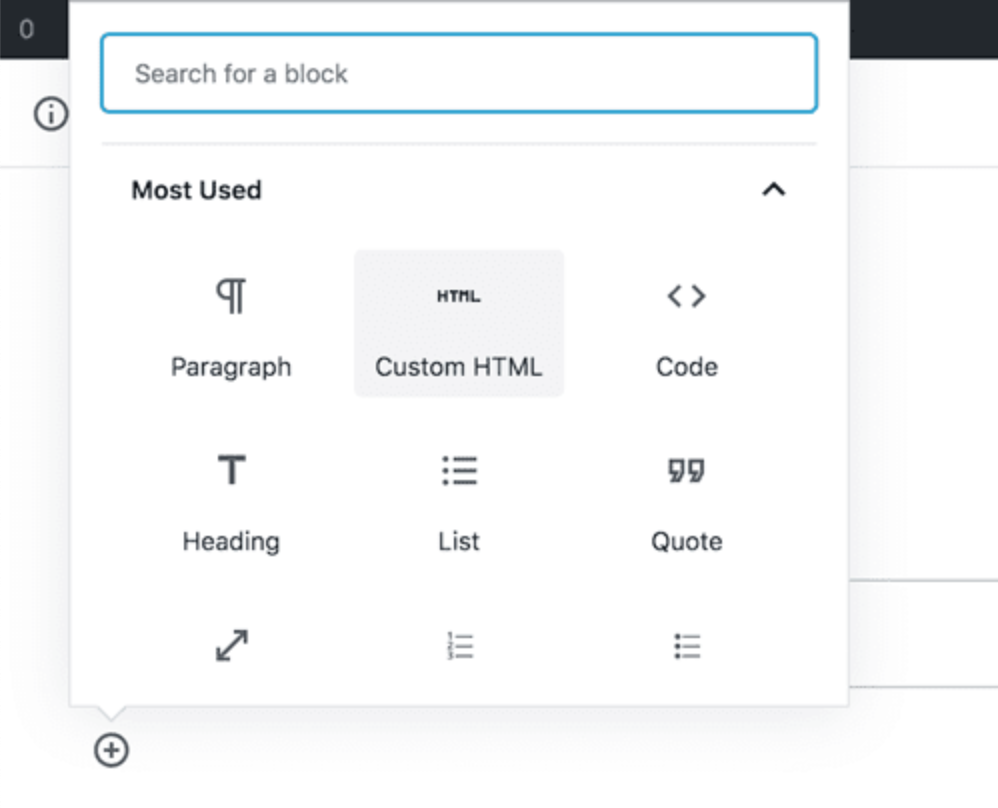
Click Add Block in the Gutenberg editor.
Select the Custom HTML block.
Paste the Inline code snippet into the block exactly as provided.
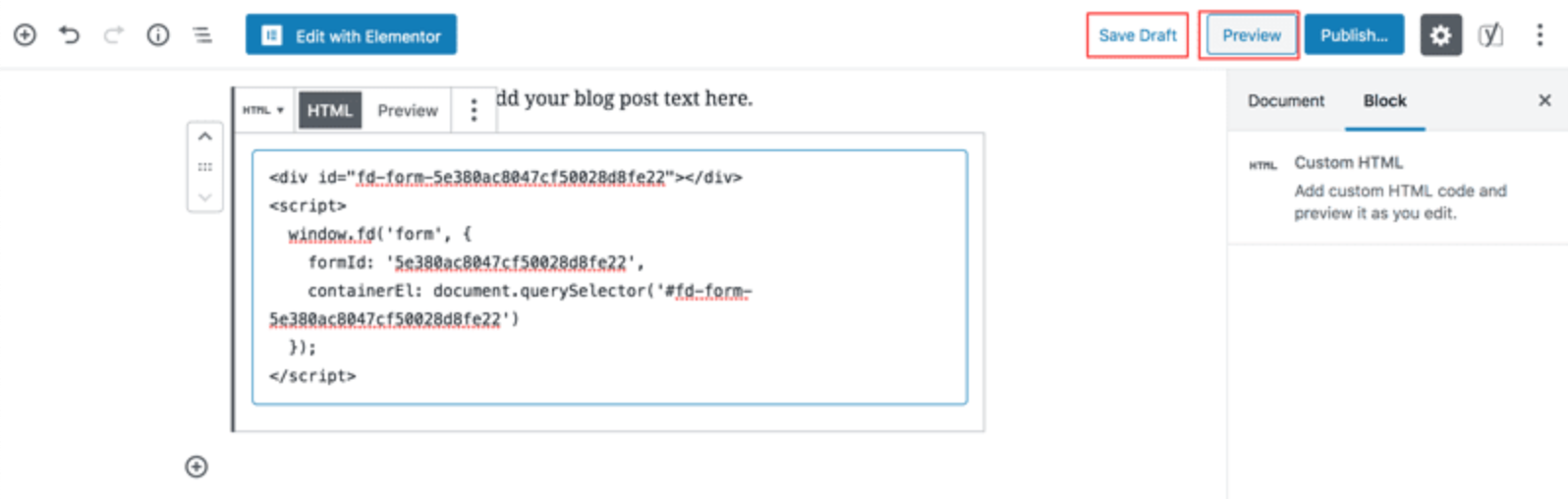
Step 5: Preview and publish
The inline form may not appear in the editor preview. This is normal.
To confirm everything works:
Click Preview.
Check the live page preview.
If the form displays correctly, click Publish.
Your inline form is now live on your WordPress website.
Summary
To add a Flodesk inline form to WordPress with Gutenberg:
Create your inline form in Flodesk.
Copy the Header code and Inline code.
Add the Header code to your site using a plugin or manually.
Add the Inline code using a Custom HTML block in Gutenberg.
Preview and publish your page.
Once published, visitors can subscribe directly from your webpage.
FAQs
Why do I need both the header code and inline code?
The header code loads the Flodesk form script, while the inline code places the form on your page. Without both, the form will not display correctly.
Where can I place an inline form on my WordPress site?
You can place it anywhere using a Custom HTML block, including:
Blog posts
Landing pages
Sidebars
Footers
Homepage sections
Why can’t I see the form inside the Gutenberg editor?
Inline forms often do not display in edit mode. Use the Preview button or view the published page to confirm the form is working.
Do I need to install a plugin?
No, but it’s recommended. Plugins like Insert Headers and Footers make it much easier to add the header code without editing your theme files.
Can I add the same inline form to multiple pages?
Yes. Once the header code is installed, you can paste the inline code snippet on any page where you want the form to appear.
Can I style the form inside WordPress?
Form design is controlled inside Flodesk. Any design changes should be made there; the updated form will then automatically appear on your website.