
How to add an inline form to your Showit website
Add a Flodesk inline form to your Showit site so visitors can subscribe right from your page—no popups required.
Inline forms are embedded directly into your website layout (like inside a page section, sidebar, or footer). They stay visible as part of your design and make it easy for people to join your email list.
Below, you’ll find simple, step-by-step instructions—plus important notes about Showit + WordPress blogs.
Before you start
Make sure you have:
Make sure your inline form is created and customized in Flodesk.
You’ll need both the Header code and the Inline code.
Access to your Showit site editor
The correct Showit plan if you're embedding on a WordPress-powered blog (more on that below)
Step 1: Get your embed code from Flodesk
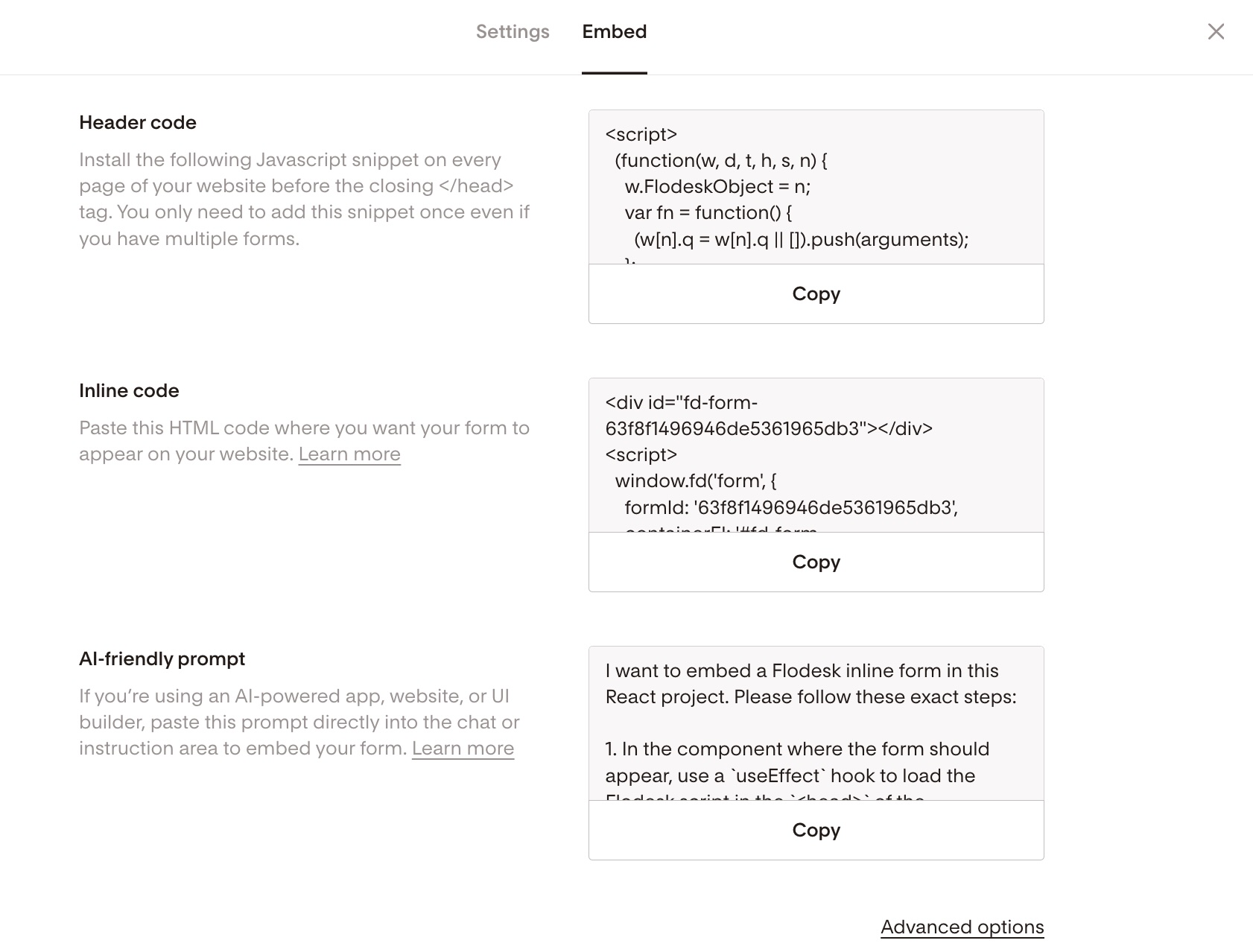
In your Flodesk dashboard, open your Inline form.
Click Embed.
You’ll see two code snippets:
Header code
Inline code
Keep this window open — you’ll paste both codes into Showit in the next steps.
Step 2: Open your Showit editor
Log into your Showit account.
Open the page (canvas) where you want your form to appear.
Inline forms can be placed anywhere on your page layout.
Step 3: Add the Embed Code widget in Showit
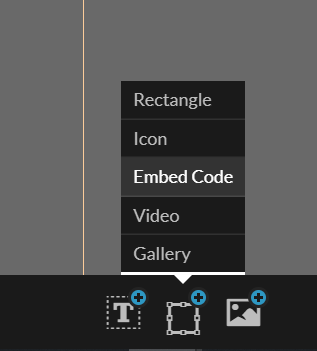
In the Showit editor, click the + (Add Object) button.
Choose Embed Code.
Select the new Embed Code box on your canvas.
In the right-hand panel (Embed Info Panel), paste your code into the Custom Code box.
Step 4: Paste the codes in the correct order
Inside the same Custom Code box:
Paste the Header code first
Paste the Inline code directly underneath
Then click Save.
The order matters. Header code goes first, inline code goes second.
Step 5: Resize and position your form
Once the code is saved:
Resize the Embed Code box
Adjust spacing and alignment
Make sure it looks how you want on desktop
Step 6: Adjust the mobile view
Switch to Mobile View in Showit and:
Resize the embed box
Adjust spacing if needed
Make sure the form looks clean and readable
Desktop and mobile layouts are separate in Showit, so always check both.
Important: Showit + WordPress blog plans
If your Showit site uses WordPress for blogging:
Only users on the Advanced Blog plan can add custom embed code to blog posts.
If you’re on the Basic blog plan, you won’t be able to embed custom code directly into blog posts.
If you’re unsure which plan you’re on, check your Showit account settings. See as a reference: Showit + Basic Blog Subscription.
Summary
To add a Flodesk inline form to your Showit website:
Create and publish your inline form in Flodesk
Click Embed and copy both the header and inline code
In Showit, add an Embed Code widget
Paste the header code first, then the inline code
Resize and adjust for both desktop and mobile
That’s it! Your form is now embedded directly into your page.
FAQs
Do I really need both the header code and the inline code?
Yes. The header code loads the form script, and the inline code tells your page where to display the form. Without both, the form won’t work correctly.
Where exactly do I paste the codes in Showit?
Add an Embed Code widget from the object menu at the bottom of the Showit editor. Once placed on your canvas, you'll see the Embed Infopanel on the right — paste both codes into the Custom Code box there, then click Save.
Where can I place my inline form on Showit?
Anywhere you can add an Embed Code widget—inside a page section, footer, or content area.
My form isn't showing up. What should I check?
A few things to troubleshoot:
Make sure both the Header code and the Inline code are pasted into the same Custom Code box.
Check that you hit Save after pasting the codes.
Make sure the Embed Code widget is resized large enough to display the full form.
If you're working in preview mode, try viewing the published page instead — some embed codes only render live.
Can I embed the form in a Showit blog post?
Only if you’re on the Advanced Blog plan. The Basic plan does not support custom embed code in blog posts. See as a reference: Showit + Basic Blog Subscription.
Can I style the form inside Showit?
No. Styling (fonts, colors, layout) must be done inside the Flodesk form editor. Showit only controls placement and sizing of the embed box.
Does the form need to be resized separately for mobile?
Yes! Showit manages desktop and mobile layouts separately, so after setting up the form in desktop view, switch to mobile view in the editor and resize the form block there too. This ensures your form looks great on every device.
If you’re building your email list, embedding an inline form directly into your Showit pages is one of the simplest and most effective ways to grow.