
How to add an inline form to your CultivateWP theme
A step-by-step tutorial on how to embed a Flodesk inline form to the CultivateWP theme
A special thanks to Bill Erickson, Developer / Co-Founder of CultivateWP for bringing this to our attention.
Flodesk inline forms help you collect email addresses directly on your website—so you can grow your list and stay connected with your audience.
If you’re using the CultivateWP theme on WordPress, you can add your Flodesk inline form in two simple ways:
Option 1: Add a Flodesk Form block inside a parent block (great for custom layouts and backgrounds)
Option 2: Add a Flodesk Form block on its own (quick and simple)
We’ll walk you through both.
Before you start
You’ll need:
A customized and ready inline form in your Flodesk account
Access to your WordPress editor using the CultivateWP theme
Your Flodesk inline embed code (you’ll copy this in a moment)
Create your inline form in Flodesk
Log in to your Flodesk account.
Create a new Inline Form (or open an existing one).
Customize the design, fields, and settings.
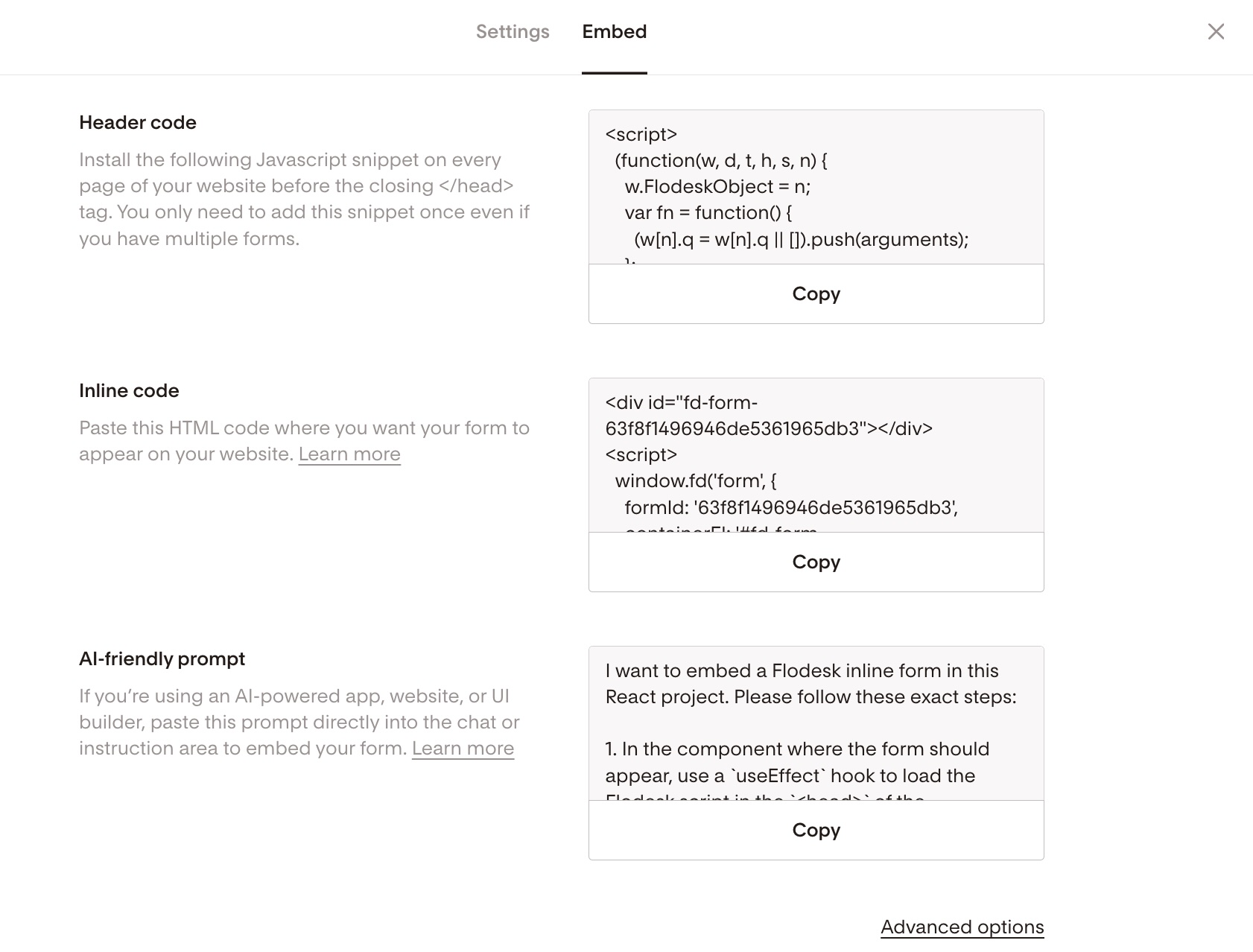
Click Embed.
Copy the inline code snippet.
You’ll paste this into WordPress exactly as it is—no edits needed.
.
Option 1: Add a Flodesk Form block using a parent block
This method is ideal if you want:
More control over layout
A custom image placed next to your form
A patterned or styled background behind the form
Because you’re styling part of the layout inside CultivateWP (not Flodesk), this gives you more flexibility.
Important setup tips
If you’re using a parent block:
Choose a ribbon-style form or an inline form without an image placeholder in Flodesk.
Set your form background to transparent so the parent block’s background shows through.
Add your image directly in WordPress using an Image block.
Note: in our example, we added an Image block and a Flodesk Form block to the parent block. If you don’t want to show an image to go along with your form, only add a Flodesk Form block to the parent block.
How to add the form using a parent block
Step 1. Add a parent block to your page (such as an Email Newsletter or Ebook block).
This will act as the container for your layout.
Step 2. Inside the parent block:
Add an Image block (if you want an image)
Add a Flodesk Form block
If you don’t want an image, simply add the Flodesk Form block inside the parent block by itself.
Step 3. Click on the Flodesk Form block.
You’ll see an area labeled for inline code.
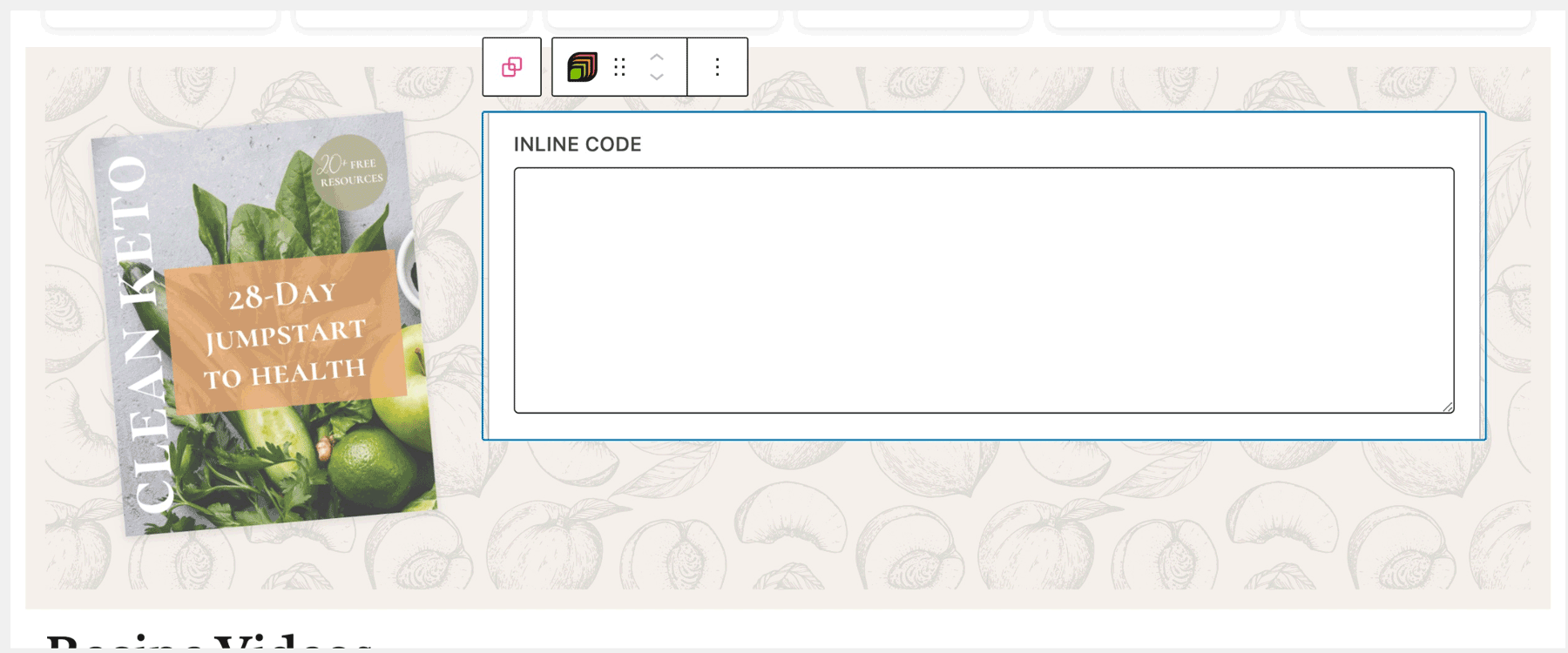
Step 4. Paste your Flodesk inline code snippet into that area exactly as copied.
Once you click outside the block, you’ll see a placeholder in the editor.
Don’t worry—this is normal. The actual form only loads on the live frontend of your site.
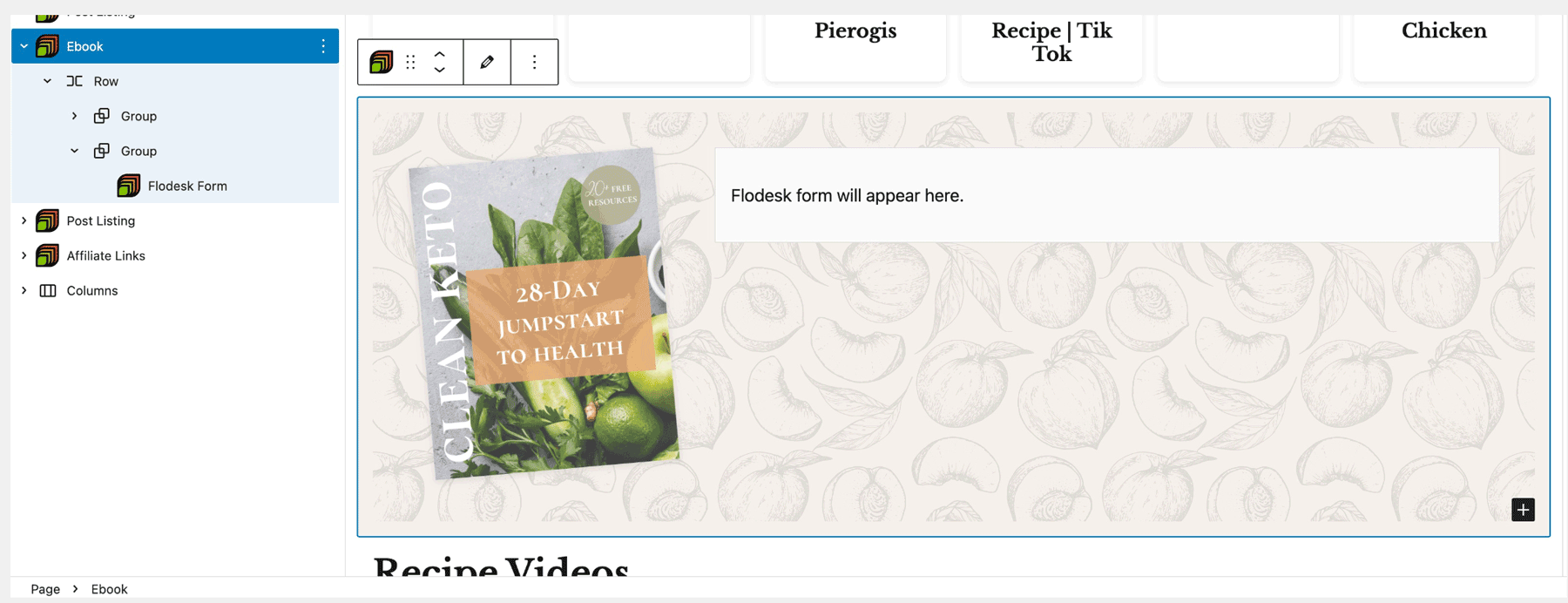
Step 5. Click Publish or Update in the top-right corner of WordPress to save your changes.
That’s it! Your form will now appear on your live page.
Here's a screenshot showing the end result on the frontend of the website:

Option 2: Add a Flodesk Form block without a parent block
This is the simplest method.
Use this option if:
You want Flodesk to control all styling (including images)
You don’t need a custom WordPress background or layout structure
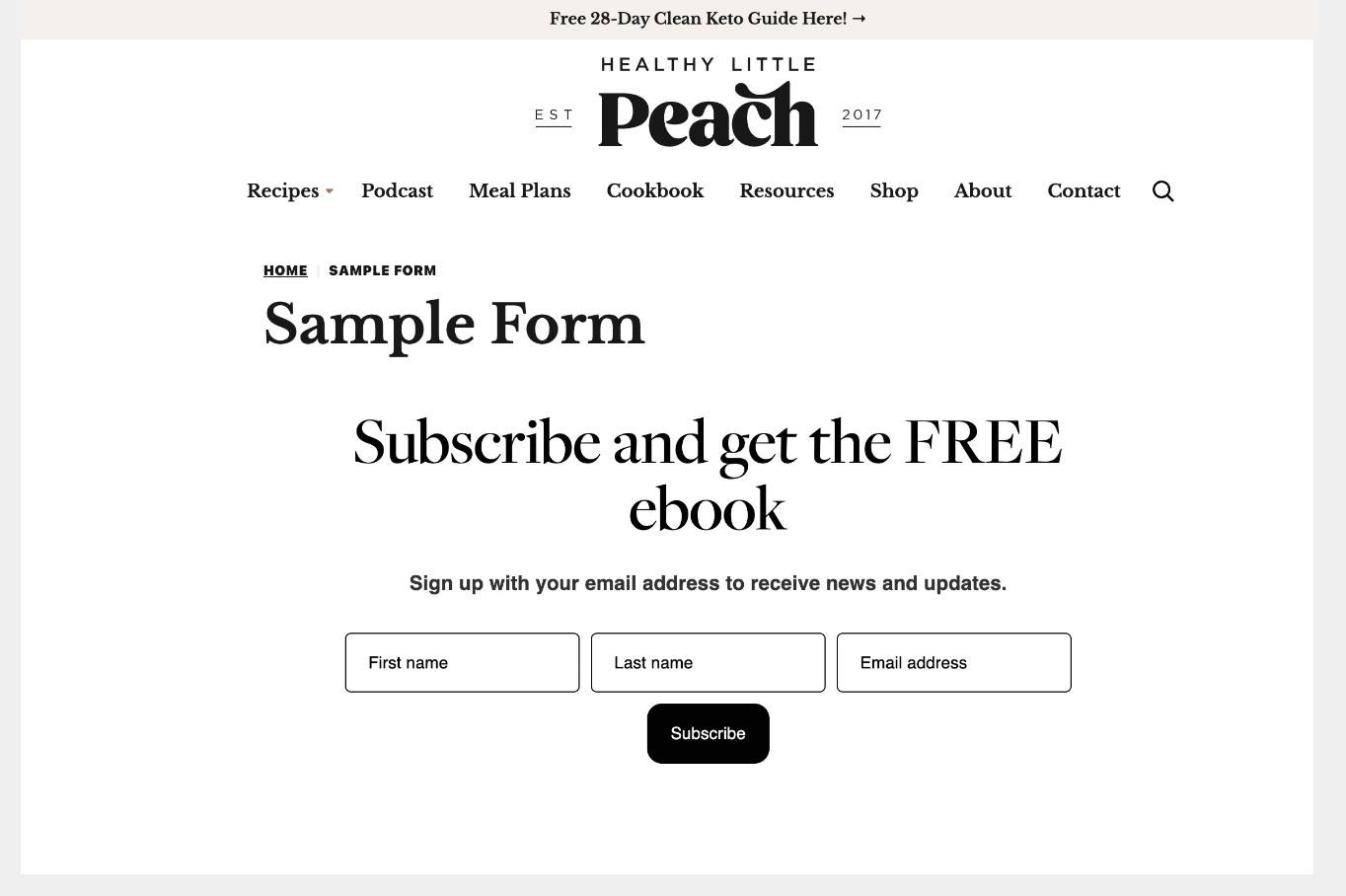
In the example below, we’re embedding a Flodesk inline form without an image to the Flodesk Form block. If you want to have an image to go along with your form, choose and customize a Flodesk inline form template with an image placeholder.
How to add the form directly
Step 1. Open the page where you want your form to appear.
Step 2. Add a Flodesk Form block.
Step 3. Paste your Flodesk inline code snippet into the block’s inline code area.
Again, you’ll see a placeholder in the backend editor. The full form only appears on the live site.
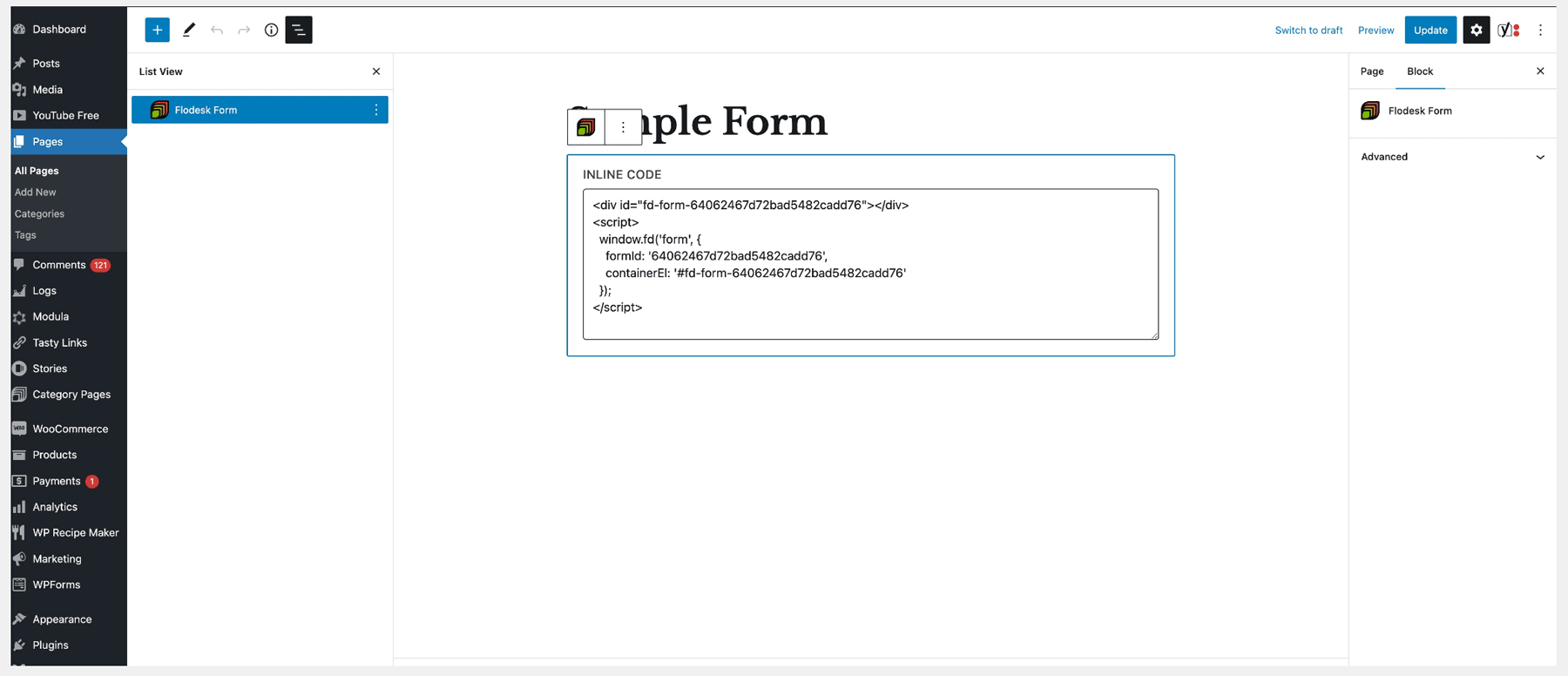
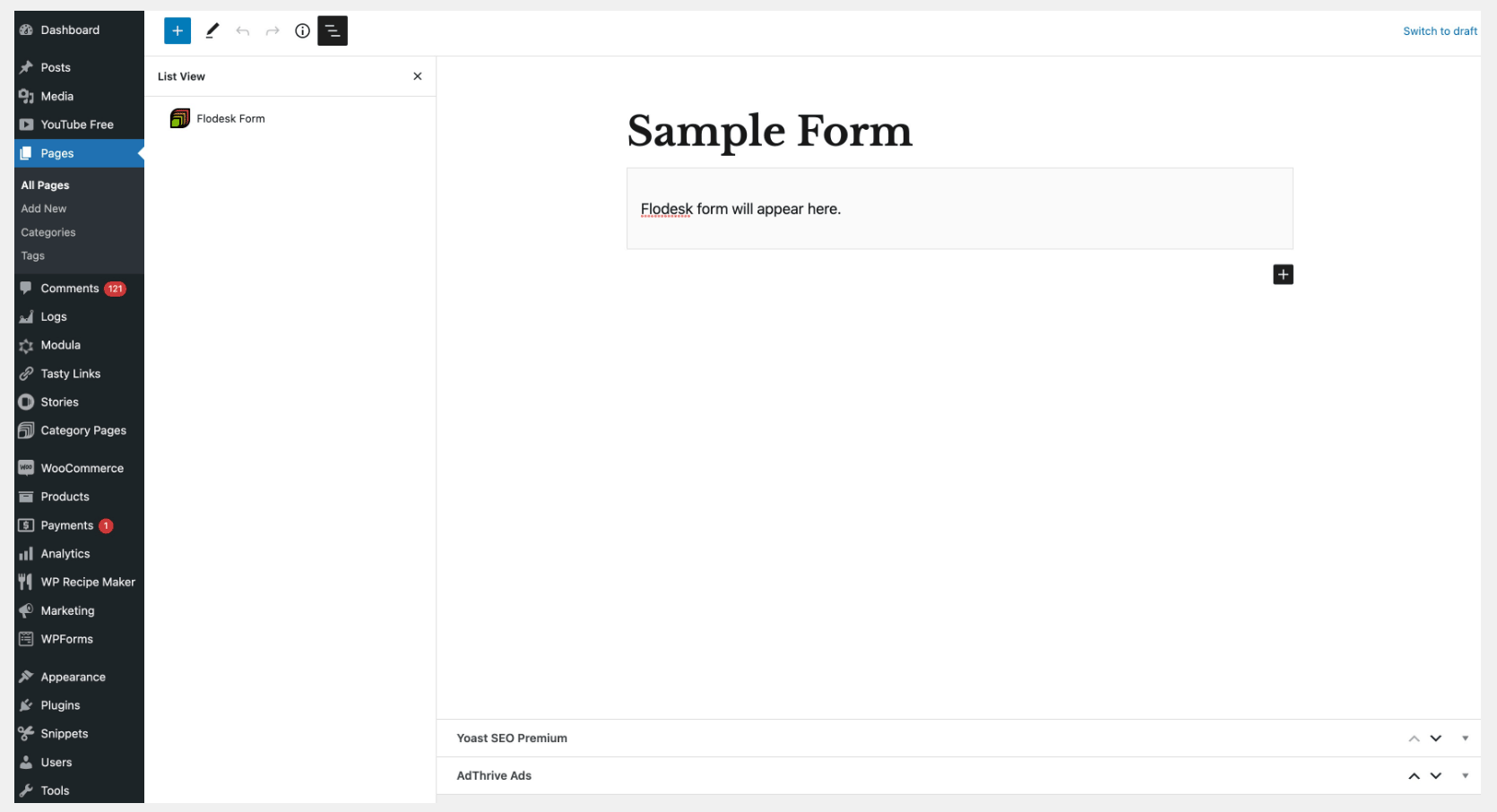
Step 4. Click Publish or Update to save.
Done! Your inline form is now embedded on your CultivateWP page.
Here's a screenshot showing the end result on the frontend of the website:
Which option should I choose?
Choose Option 1 (parent block) if you want custom layouts, patterned backgrounds, or image placement control.
Choose Option 2 (standalone block) if you want the fastest and simplest setup.
Both methods work beautifully—it just depends on how much layout control you want inside WordPress.
Troubleshooting tips
Make sure you copied the inline embed code (not popup or full-page).
Paste the code exactly as provided—don’t remove or edit anything.
Always click Update/Publish after adding the code.
Remember: The form preview won’t fully load inside the editor—it appears on the live page.
FAQs
Can I add the same inline form to multiple pages?
Yes. You can paste the same inline embed code into multiple Flodesk Form blocks across different pages.
Do I need to modify the embed code for CultivateWP?
No. Simply copy and paste the inline code exactly as provided by Flodesk.
Why don’t I see the full form inside the WordPress editor?
The Flodesk Form block shows a placeholder in the backend. The actual form loads only on the live (frontend) version of your website.
Should I use a parent block or not?
Use a parent block if you want more layout flexibility (like custom backgrounds or side-by-side images). If not, adding the Flodesk Form block directly is perfectly fine.
Can I use an image inside my form?
Yes.
If you want the image styled inside the form, choose an inline form template with an image in Flodesk.
If you want layout control inside WordPress, add the image using a WordPress Image block inside a parent block.
Summary
Adding a Flodesk inline form to your CultivateWP theme is quick and flexible:
Create and customize your inline form in Flodesk.
Copy the inline embed code.
Add a Flodesk Form block in WordPress—either inside a parent block or on its own.
Paste the code and click Publish.
Once live, your form will start collecting subscribers directly from your website—helping you grow your list and connect with your audience consistently.