
How to add an inline form to your Shopify website
Overview
An inline form is an email sign-up form that lives right inside your webpage — think of it as a built-in part of your site, not a pop-up that appears over it. You can place one in your homepage, a blog post, your footer, or anywhere else you want visitors to join your list.
Adding a Flodesk inline form to your Shopify site takes just two code snippets and about 10 minutes. No coding experience needed!
Before you begin:
Make sure you've already created and customized your inline form inside Flodesk. You'll need it ready to go before starting the steps below.
Step-by-Step Instructions
Part 1: Get Your Embed Codes from Flodesk
Step 1. Open your inline form in Flodesk and click Embed.
Step 2. You'll see two code snippets: your header code and your inline code. Keep this window open — you'll need both shortly.
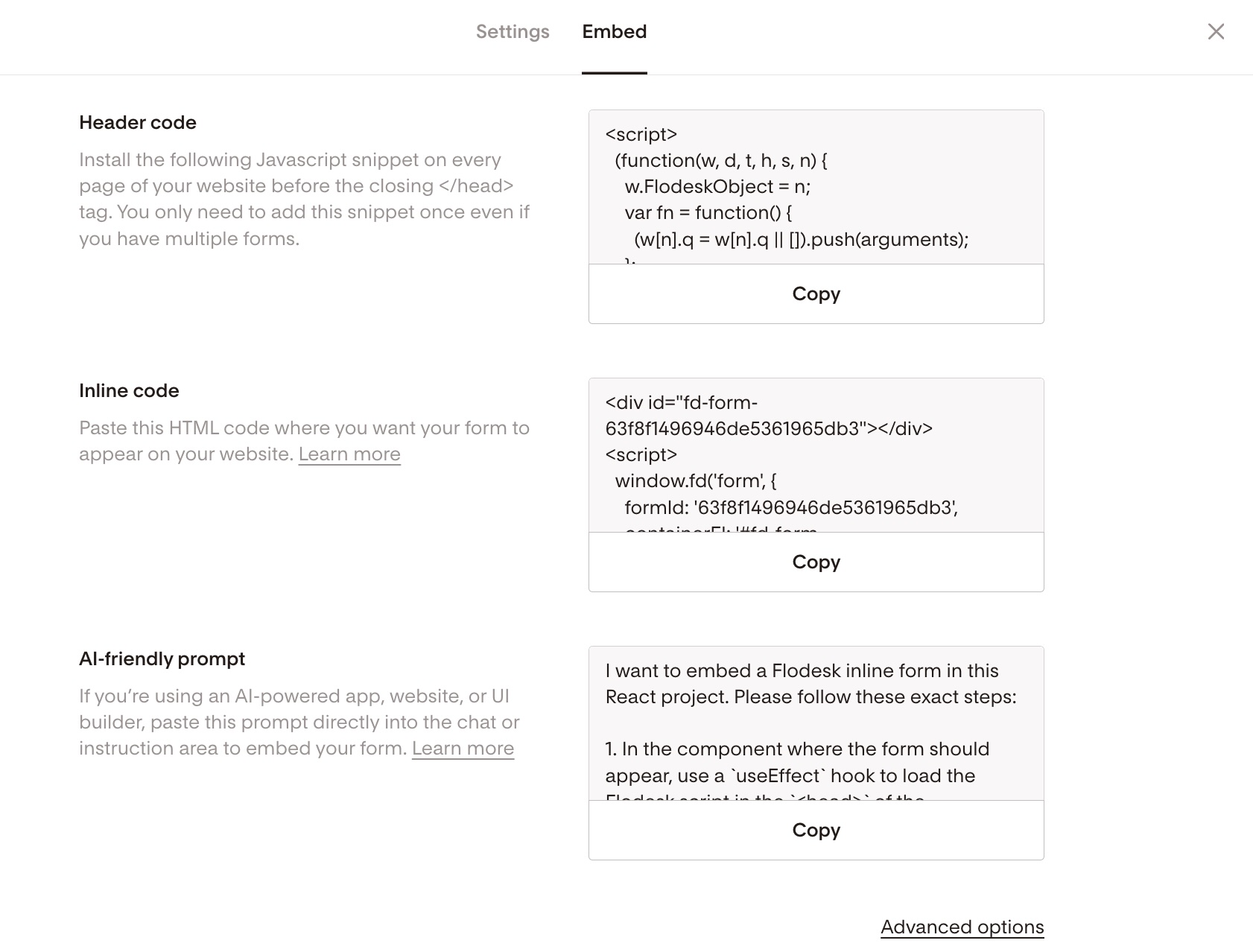
Part 2: Add the Header Code to Shopify
Step 3. In your Shopify dashboard, go to Online Store → Themes → Current Theme → Customize.

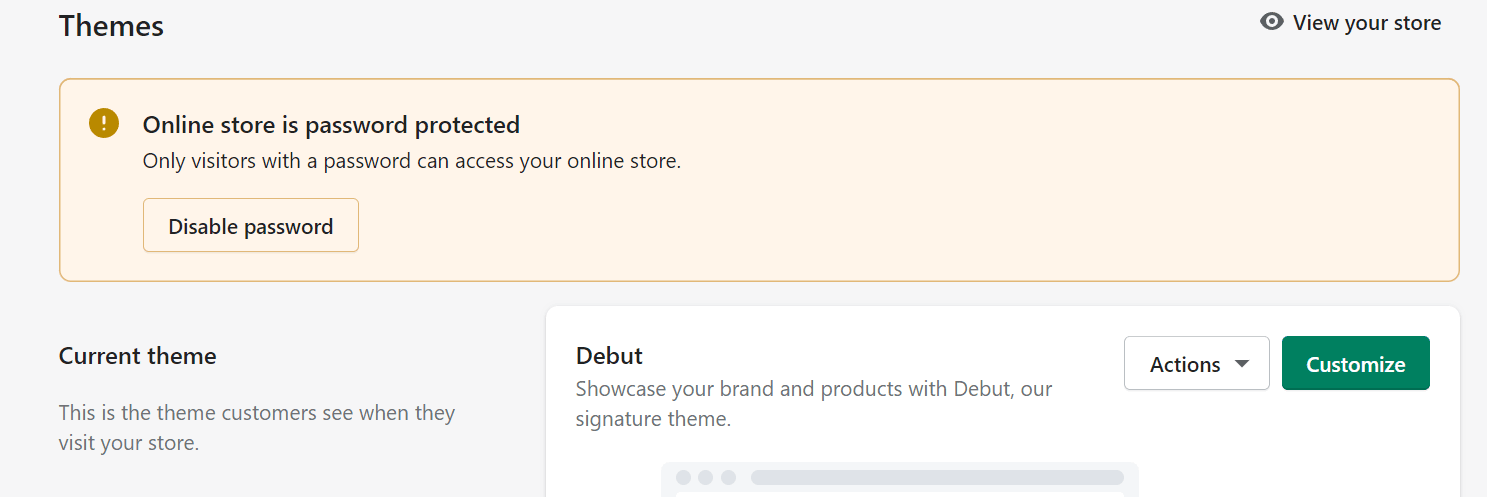
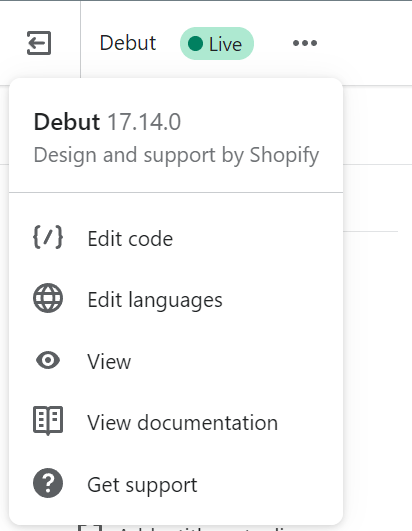
Step 4. Click the three dots in the upper left corner and select Edit code from the dropdown menu.
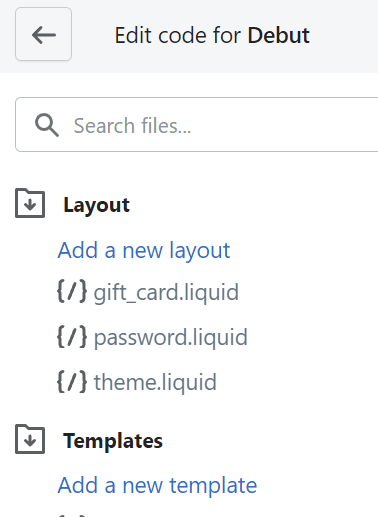
Step 5. Under the Layout section in the left panel, click theme.liquid.
Step 6. Paste your header code snippet immediately before the </head> tag in the code editor.
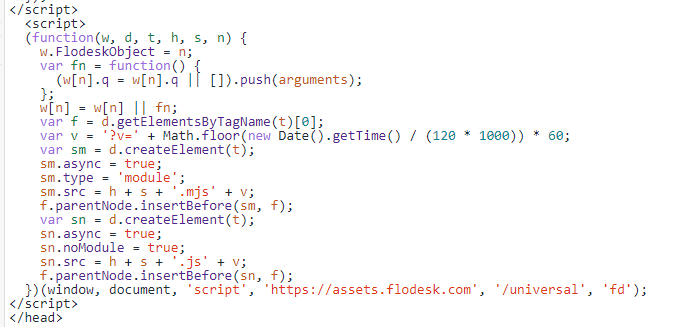
Step 7. Click Save in the top right corner, then navigate back to your Theme.
Part 3: Add the Inline Code to Your Page
Step 8. In the Shopify page editor, click Add section → Custom content → Custom HTML block.
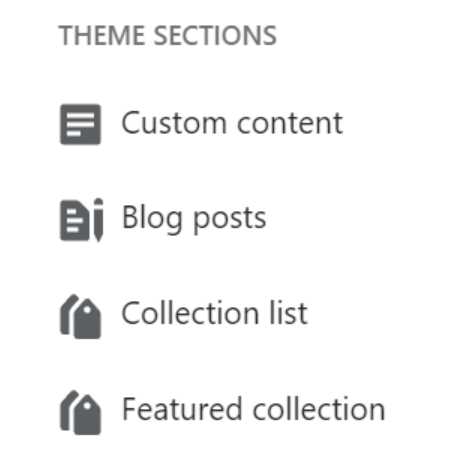
Step 9. Click your new Custom HTML block, then paste your inline code snippet into the HTML field in the right-hand panel. Set the container width to 100% so your form displays centered on the page.
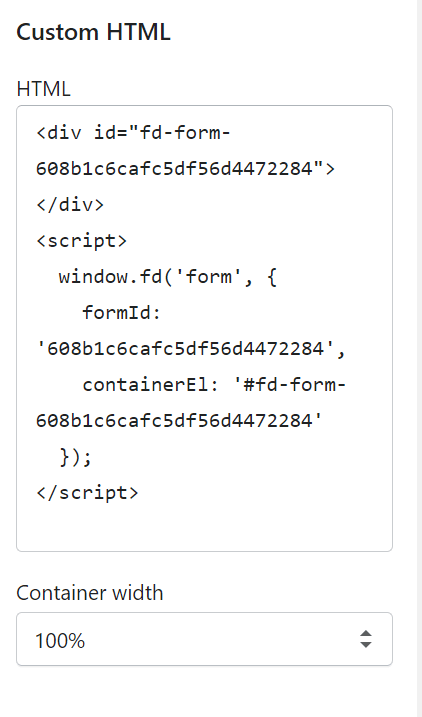
Step 10. Drag the Custom Content section to wherever you'd like the form to appear on your page, then click Save.
That's it! Your inline form is now live on your Shopify site.
Summary
Step | What You're Doing | Where in Shopify |
Add header code | Enables the form to load | Online Store → Themes → Edit code → theme.liquid |
Add inline code | Displays the form on your page | Custom HTML block on your chosen page |
FAQ
Do I really need to add both code snippets?
Yes! The header code and inline code work together. If you only add one, the form won't show up on your site.
Where should I place my inline form on my Shopify site?
Popular spots include your homepage, a dedicated landing page, blog posts, or your footer. Choose a spot that makes sense for your audience — somewhere they're already engaged and likely to want to hear more from you.
I added both codes but my form isn't showing. What should I check?
First, confirm the header code is placed just before the </head> tag in theme.liquid (not after it). Then double-check that the inline code is inside a Custom HTML block — not pasted into a regular text block. If it's still not working, try clearing your browser cache and refreshing the page.
Will I need to add the header code every time I add a new form?
No! The header code only needs to be added once per Shopify theme. For each new form you add, you only need to paste a new inline code snippet in a Custom HTML block.
Can I add an inline form to more than one page? Absolutely. Just repeat Part 3 (Steps 8–10) on any additional pages where you'd like the form to appear.
What happens if I switch Shopify themes?
You'll need to re-add the header code to your new theme. The inline code snippets on your pages should still work once the header code is back in place.
My form looks cut off or isn't centered. How do I fix it?
Make sure the container width in your Custom HTML block is set to 100%. This ensures the form fills the section properly and stays centered on the page.