
How to add a popup form to your Wix website
A step-by-step guide to adding a Flodesk popup form to your Wix website.
Flodesk popup forms help you capture visitors’ email addresses so you can grow your list and stay connected with your audience.
Popup forms appear on top of your website content and invite visitors to subscribe to your newsletter, download a freebie, or join your list. Because they stand out visually, popup forms are one of the most effective ways to convert website visitors into subscribers.
This guide walks you through how to add your Flodesk popup form to a Wix website using Wix’s Custom Code feature.
Before you start
Make sure you have:
A popup form created in Flodesk
Access to your Wix dashboard
Popup forms only require one piece of code: the header code.
How to add a popup form to your Wix website
Step 1: Create and customize your popup form in Flodesk
Log in to your Flodesk account.
Go to Forms.
Create a new Popup form or open an existing one.
Customize the design, text, and settings to match your brand.
Once your form is ready, you can embed it on your Wix website.
Step 2: Copy the popup form header code
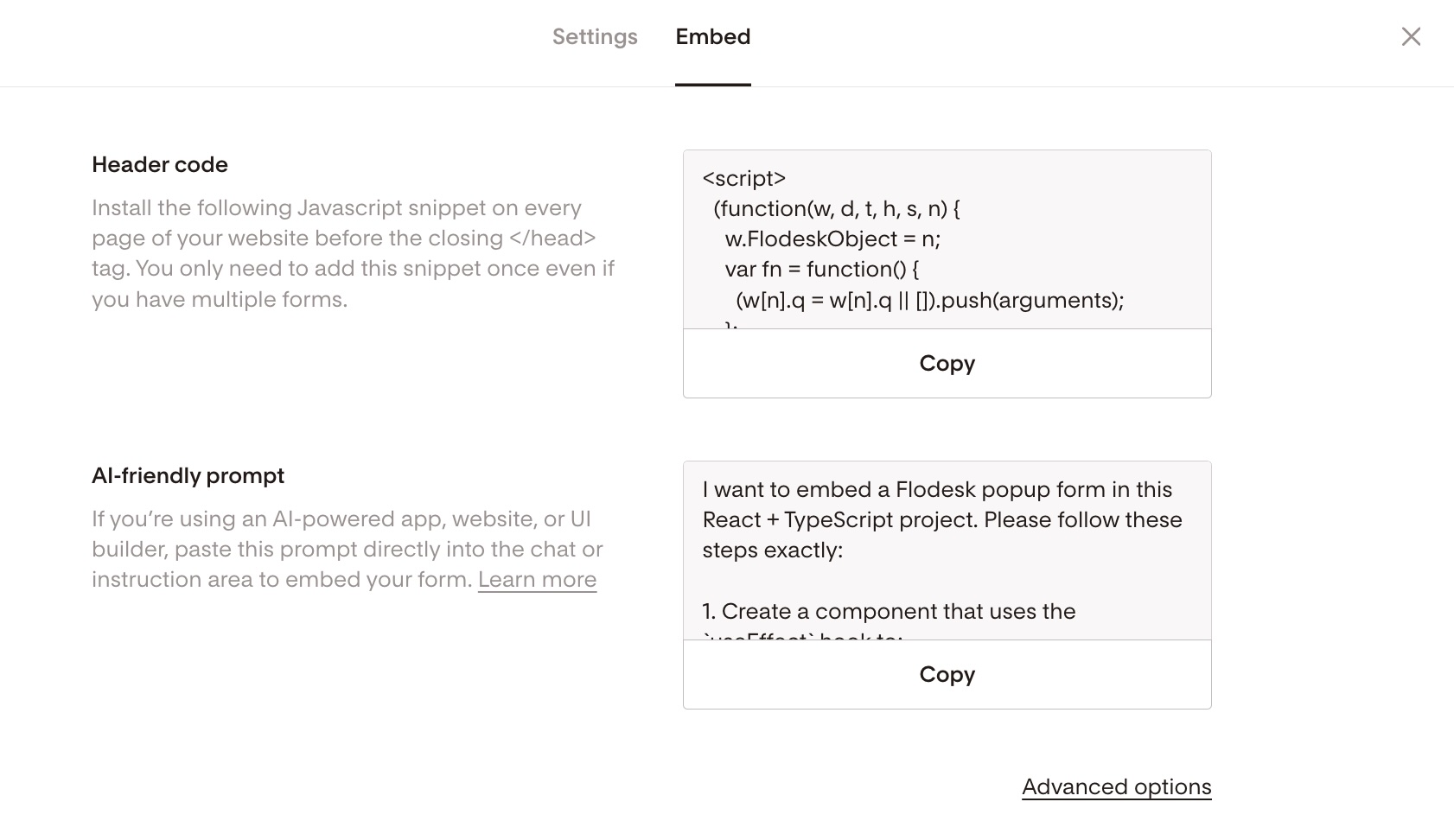
In the form editor, click Embed.
A window will open showing your Header code.
Click Copy.
This code allows the popup form to load on your website.
Step 3: Open Custom Code in Wix
Log in to your Wix dashboard.
Go to Settings.
Click Advanced.
Select Custom Code.
This is where you can add code that runs on your Wix website.

Step 4: Add the Flodesk popup code
Click + Add Custom Code.
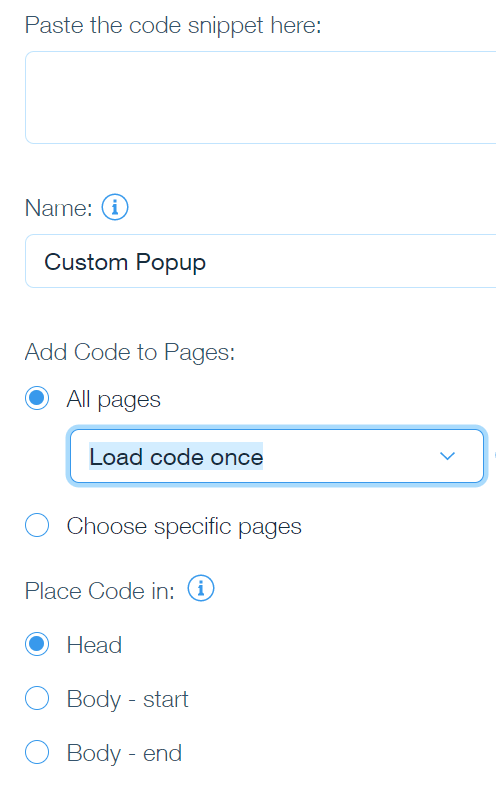
Paste the Flodesk header code into the code field.

Then configure the settings:
Name: Give the code a recognizable name (for example, Flodesk Popup Form).
Add Code to Pages: Choose the pages where you want the popup to appear.
Place Code In: Select Head.
Click Apply to save your changes.
Step 5: Make sure the code is active
After saving, confirm that the toggle switch is turned on.
If the toggle is off, the popup form will not appear on your site.

Step 6: Preview your website
Open your website preview or published site to test the popup.
Check that:
The popup appears correctly
The design looks how you expect
The signup form works
Your Flodesk popup form is now live on your Wix website.
Summary
To add a Flodesk popup form to Wix:
Create your popup form in Flodesk.
Copy the header code from the Embed window.
In Wix, go to Settings → Advanced → Custom Code.
Paste the code and place it in the Head section.
Choose which pages should display the popup.
Save and preview your website.
FAQ
Why isn’t my popup form appearing on my Wix website?
Check the following:
The popup toggle is turned on
The code is placed in the Head section
The popup is assigned to the correct pages
Your site has been published
If everything looks correct, try opening your site in an incognito window.
Can I show the popup only on certain pages?
Yes.
When adding the code in Wix Custom Code, you can choose specific pages instead of “All pages.” This lets you display the popup only on selected pages.
Can I control when the popup appears?
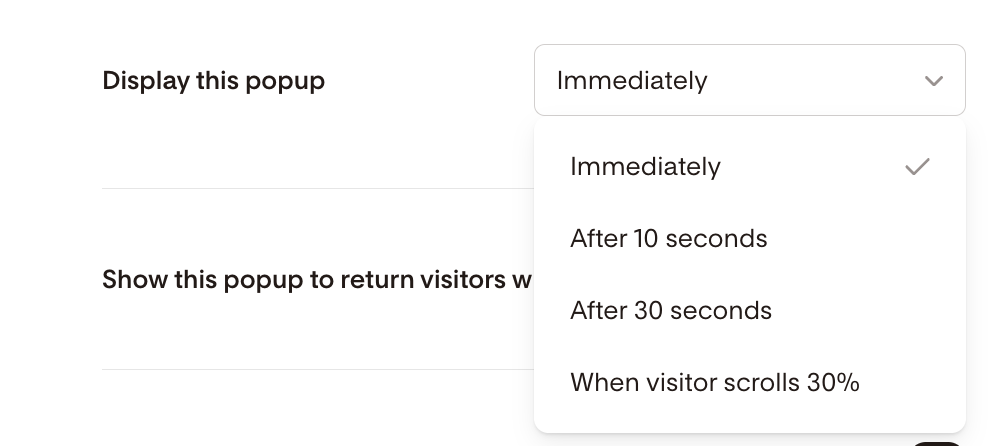
Yes. Popup timing and behavior are controlled inside Flodesk.
You can choose triggers such as:
Immediately
Time delay
Scroll percentage
These settings determine when visitors see your popup.
Can I use multiple popup forms on my Wix website?
Yes, but each popup requires its own header code.
Keep in mind that showing multiple popups on the same page can overwhelm visitors and reduce conversions, so it’s usually best to use one popup per page.