
How to use Apple Pay and Google Pay with Flodesk Checkout
Overview
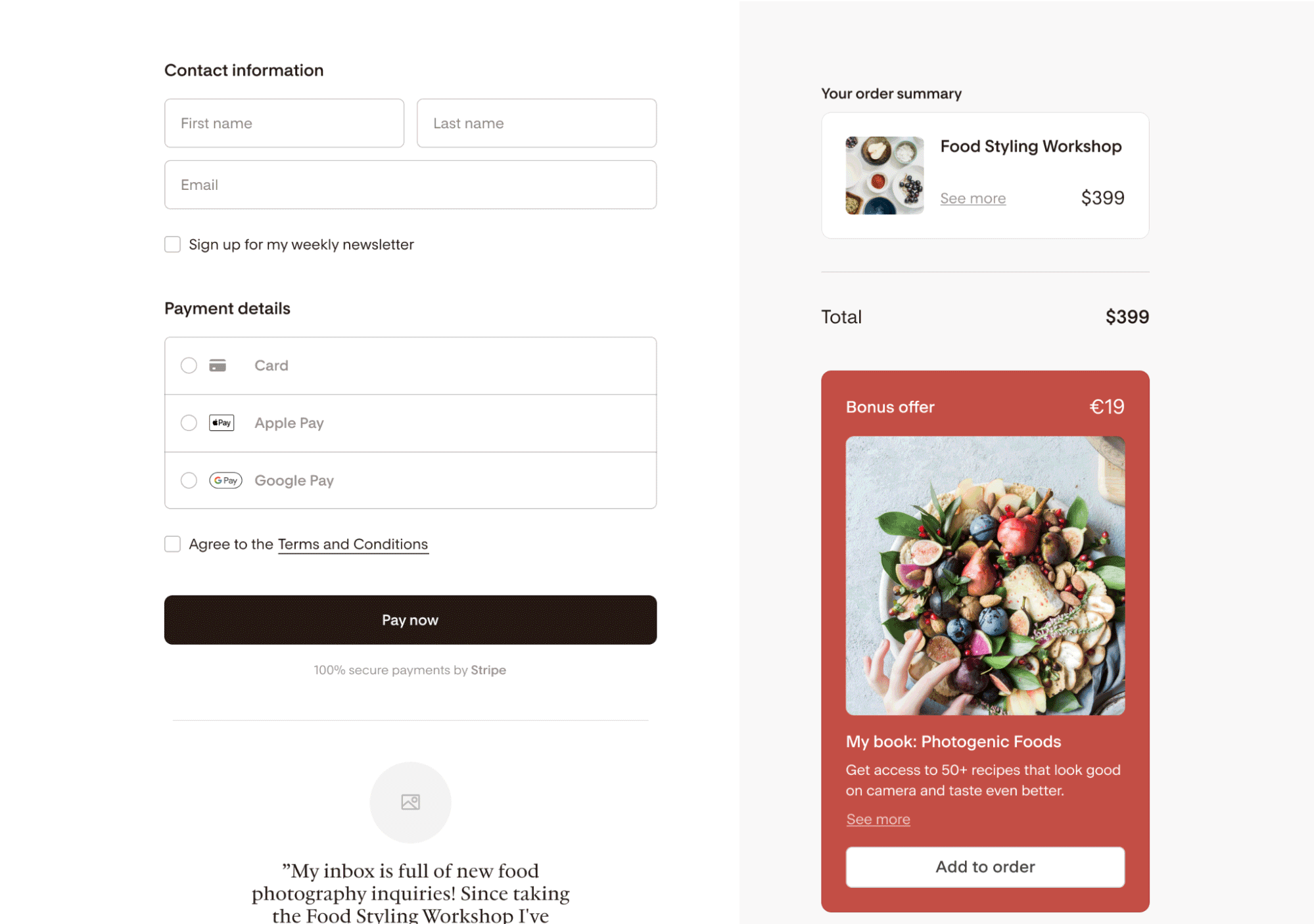
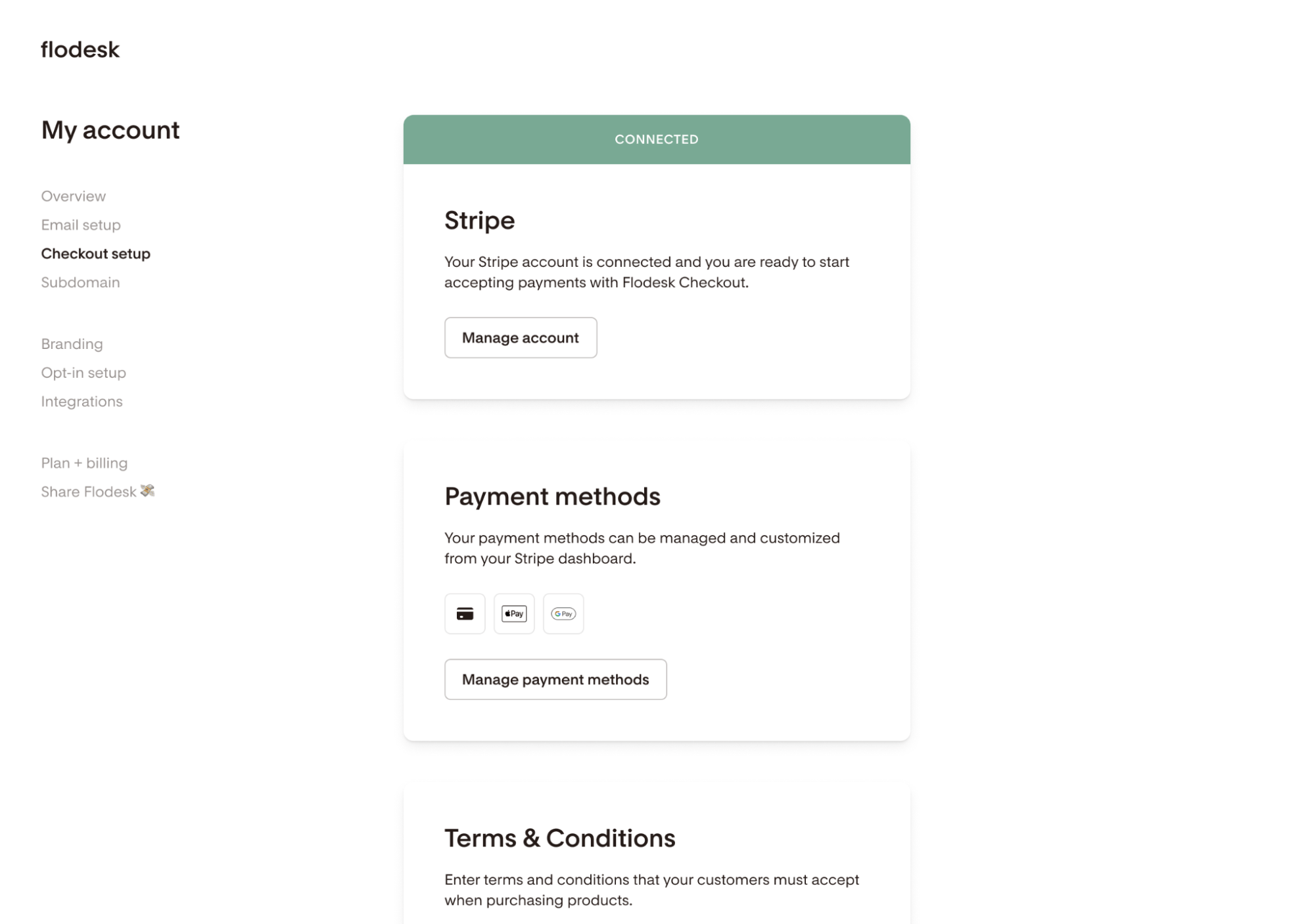
Apple Pay and Google Pay are available as payment options for Flodesk Checkout members using Stripe Standard Connect. If that's already your setup, there's nothing extra you need to do: these payment methods are enabled automatically.
This article covers how these options work, how to manage them, and what to do if a customer needs a refund.
Benefits of Apple Pay and Google Pay
Offering these payment options gives your customers a faster, more familiar checkout experience:
Faster checkout: Customers can complete a purchase in just a few taps, without entering card details manually
Fewer abandoned carts: A quicker checkout process means fewer customers drop off before completing their purchase
Added security: Both Apple Pay and Google Pay use tokenization, a process that replaces card details with a secure code, which reduces the risk of fraud
How to enable Apple Pay and Google Pay
If your Flodesk Checkout is already connected to Stripe Standard Connect, you don't need to do anything. Apple Pay and Google Pay are automatically enabled as long as your Stripe account supports them.
There are no additional processing fees for these payment methods. They will cost the same as your agreed processing rate with Stripe.
How to disable Apple Pay and Google Pay
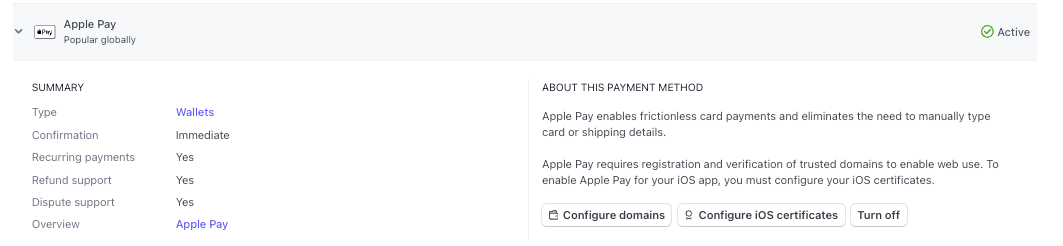
You can turn these payment methods off at any time from your Stripe Dashboard:
Log in to your Stripe account
Go to Settings > Payments > Payment methods
Select the payment method you want to disable (for example, Apple Pay)
Click Turn off
Limitations to know about
A few things to keep in mind before relying on these payment options:
Device and browser Support
Apple Pay works on Safari for iOS and macOS devices
Google Pay requires a compatible browser (such as Chrome) and a supported device
See Stripe's full list of supported browsers here: https://docs.stripe.com/elements/express-checkout-element#supported-browsers
Geographic availability
Availability varies by location. Apple Pay, for example, is supported in most countries but not in India. Check Stripe's documentation for the most up-to-date regional availability.
Currency support
Not all currencies are compatible with Apple Pay and Google Pay.Please refer to Stripe's documentation for a comprehensive list of supported currencies.
How to process a refund
Refunds for Apple Pay and Google Pay purchases are processed through Stripe, not Flodesk. The refund is returned to the credit or debit card the customer used during checkout.
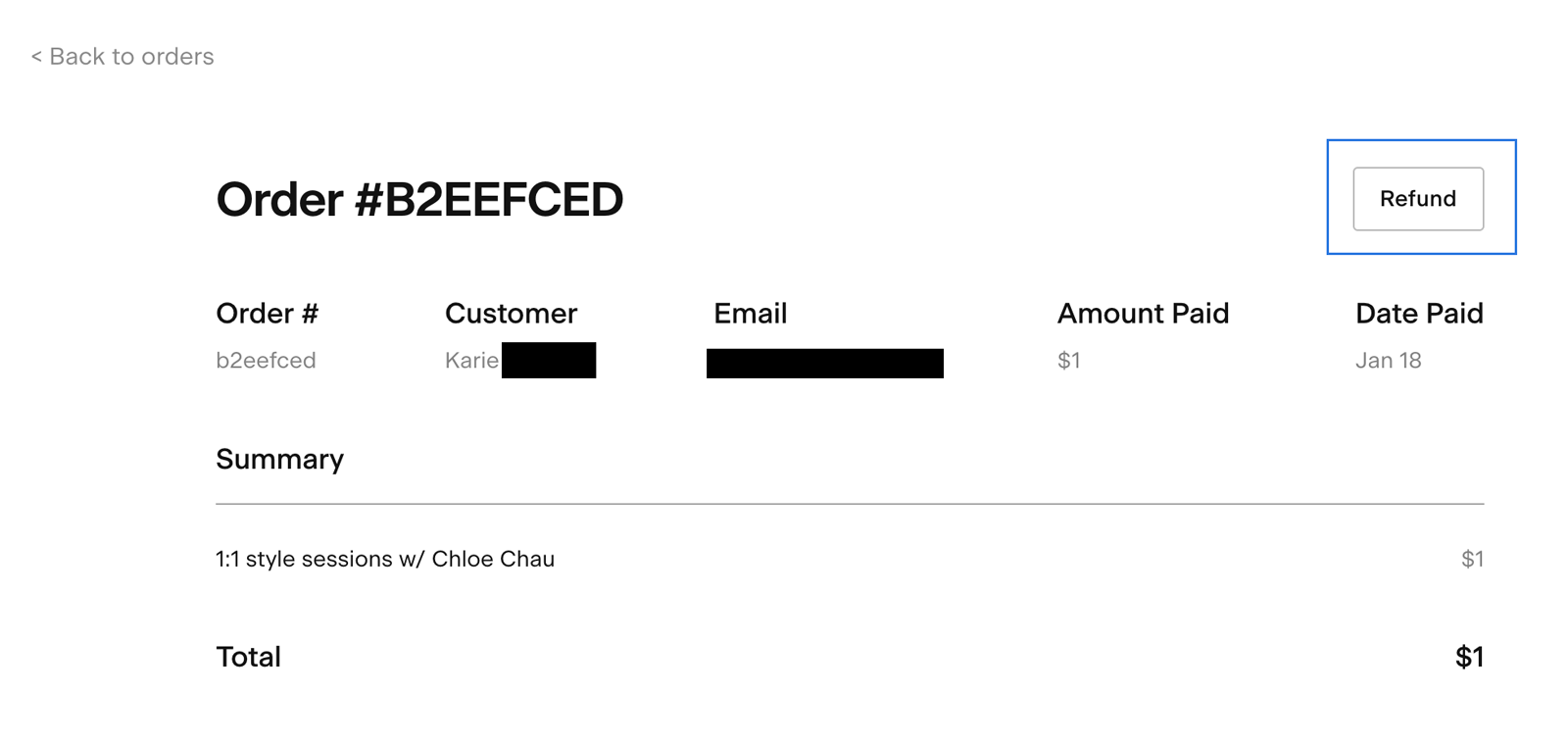
Log in to your Stripe Standard account and find the charge on the Payments overview page. You can also access this directly from the Order Details page in Flodesk: click the Refund button to go straight to the transaction in Stripe.
Click the ... icon to the right of the charge and select Refund charge
Enter the refund amount. The default is a full refund. To issue a partial refund, enter a different amount.
Select a reason for the refund
Click Refund
Note: With Stripe Standard, you can issue multiple partial refunds for a single order.
Learn more about it here: https://support.stripe.com/questions/how-to-refund-a-customer
FAQ
Do I need to do anything to enable Apple Pay and Google Pay for my Flodesk Checkout?
No, if your checkout is already connected to Stripe Standard Connect, Apple Pay and Google Pay are enabled automatically. No extra setup is required as long as your Stripe account supports these payment methods.
Are Apple Pay and Google Pay available with Stripe Express?
No. Apple Pay and Google Pay are only available for members using Stripe Standard Connect. If you're still on Stripe Express, you'll need to migrate to Stripe Standard first.
Are there extra fees for accepting Apple Pay or Google Pay?
No. These payment methods are processed at the same rate as your existing Stripe agreement. There are no additional processing fees.
Can I turn off Apple Pay or Google Pay?
Yes. Go to your Stripe Dashboard and navigate to Settings > Payments > Payment methods. Select the payment method you want to disable and click Turn off.
Why isn't Apple Pay or Google Pay showing up at checkout?
A few things could cause this. Apple Pay only appears on Safari for iOS and macOS. Google Pay requires a compatible browser like Chrome. Availability also varies by country: Apple Pay isn't supported in India, for example. If the buyer's device, browser, or location isn't supported, the option won't appear. See Stripe's documentation on supported browsers for more detail.
How do I refund a customer who paid with Apple Pay or Google Pay?
Refunds are processed in Stripe, not in Flodesk. Log in to your Stripe Standard account, find the charge on the Payments overview page, click the ... icon, and select Refund charge. You can also get there quickly by clicking the Refund button on the Order Details page in Flodesk. The refund goes back to the card the customer used at checkout.
Can I issue a partial refund for an Apple Pay or Google Pay purchase?
Yes. When processing the refund in Stripe, enter a custom amount instead of the default full refund amount. With Stripe Standard, you can also issue multiple partial refunds for the same order.
Does using Apple Pay or Google Pay change how payments are processed?
No. All transactions are still processed securely through Stripe in the same way as other payment methods. Apple Pay and Google Pay simply give your customers a faster way to check out.
Are Apple Pay and Google Pay available in all countries?
Availability varies by location. Apple Pay is supported in most countries but not in India. Google Pay availability also depends on the buyer's location and device. Check Stripe's documentation for the most current information on regional support.
Which currencies are supported for Apple Pay and Google Pay?
Not all currencies are compatible with these payment methods. Refer to Stripe's documentation for a full list of supported currencies.