
How to connect MemberVault and Flodesk
Overview
MemberVault and Flodesk now connect directly, so the two platforms can talk to each other without any third-party tools. Once connected, anyone who creates a member account with you on MemberVault (via Direct SignUp or Direct Purchase) will be added to your Flodesk list if they're not on there already. You can also use MemberVault Actions to "tag" your Flodesk subscribers based on member behavior and add them to specific Flodesk segments.
Important to know upfront:
This integration is built and maintained by MemberVault, not Flodesk.
MemberVault controls which integration features are available.
What you'll need
Before getting started, make sure you have:
An active Flodesk account
Admin access to your MemberVault account
How to connect Flodesk to MemberVault
In your MemberVault admin dashboard, click "Integrations," then "Email" in the left-side menu.
Under "Email Service Connection," open the "Company" dropdown and select "Flodesk."
Click "Connect to Flodesk."
Log in to your Flodesk account.
When prompted, click "Allow" to grant MemberVault access to your Flodesk account.
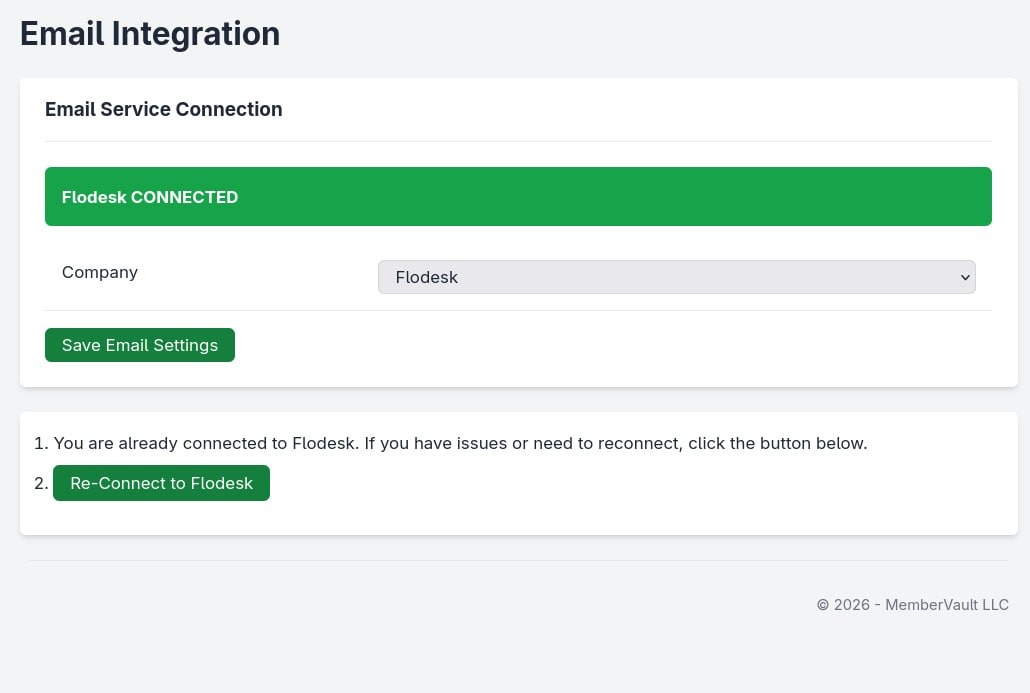
Once connected, a green bar will appear across the top of your Email Service Connection in MemberVault. That's your confirmation that everything is linked.
How to segment your members using MemberVault Actions
With the direct integration, you can use MemberVault Actions to add segments to your Flodesk subscribers based on what members do in your MemberVault account.
Quick note on terminology: MemberVault calls these "tags" and we at Flodesk call them "segments." They're the same thing. Whenever you see "tag" in MemberVault, it means "segment" in Flodesk.
Here's how to set it up:
Confirm that Flodesk is connected under "Integrations" > "Email."
Open the product in MemberVault where you want to add a tag.
Scroll to the "Actions" section at the bottom of the product edit settings.
Click "Add a new Action" and configure it. For example:
"When this happens": "Added to Product" > "Any"
"Do this": "Add a Tag" > enter your segment name
You don't need to create the segment in Flodesk first. It will be created automatically in Flodesk the first time the Action fires.
Use segments to trigger Workflows in Flodesk based on member behavior, such as completing a product, answering a quiz question, or reaching a milestone in MemberVault.
FAQs
Do I need to create segments in Flodesk before using them in MemberVault?
No. When you enter a segment name in a MemberVault Action, and it fires for the first time, Flodesk creates the segment automatically.
Can I use this integration to trigger Flodesk Workflows?
Yes. Once a member is tagged in MemberVault, you can use that segment to trigger Workflows in Flodesk, including welcome sequences and other automated emails.
I was using Zapier to connect Flodesk and MemberVault. Do I need to switch?
You don't have to, but the direct integration is simpler to manage. If you'd like to switch, add your existing segments into MemberVault first, then turn off the relevant Zaps.