
How to add a popup form to your Square website
A step-by-step guide to embedding a Flodesk popup form on your Square Online website.
Flodesk forms help you capture your visitors' email addresses so you can grow your list and stay connected with your audience.
Popup forms appear on top of your website content and encourage visitors to subscribe to your newsletter, freebie, or updates. Once installed, the popup will appear across your entire Square Online site.
This guide walks you through how to add your Flodesk popup form to a Square Online website.
Before you start
Make sure you have:
A popup form created in Flodesk
Access to your Square Dashboard with permissions to manage your Square Online site
The popup form works by adding a small piece of code (called the header code) to your website. In Square Online, you'll add this code through the Tracking Tools section of your site settings.
Add your popup form to your Square website
Step 1: Create and customize your popup form in Flodesk
Log in to your Flodesk account.
Go to Forms.
Create a Popup form.
Customize the design, text, and settings.
When your form is ready, click Embed.
You will see the Header Code. Copy this code, you'll add it to your Square Online site in the next step.
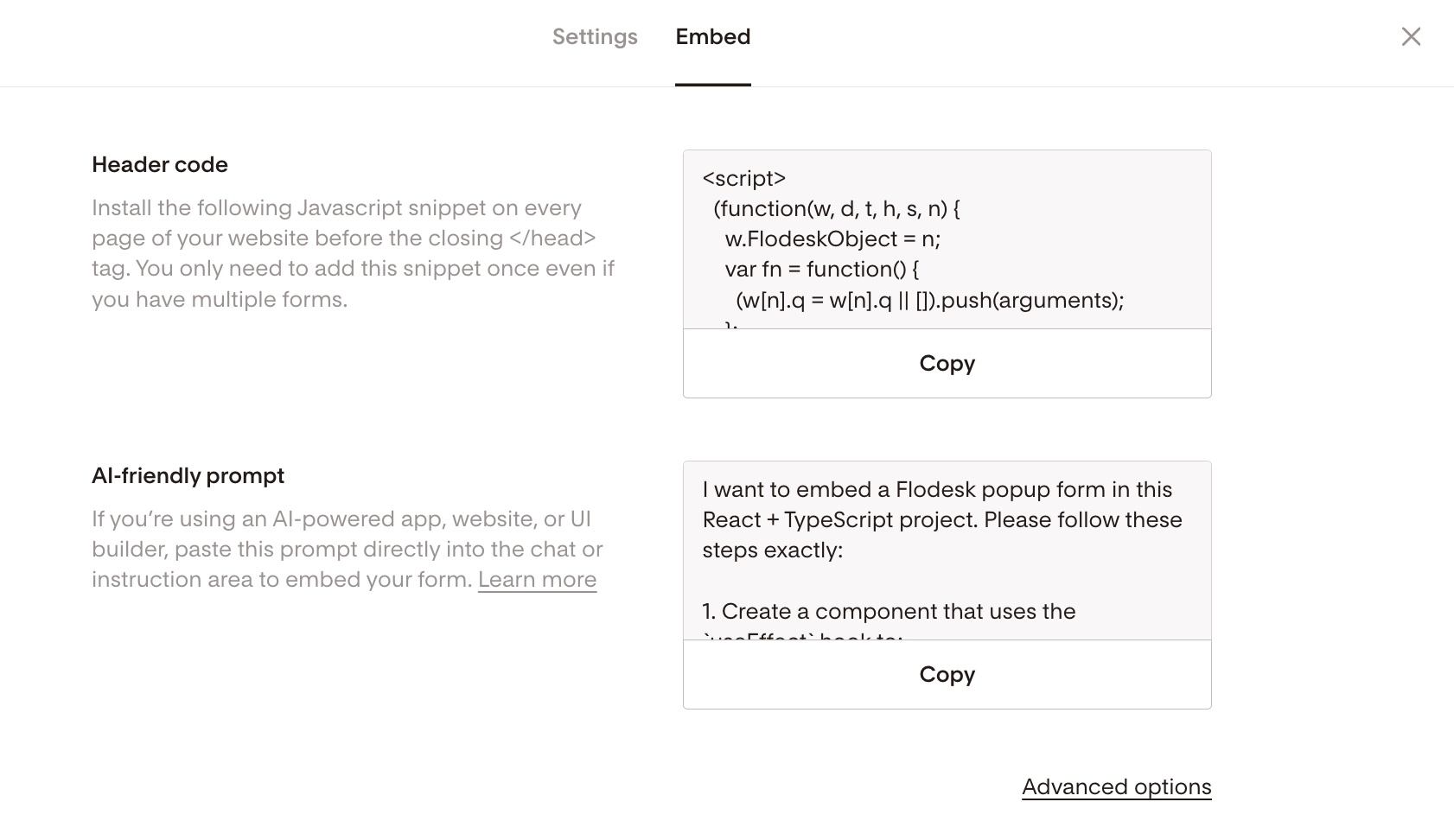
Step 2: Add the popup header code to your Square Online site
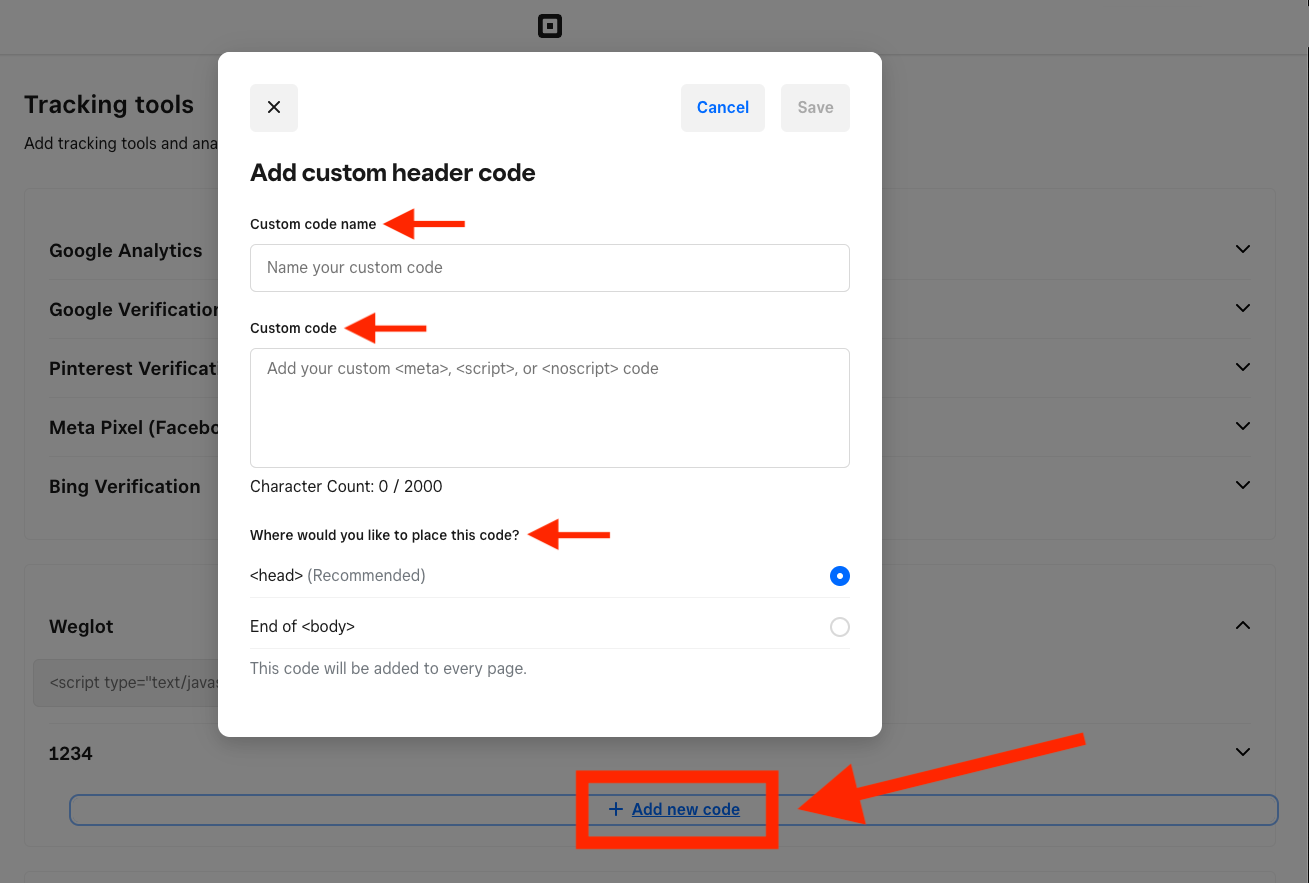
Sign in to your Square Dashboard.
Go to Channels, then select Square Online.
Select Settings, then Tracking Tools.
Select Add new code.
In the pop-up window, enter a name for your code (for example, "Flodesk Popup Form") and paste your Flodesk header code into the code field.
Select head as the placement option.
Select Save.
Open your site editor and publish your site to see the popup live.
Your popup form will now appear on your Square Online website based on the display settings you configured in Flodesk.
Summary
To add a popup form to your Square Online website:
Create and customize a Popup form in Flodesk.
Click Embed and copy the Header Code.
In your Square Dashboard, go to Channels > Square Online > Settings > Tracking Tools.
Select Add new code, name it, paste your Flodesk header code, and choose head as the placement.
Save and publish your site from the site editor.
Once the code is added and your site is published, your popup form will appear according to the display settings you chose in Flodesk.
FAQ
Why isn't my popup form showing on my website?
Check the following:
The header code was copied completely from Flodesk
The code was pasted into the Tracking Tools section with head selected as the placement
Your site has been published after adding the code
You may also need to refresh your browser or test in an incognito window.
Do I need to add the code more than once?
No. Adding the code once through Tracking Tools will apply it across your entire Square Online site. If you update your popup design in Flodesk, those changes will automatically reflect on your site without needing to re-add the code.
Can I customize when the popup appears?
Yes. Popup timing, triggers, and display behavior are controlled inside the Flodesk popup form settings.
For example, you can choose to show the popup:
Immediately
Time delay
Scroll percentage
Will the popup work on mobile devices?
Yes. Flodesk popup forms are mobile-responsive, meaning they automatically adjust to display properly on phones and tablets.