
How to add an inline form to your Square website
Add a Flodesk inline form to your Square Online site so visitors can subscribe without leaving your page.
Overview
Inline forms are embedded directly into a webpage. Unlike pop-ups, they appear as a natural part of your page layout, inside blog posts, on landing pages, or in footers.
To add a Flodesk inline form to Square Online, you'll copy two pieces of code from Flodesk and paste them into an Embed code section in Square's site editor.
Before you begin:
Make sure your inline form is created and customized in Flodesk.
You'll need both the Header code and the Inline code.
Adding only one of the codes will not display the form correctly.
Square Online Plus, Premium, Square Plus, or Square Premium plan is required (the Embed code section isn't available on all plans).
Step 1: Get your embed code from Flodesk
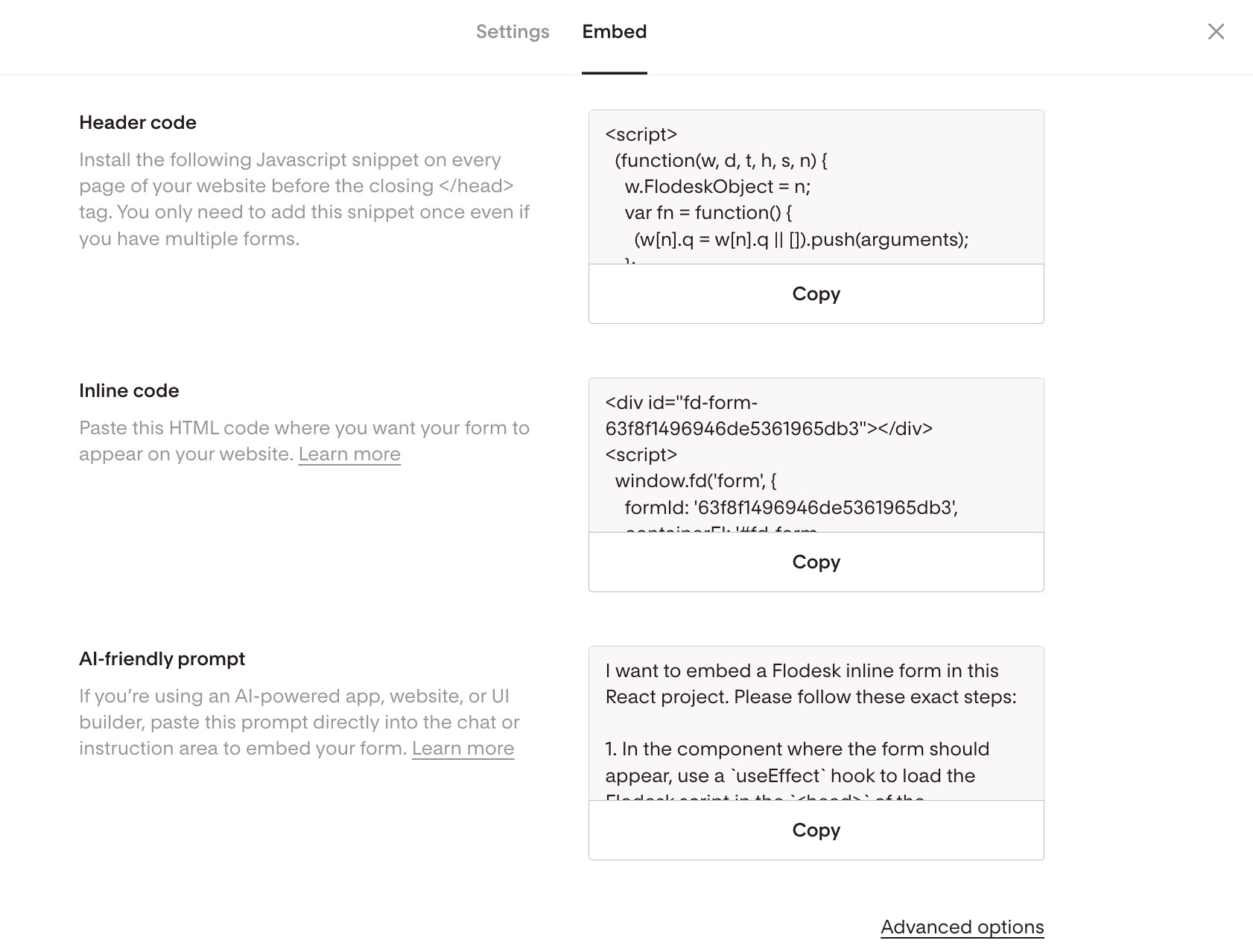
In your Flodesk dashboard, open your Inline form.
Click Embed.
You'll see two code snippets:
Header code
Inline code
Keep this window open so you can paste both codes into Square in the next steps.
Step 2: Add an Embed code section in Square Online
Sign in to your Square Dashboard and go to Channels > Square Online.
Select Website > Edit site.
Open the page where you'd like the form to appear.
Select +Add > Section, then choose the Embed code section.
Step 3: Paste both code snippets
In the editing panel, select Embed code.
Paste the Flodesk Header code first.
Immediately paste the Flodesl Inline code directly below it in the same text box.
Important: Both codes must be added together in the same Embed code section. The Header code always goes first.
Step 4: Publish and preview
Publish your site in Square to see the changes live.
Visit your page to confirm the form displays correctly.
That's it! Your inline form is now embedded and ready to collect subscribers.
Troubleshooting tips
Form not showing?
Double-check that both the Header and Inline codes were added.
Make sure the Header code is pasted first.
Confirm you're using the Embed code section (not a regular text section).
Visit your published site to check, as the form may not render in the editor preview.
Form looks off or misaligned?
Check your page layout settings in Square. Spacing or column width may affect how the form displays.
Adjust form styling (fonts, colors, layout) inside the Flodesk form editor before embedding.
Why use an inline form?
Inline forms stay visible at all times, feel seamless on the page, and work well inside blog posts and landing pages. Adding one to your highest-traffic pages is a great way to grow your email list organically.
Summary
To add a Flodesk inline form to Square Online:
Create and customize your inline form in Flodesk.
Click Embed and copy both code snippets.
In Square's site editor, add an Embed code section to your page.
Paste the Header code first, then the Inline code directly below it.
Publish your site.
FAQs
Do I need both the Header code and Inline code?
Yes. Both are required for the form to display and function properly.
Where do I paste the code in Square Online?
Inside an Embed code section. You can add one by selecting +Add > Section in the Square site editor.
Can I add the form to multiple pages?
Yes. You can paste the same Header and Inline code into Embed code sections on as many pages as you'd like.
Why isn't my form appearing?
Most often, this happens because only one code snippet was added, the Header code wasn't pasted first, or the code was placed in the wrong type of section. The form also may not render in the Square editor preview, so try publishing your site and viewing the live page.
Can I style the form inside Square?
No. All styling (fonts, colors, layout) is managed inside the Flodesk form editor before you embed.
Does this work with all Square Online plans?
The Embed code section requires Square Online Plus or Premium (or Square Plus or Premium). If you don't see the Embed code option, check your Square plan details.
For more on how Square handles embedded code, see Square's support documentation on adding embedded code.