
How to create and manage discounts in Products
Overview
With the introduction of Products, discounts in Flodesk are now catalog-level objects, meaning you create a discount once and choose which products it applies to: one product, a selection of products, or your entire catalog. This is a change from how discounts worked in legacy checkouts, where each discount was tied to a specific checkout.
You might also know these as promo codes or coupon codes. In Flodesk, we call them discounts.
This article covers how to create and manage discounts, how to control which products a discount applies to, and how discounts interact with bump offers (upsells) and checkout.
Note: this feature is being released in batches. Right now, Products is available to new members who haven't created a checkout before. If you’re an existing Flodesk member who has existing checkouts, you'll be invited to try Products soon, and switching will always be your choice, nothing will be migrated automatically.
How discounts work in Products
In Products, discounts live in their own dedicated tab rather than inside individual products or checkouts. Each discount code you create is a standalone object that you can apply broadly or narrowly depending on what you need.
This makes it easier to run promotions across your catalog without having to create separate discount codes for each product. A single launch discount, for example, can apply to every product you're selling without any extra setup.
One discount code can be used per checkout session. Stacking multiple codes is not supported.
How to create a discount
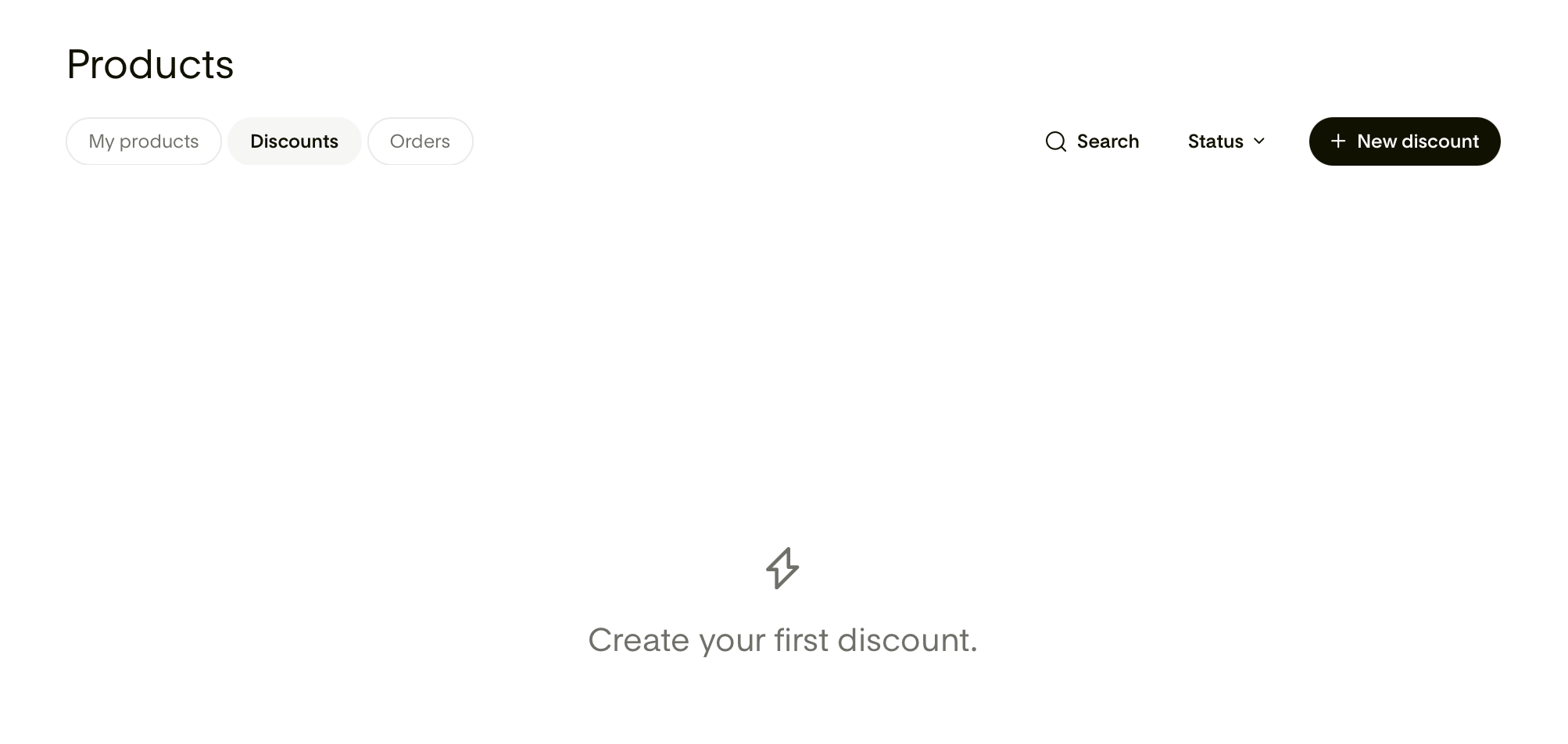
From your Flodesk dashboard, go to Products > Discounts.
Click +New discount.
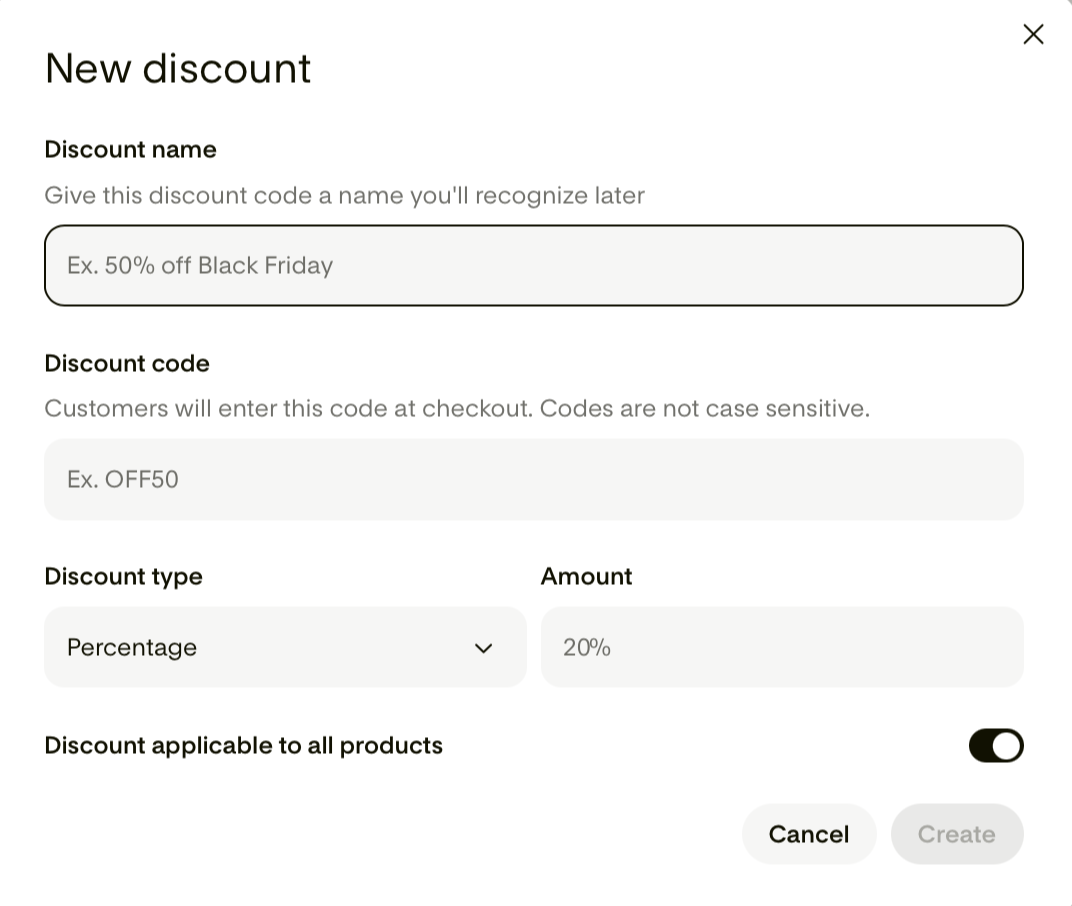
Fill in the discount details (see below).
Click Create.
Discount fields:
Discount name: An internal label to help you identify the discount in your list. Buyers don't see this.
Discount code: The code buyers enter at checkout. This is not case-sensitive, so "SAVE20" and "save20" work the same way.
Discount type: Choose between a percentage off or a fixed amount off.
Amount: Enter the percentage or fixed amount to discount.
Discount applicable to all products: Choose whether this discount applies to all products, specific products, or a single product (see below).
Choosing which products a discount applies to
When setting up or editing a discount, you'll choose the scope of where it applies.
All products
The discount applies to every product in your catalog. Use this for sitewide promotions, launch discounts, or seasonal sales across everything you offer.
Specific products
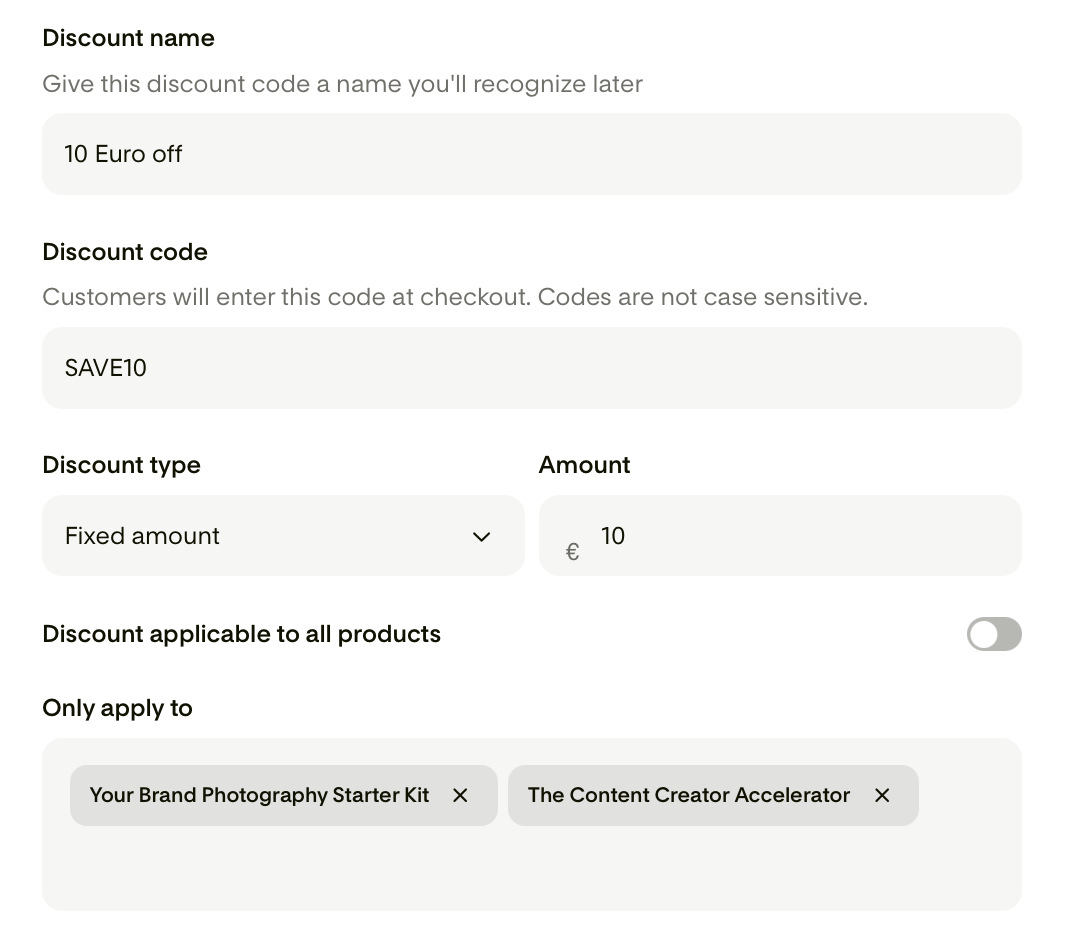
The discount applies only to the products you select. Use this when you want to run a targeted promotion on a subset of your catalog, for example, discounting your courses but not your one-to-one sessions.
To set this up, select specific products in the Only apply to field and search for the products you want to include.
A single product
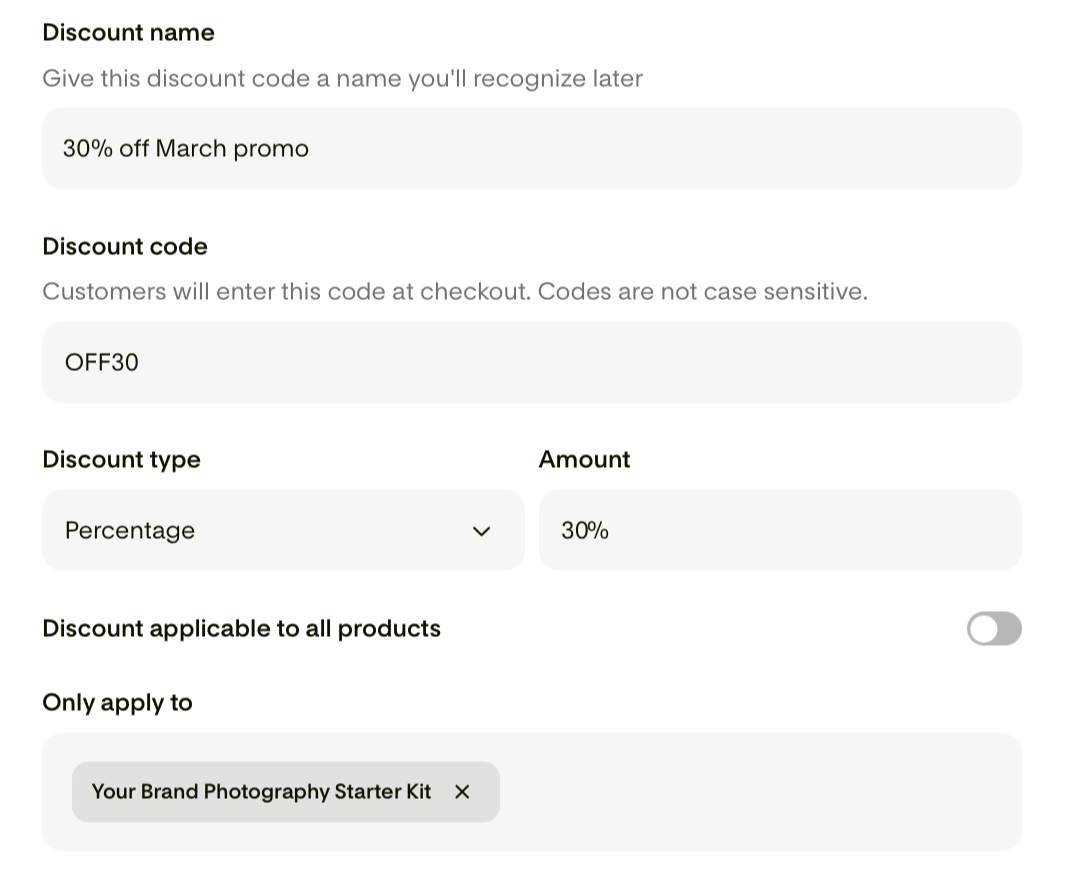
The discount applies to one product only. This is useful for product-specific promotions or testing a discount on a new offering before rolling it out more broadly.
How discounts work at checkout
When a buyer enters a discount code at checkout:
If the code is valid and active, the discount is applied to the eligible product or products in that checkout session.
The discounted price is shown to the buyer before they complete their purchase.
Only one discount code can be applied per checkout session. Buyers can't stack codes.
If a discount applies to the primary product but not the bump offer (or vice versa), only the eligible product receives the discount. The other is charged at its regular price.
If a discount applies to all products and both the primary product and the bump offer are eligible, both receive the discount.
How discounts interact with bump offers
Discounts follow product eligibility rules, so how a discount applies to an upsell depends on how you've set it up.
If the discount applies to all products: Both the primary product and the bump offer are discounted.
If the discount applies to specific products and the bump offer is included: The bump offer is discounted.
If the discount applies to specific products and the bump offer is not included: The bump offer is charged at its regular price.
If the discount applies to the bump offer only: The primary product is charged at its regular price and the upsell is discounted.
Note: Bump offers on payment plan products are charged as a one-time payment at the time of the first installment. If a discount applies to the bump offer, it reduces that one-time charge.
Managing your discounts
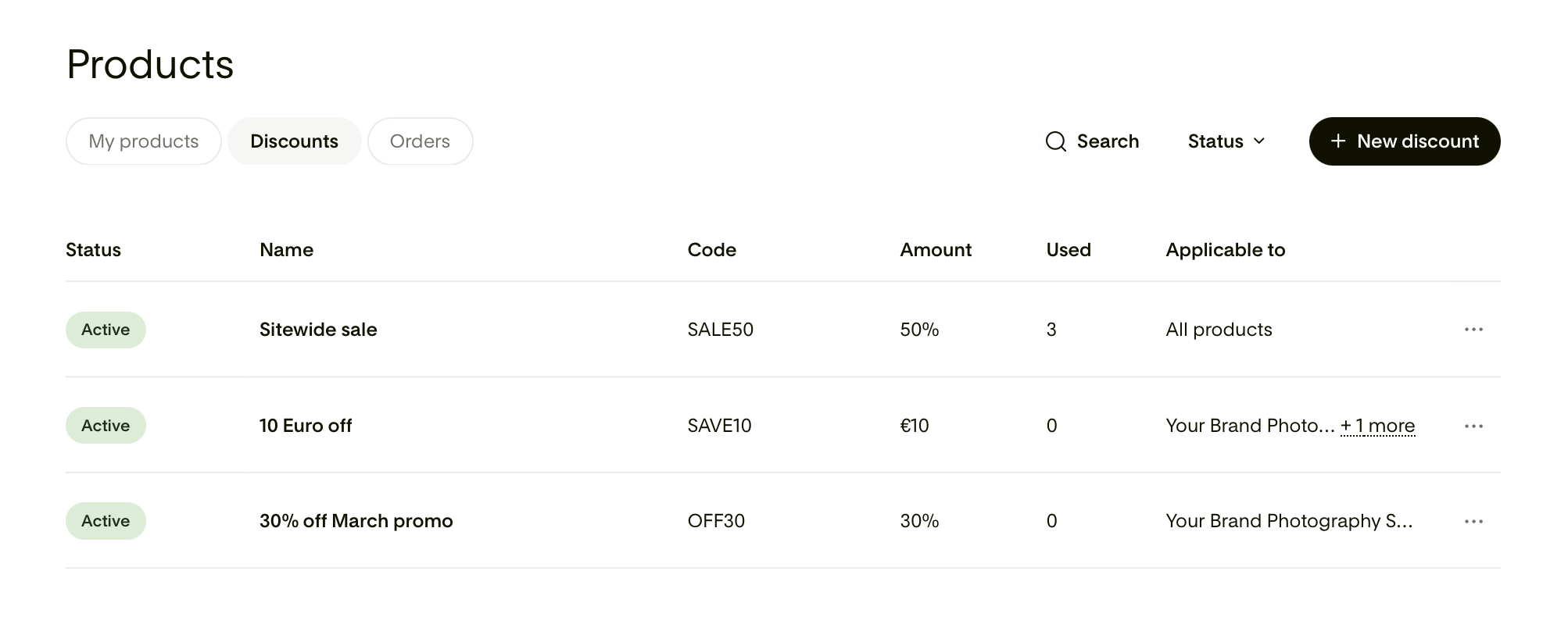
All your discounts are listed in the Discounts tab under Products.
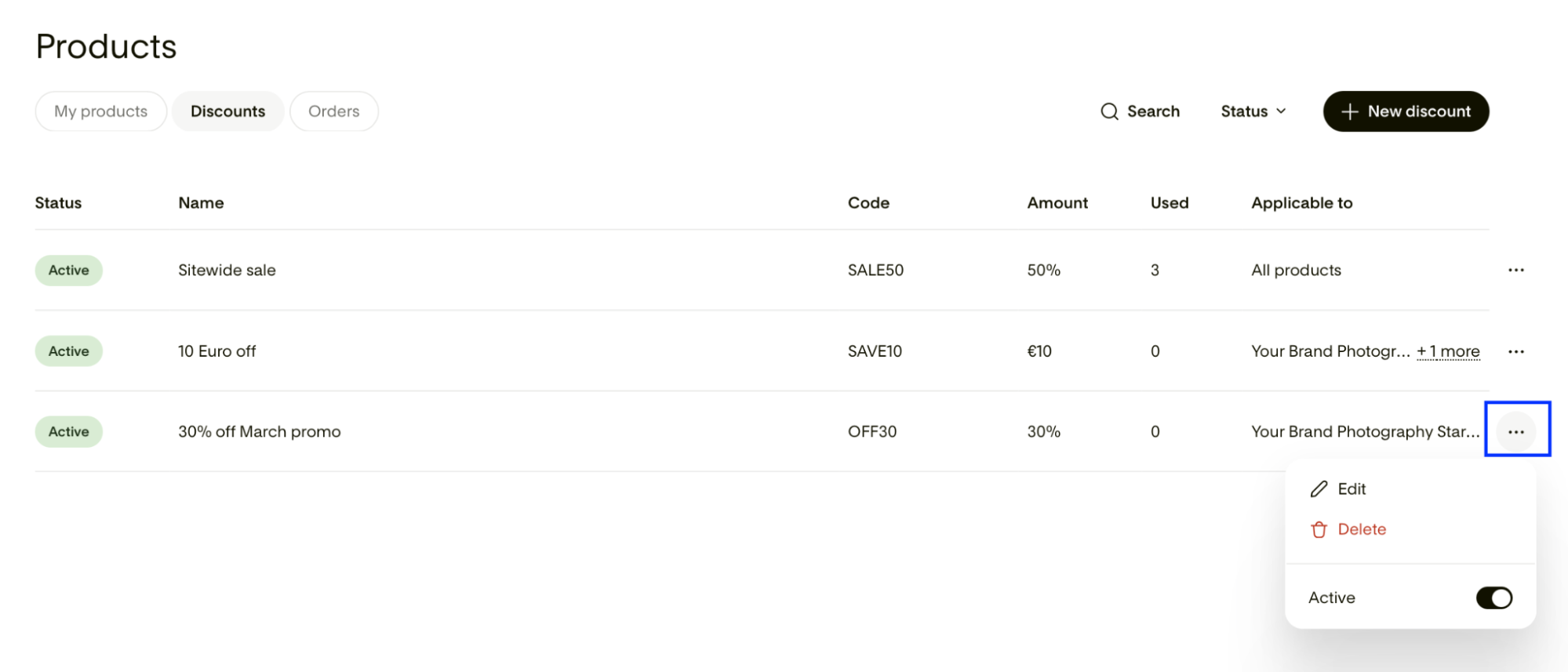
From there you can:
Edit a discount
Click the three dots (...) menu on any discount to edit and update its name, code, scope, type, or amount. Click Update to save your changes.
Activate or deactivate a discount
Click the three dots (...) menu on any discount and use the Active toggle to turn it on or off without deleting it. Deactivated discounts can't be used at checkout but remain in your list for future use.
Delete a discount
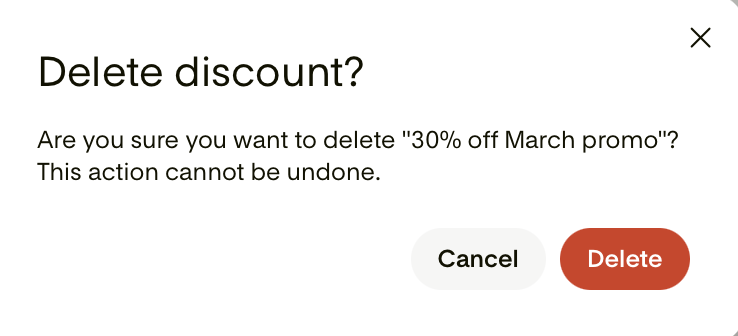
To permanently remove a discount, select Delete from the discount's three dots (...) menu. This can't be undone. You will be asked to confirm you indeed want to delete the discount code. Any buyers who have already used the code are not affected by deletion.
Note: If you edit, deactivate, or delete a discount while a buyer has an open checkout session with it applied, that session automatically expires. The buyer is prompted to refresh and complete checkout with the current pricing and discount details.
FAQ
What happened to the discounts on my legacy checkouts?
Discounts attached to legacy checkouts are not automatically converted to catalog-level discounts. They remain tied to their original checkouts and continue to work as they always have. When migration becomes available for existing Flodesk members (coming in a future update), discount handling will be part of that process.
Can I use the same discount code across multiple products?
Yes. When you set a discount to apply to all products or specific products, the same code works across every eligible product. Buyers enter the code once at checkout and it applies to everything it's eligible for in that session.
Can a buyer use more than one discount code in a single checkout?
No. Only one discount code can be applied per checkout session. Stacking codes is not supported.
Can I limit how many times a discount code can be used?
This feature is coming in a future update. Currently, active discount codes can be used an unlimited number of times unless you manually deactivate them.
Where can I see how many times a discount has been used?
The Discounts tab under Products shows a Used column for each discount, where you can follow and track redemptions.
Can I set an expiry date for a discount?
Expiry dates for discount codes are coming in a future update. For now, you can deactivate a discount manually when you want to stop accepting it.
Does a discount apply to the full payment plan amount or just the first installment?
A discount on a payment plan product applies to the total price, which affects how each installment is calculated. For example, if the total is $200 with four monthly installments and a 20% discount is applied, the new total becomes $160 and each installment is recalculated accordingly.
Can I offer a 100% discount to make a product free?
A 100% discount effectively makes a product free at checkout. The buyer still goes through the checkout flow, but no payment is collected. This is different from setting a product's price to $0.00 directly, but the buyer experience at checkout is similar.
Will a discount code work if it's set to apply to specific products but the buyer purchases a different product?
No. If a buyer enters a code that doesn't apply to the product they're purchasing, the code won't be accepted and they'll see a message letting them know the code isn't valid for that product.
Can I create different discount types for the same product?
Yes. You can create multiple discount codes that apply to the same product. For example, one code for a percentage discount and another for a fixed amount off. Only one can be used per checkout session, but having multiple codes lets you run different promotions for different audiences or campaigns.