
Setting up your brand in Flodesk Studio
Overview
Brand Management is where you tell Flodesk Studio about your business: who you are, what you look like, and how you sound. The details you add here feed directly into every email Flodesk Studio generates for you, so your outputs feel on-brand from the first draft.
One important thing to know before you start: any changes you make in Brand Management apply to new generations only. Updates you make here will not change designs you've already created unless you specifically ask the AI to apply them to existing emails.
How to get to Brand Management
Log in to Flodesk Studio at https://app.studio.flodesk.com/sign-in
If you selected "Log in with my Flodesk account", Studio will import your brand settings from your connected main Flodesk account.
Otherwise, click Brand in the bottom left corner.
You'll land on the Brand Management surface where all your brand elements are organized for you to fill in.
Note: As an existing Flodesk member, when you log in to Studio the first time via your main Flodesk account login credentials, Studio will import your existing brand elements automatically. You can update those at any time, as explained below.
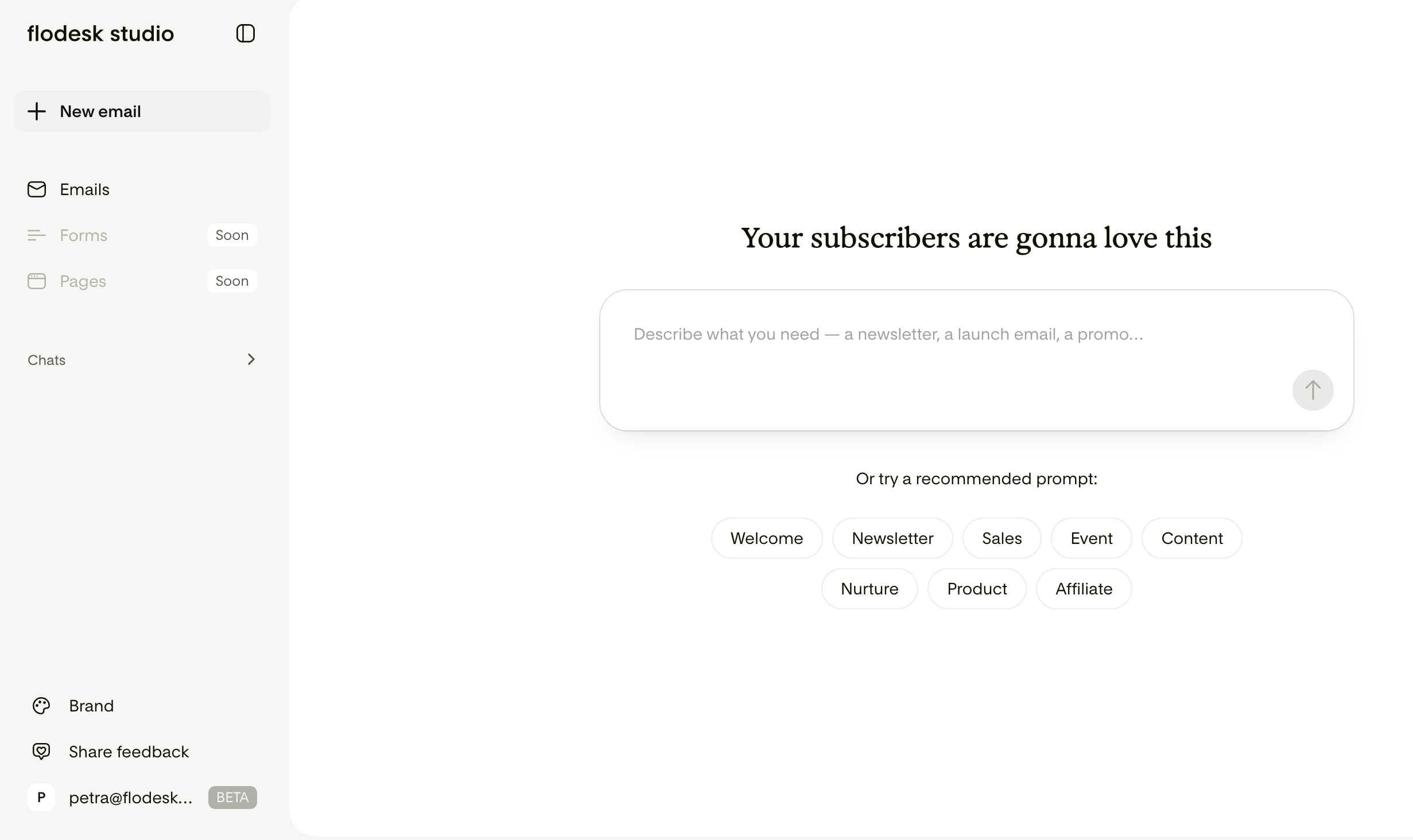
You can either select a brand preset under Brand style to control fonts, colors, and vibe in your email designs or fill in your details and use your existing custom brand.
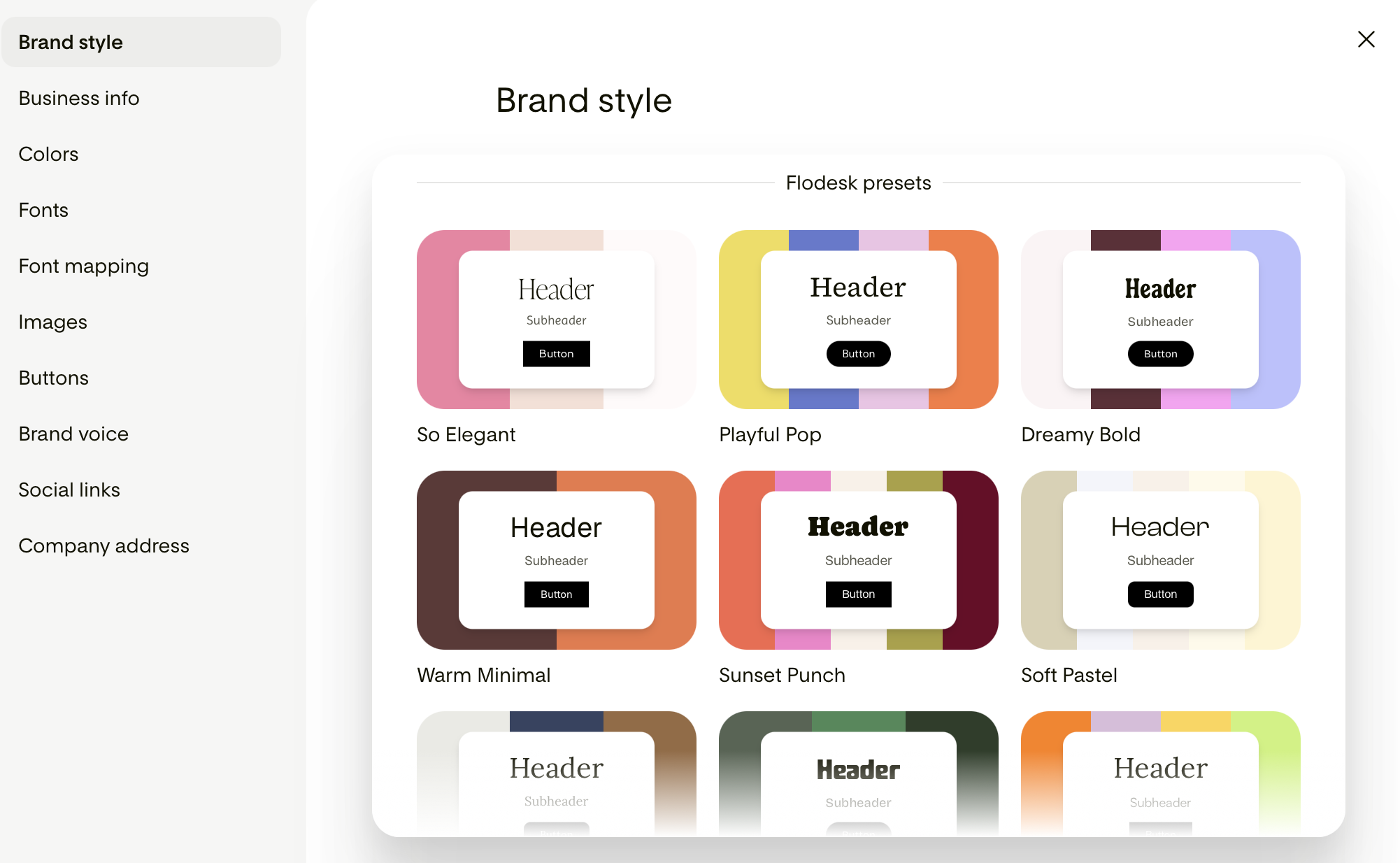
What you can set up in Brand Management
Business information
Business name and basic details about your company
Company address: used in the footer of your emails to meet email compliance requirements
Social media links: add your profiles so Flodesk Studio can include them in your email designs where relevant
Visual identity
Logo: Upload your logo to have it included automatically in your generated email designs. It can be a JPG, PNG or SVG up to 10MB.
Bio image: Upload a photo of yourself or your team for designs where a personal image is appropriate, such as welcome emails or newsletters with a personal intro.
It can be a JPG, PNG or SVG up to 10MB.
Colors: Add your brand color palette so Flodesk Studio can apply it to your generated designs. You can enter colors using hex codes or the color picker. You can also ask Flodesk Studio to suggest colors for you.
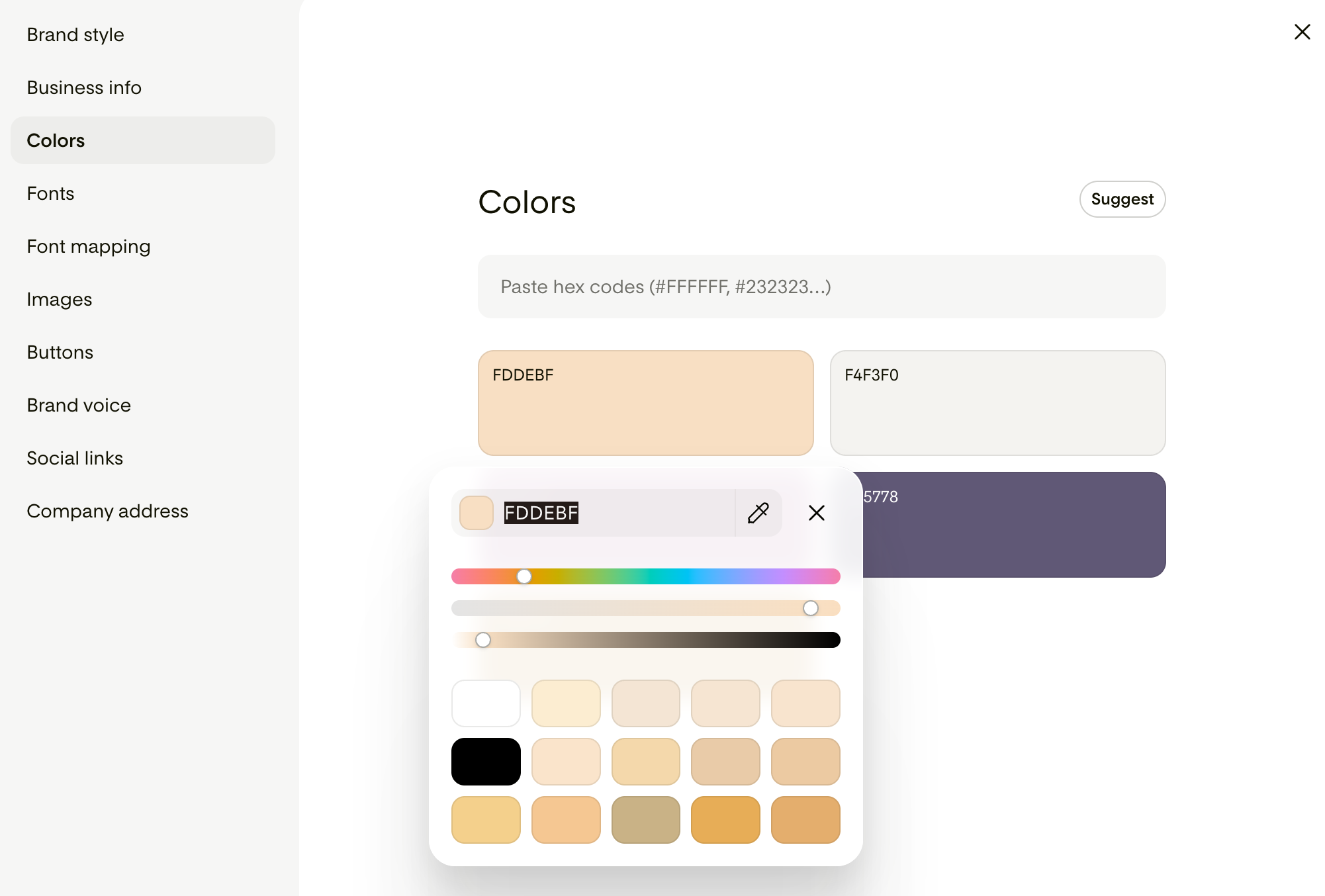
Fonts and font mapping
Brand Management has two separate but related parts when it comes to fonts: your fonts library and your typography role assignments (font mapping). It helps to understand how they work together.
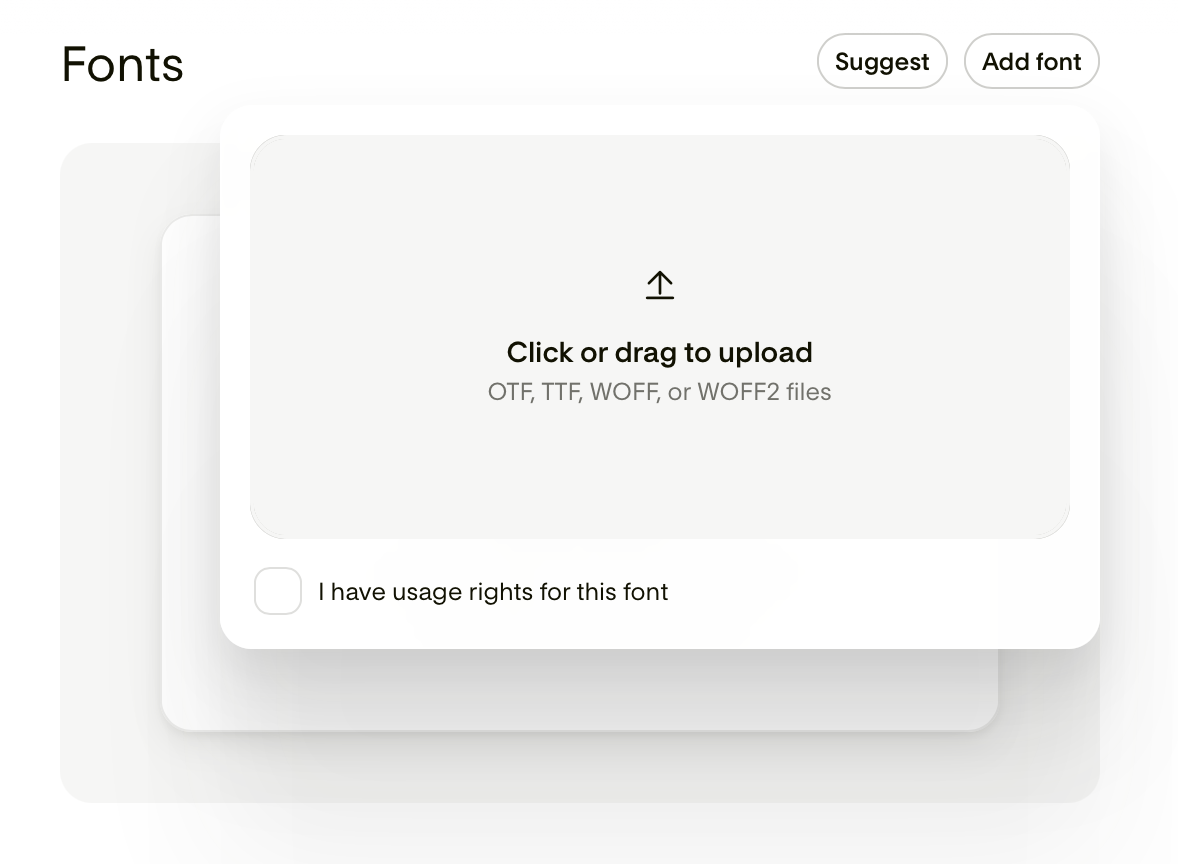
Your fonts library: Your fonts library is where you upload and store all the fonts you want to use in Flodesk Studio. Click Add font to upload fonts here without assigning them to a specific role. Fonts that aren't assigned to a role are still available for you to use manually in the builder, the same way you might use fonts in the current Flodesk experience.
You can upload OTF, TTF, WOFF, or WOFF2 files after confirming you have the rights to use those fonts.
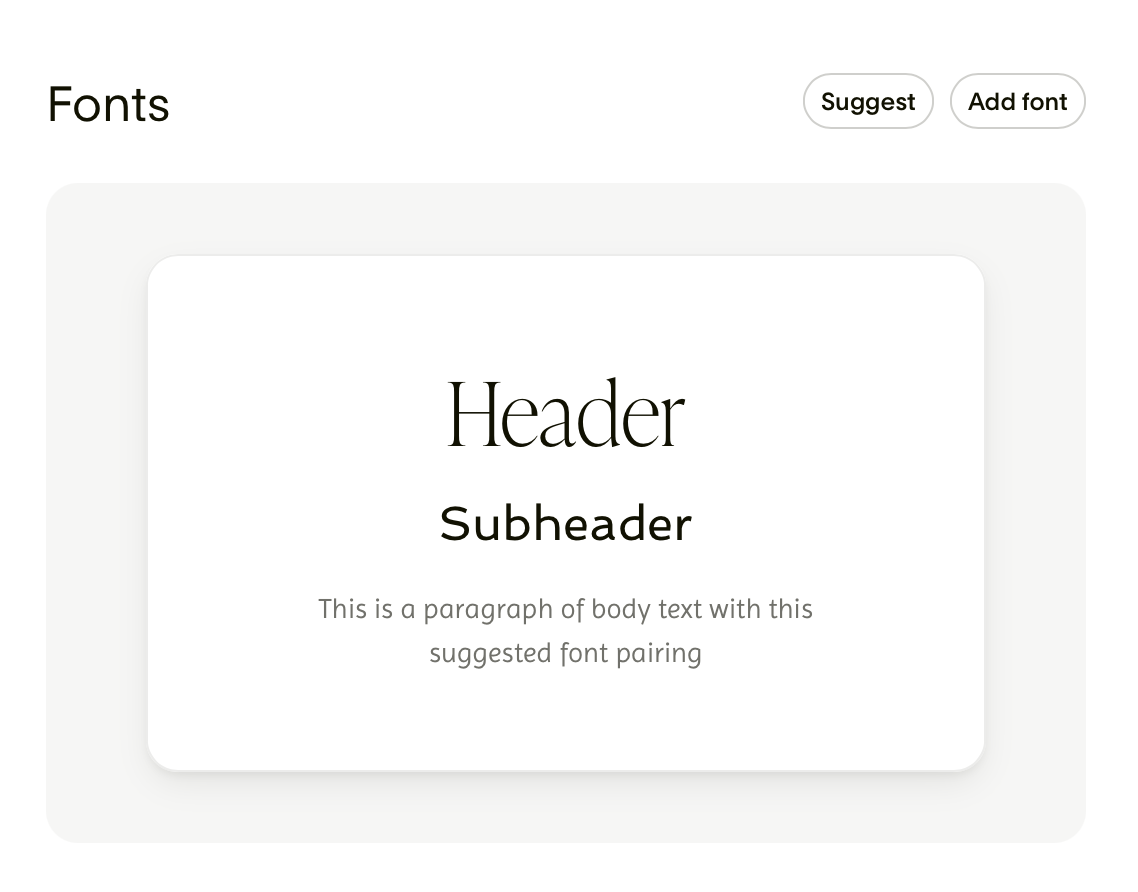
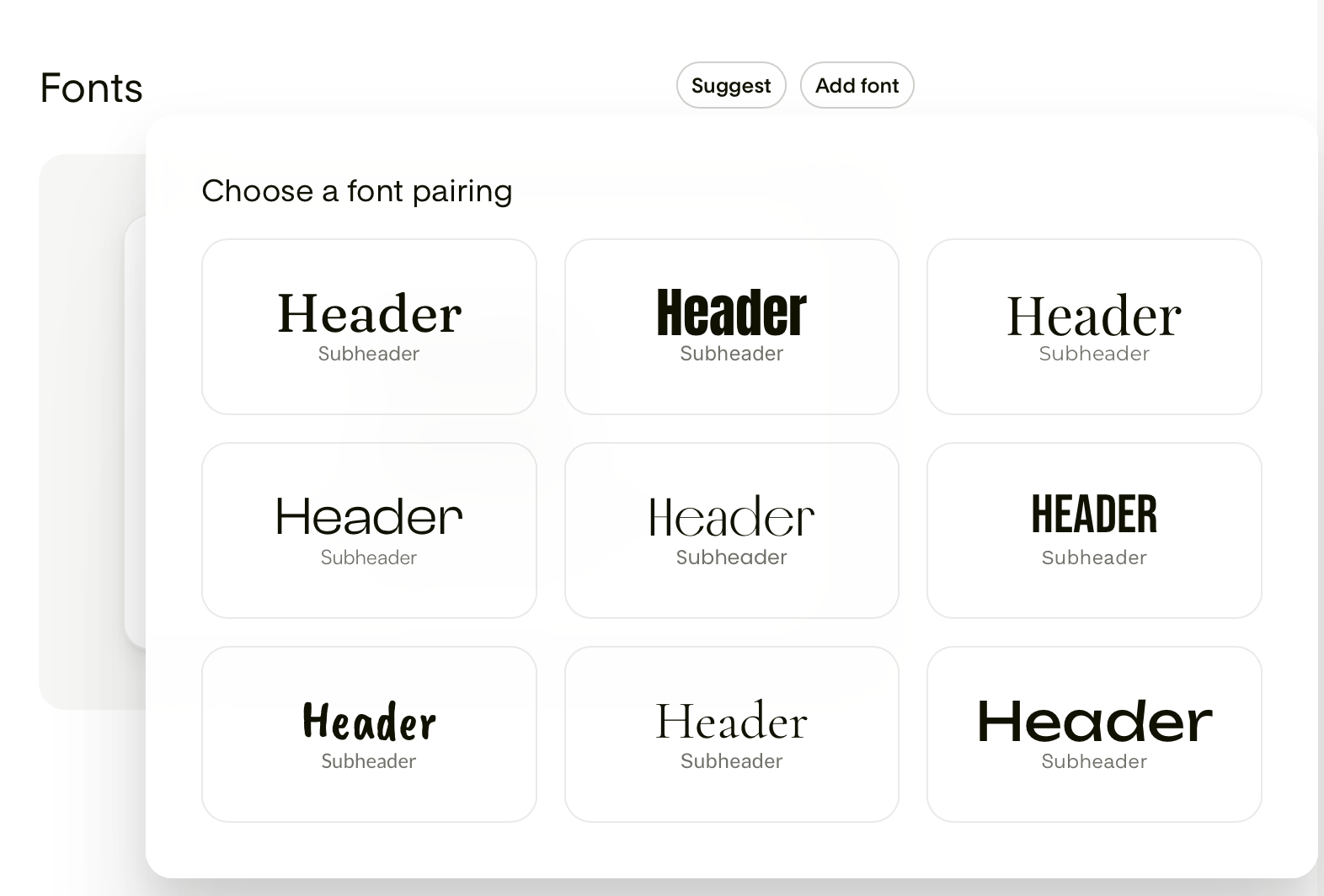
Although you have the option to add your own fonts to match your branding, if you do not, you can choose the Suggest button at the top right of the screen to select a suggestion for you and your brand.
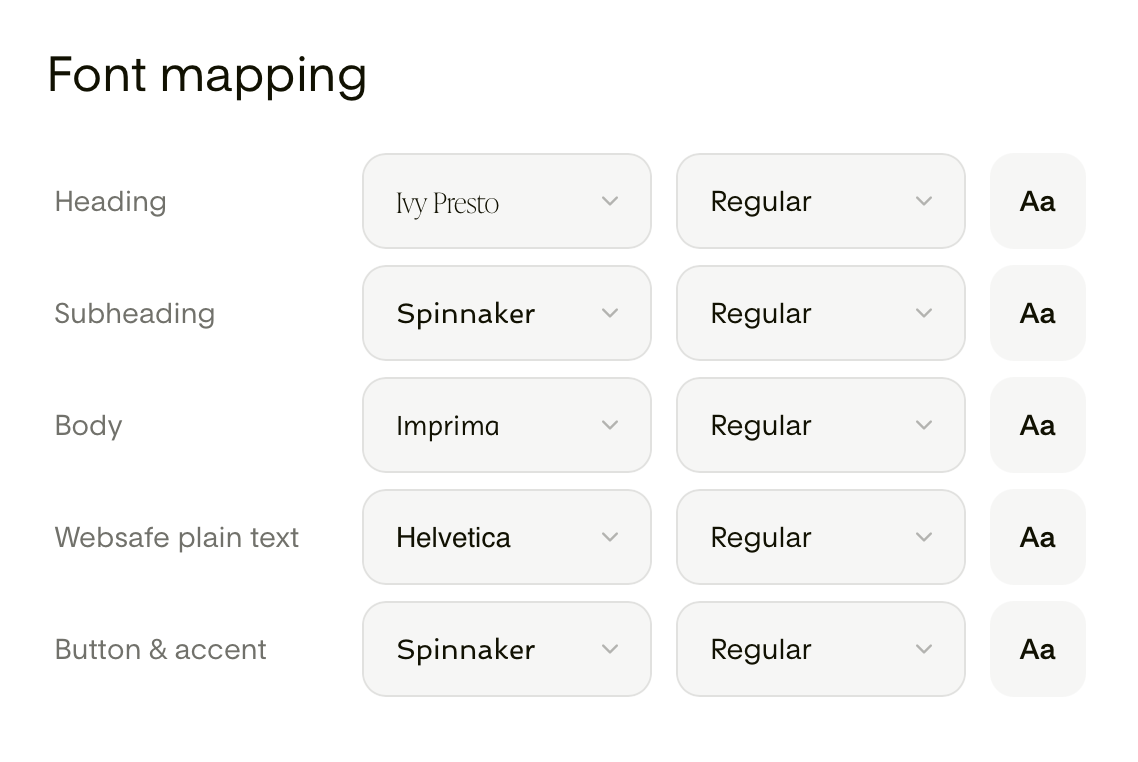
Font mapping: Typography roles let you assign specific fonts from your library to specific functions in your email designs: for example, designating one font for headings and another for body text. When you map fonts to certain roles, Flodesk Studio applies them automatically to new generations.
To assign a font to a role:
Go to Brand > Font mapping.
Select the typography role you want to assign a font to.
Choose a font from the existing font library or your uploaded custom fonts.
The assigned font will be applied to all new email generations going forward.
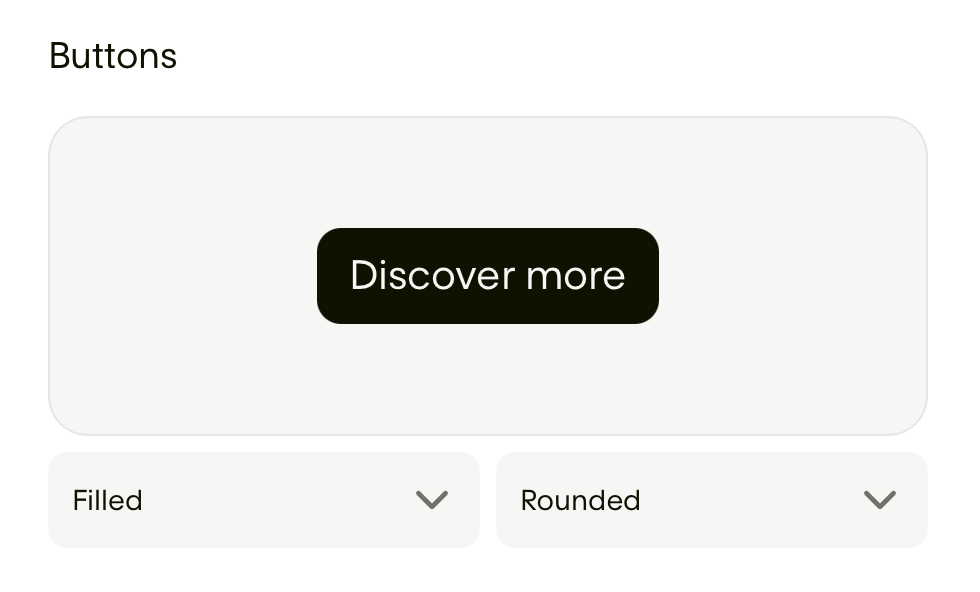
Button style
Set a default button style for your emails, including shape, color, and label style preferences.
Brand voice
Brand voice tells Flodesk Studio how your brand communicates, so the copy it generates sounds like you. Write a short description of your brand voice in your own words to give Flodesk Studio more nuance and context about how you communicate.
A note on how brand changes work
It's worth repeating: any changes you make in Brand Management apply to new email generations only. If you update your logo, colors, fonts, or voice and tone, those changes will show up in the next email you generate. They will not update any designs you've already created automatically. But you can ask Flodesk Studio's AI to apply the new branding to the emails it already generated.
FAQ
Will changes I make in Brand Management update my existing emails?
Not automatically. Brand Management changes apply to new generations only. Any emails you've already created will stay exactly as they are. To apply updated brand settings to an existing email, ask Flodesk Studio’s AI to apply the new branding to the emails it already generated or edit them manually.
Can I upload fonts that I don't want to map to a specific role?
Yes. Your fonts library and your typography role assignments (font mapping) are separate. You can upload fonts to your library and use them manually in the builder without mapping them to a role. Only fonts assigned to a typography role will be applied automatically to new generations.
How many brands can I upload to Flodesk Studio? Can I upload more than one brand to Studio?
For this first iteration in beta, you can only add one brand per account.
Do my brand voice and tone settings affect the design of my emails, or just the copy?
Your brand voice and tone settings primarily shape the copy Flodesk Studio generates. Visual design direction comes from your colors, fonts, and other visual identity settings.
How many colors can I save to my brand palette?
As many as you need, there’s no limit.
What font file types can I upload?
You can upload OTF, TTF, WOFF, or WOFF2 files after confirming that you have usage rights for those fonts.