
Accept local payment methods at checkout
Local Payment Methods (LPMs) are region-specific payment options that buyers in Europe already know and trust. When you enable them in Flodesk Checkout, eligible buyers can pay the way they prefer, which can help reduce abandoned checkouts and increase sales.
Note: Local Payment Methods are off by default. You'll need to turn them on manually. This article walks you through everything you need to know.
What are Local Payment Methods?
Local Payment Methods are payment options that are popular and trusted in specific countries. When enabled, buyers from supported regions will see these options at checkout alongside card, Apple Pay, and Google Pay.
The supported methods are:
iDEAL / Wero (Netherlands)
Bancontact (Belgium)
EPS (Austria)
Przelewy24 / P24 (Poland)
Which methods appear at checkout depends on the buyer's billing country and the currency your checkout is set to. Not all four will show for every buyer.
Who can use Local Payment Methods?
Local Payment Methods are available to Flodesk members who:
Have connected Flodesk Checkout to a Stripe Standard Connect account, and
Are selling in EUR (Euro)
How to turn on Local Payment Methods
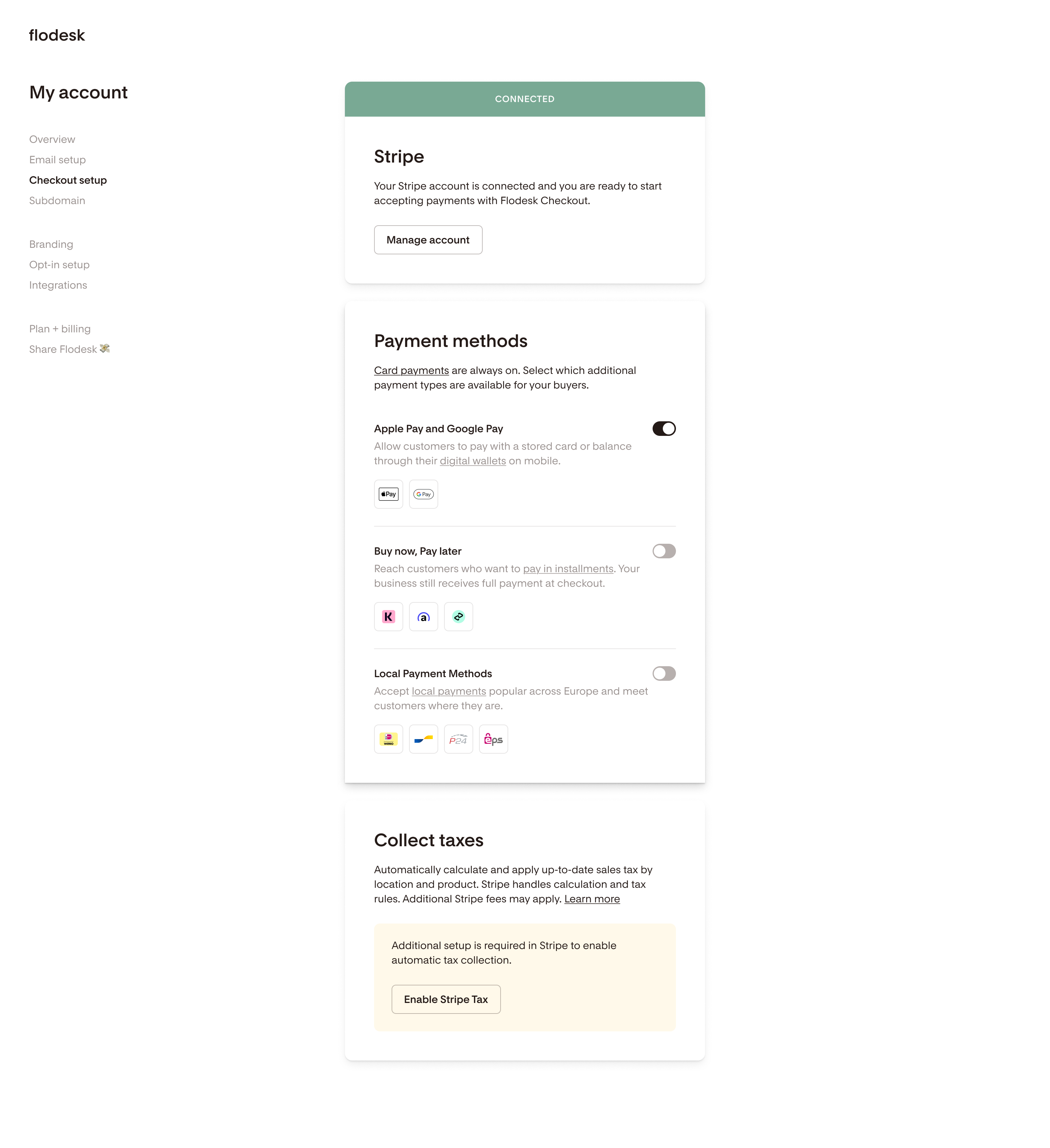
Step 1. Go to Account Settings > Checkout setup.
Step 2. On the Payment methods card, find the Local Payment Methods row and toggle it on.
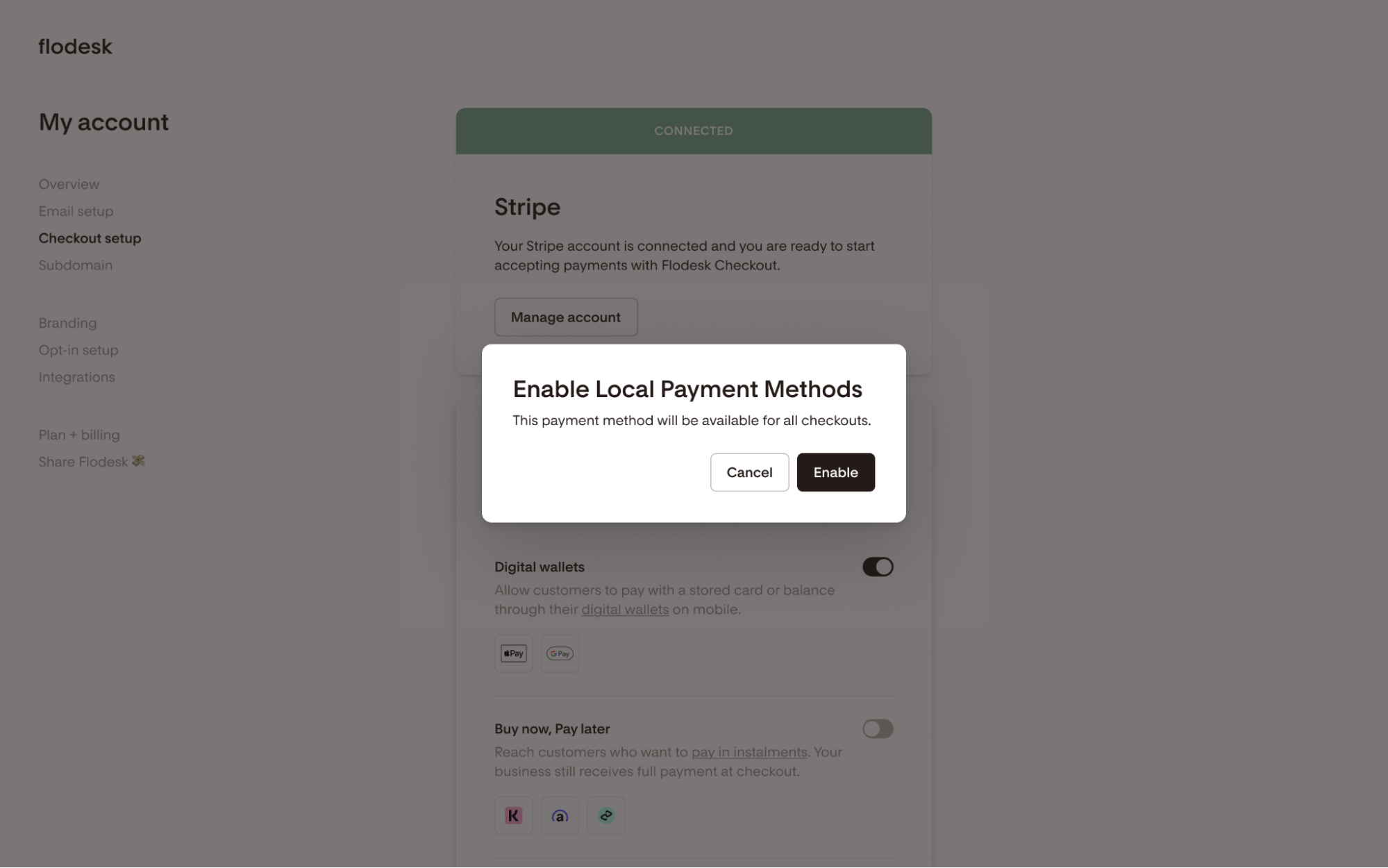
Step 3. A confirmation dialogue will appear. Click Enable to confirm.
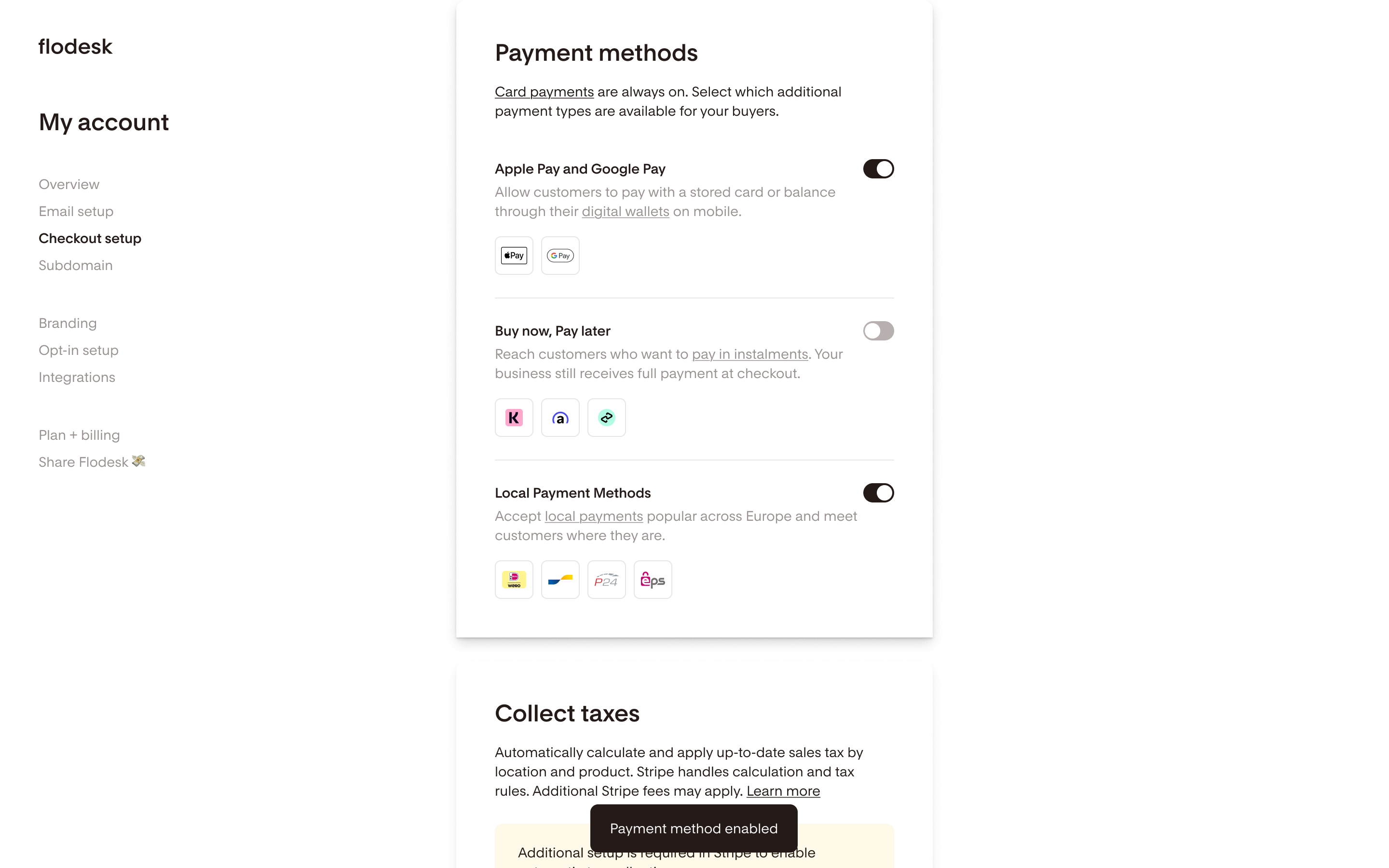
Once enabled, the toggle will show as on, and a "Payment method enabled" confirmation will appear. Eligible buyers will now see the applicable Local Payment Methods at checkout.
Important: Enabling Local Payment Methods applies to all of your checkouts. There's no per-checkout control at this time.
How to turn off Local Payment Methods
Step 1. Go to Account Settings > Checkout setup.
Step 2. On the Payment methods card, toggle off the Local Payment Methods option.
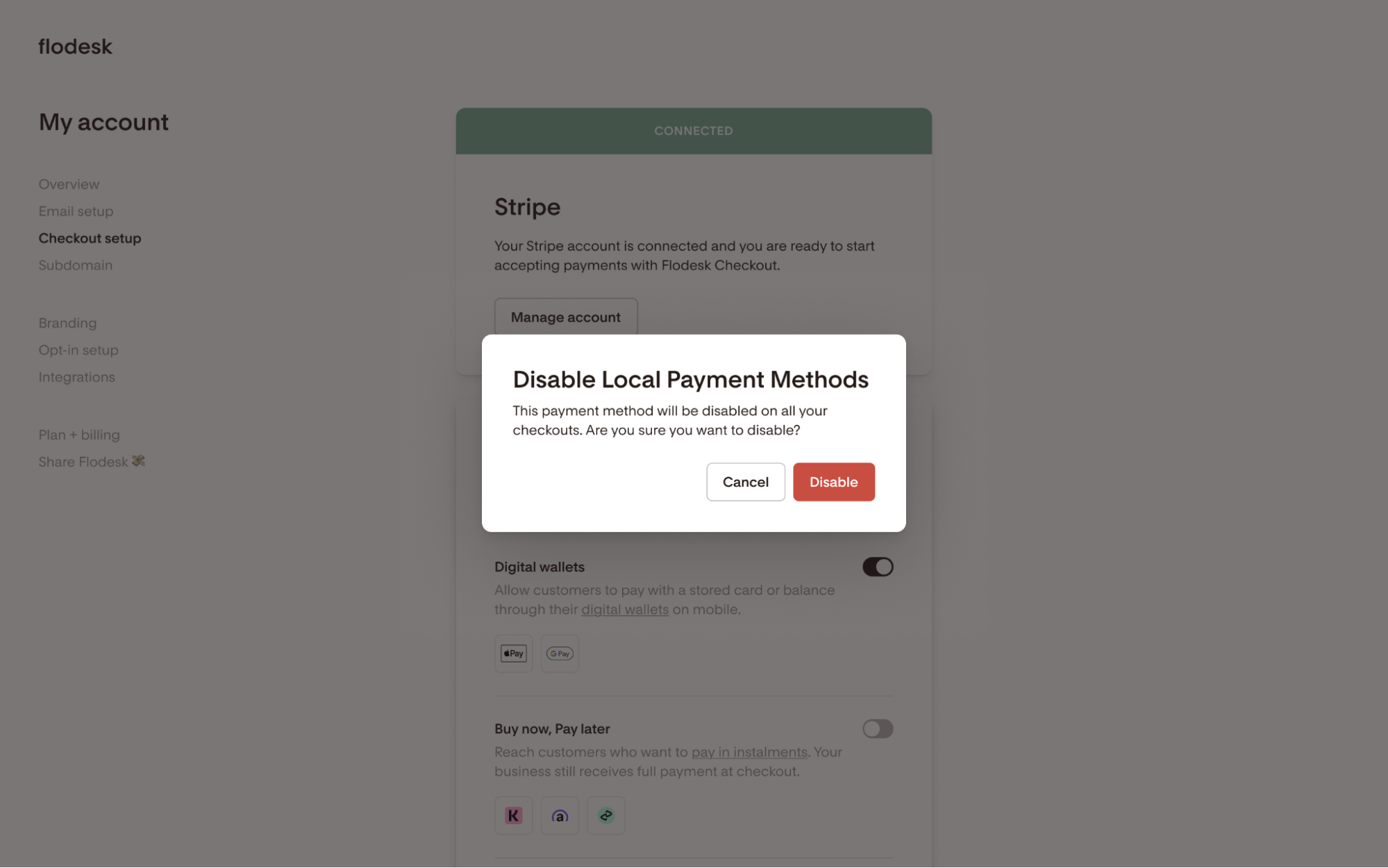
Step 3. A confirmation dialogue will appear asking you to confirm. Click Disable to confirm.
What your buyers will see at checkout
When a buyer from a supported country visits your checkout, they'll see Local Payment Methods listed in the Payment details section alongside card, Apple Pay, and Google Pay.
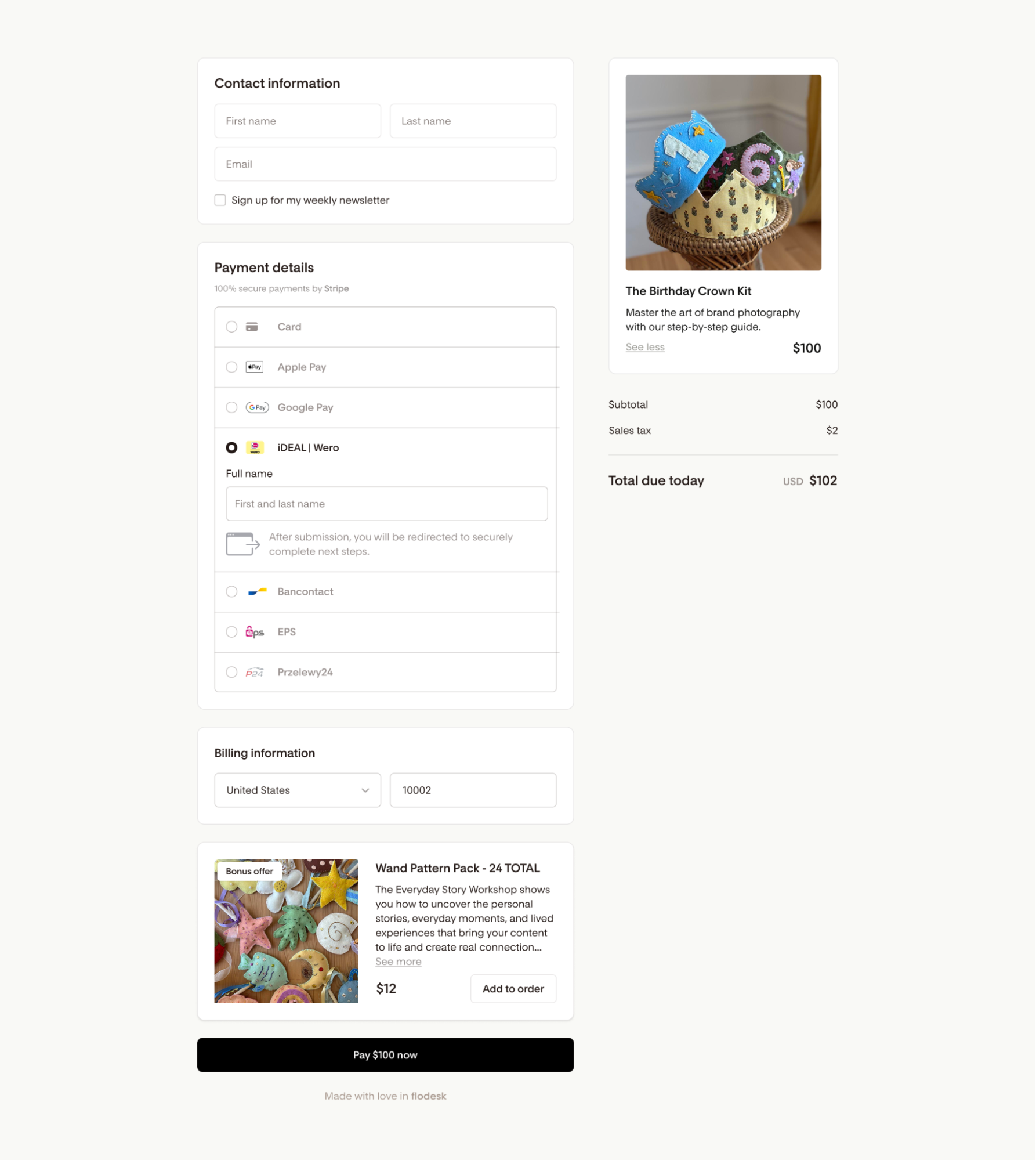
All Local Payment Methods use a redirect flow. Here's what that means:
After selecting their payment method and clicking Pay, buyers are taken to their bank or payment provider to authorize the payment.
Once they complete that step, they're brought back to your Flodesk Checkout.
Here's what each method looks like for your buyer:
iDEAL / Wero (Netherlands)
Buyers select iDEAL / Wero, enter their full name, and click Pay. They're redirected to their Dutch bank to authorize the payment, then returned to your checkout.
Bancontact (Belgium)
Buyers select Bancontact, enter their full name, and click Pay. They're redirected to their bank or the Bancontact app to authorize, then returned to your checkout.
EPS (Austria)
Buyers select EPS, choose their bank from a dropdown, enter their full name, and click Pay. They're redirected to their Austrian bank to authorize the payment, then returned to your checkout.
Przelewy24 / P24 (Poland)
Buyers select Przelewy24, choose their bank from a dropdown, enter their full name, and click Pay. They're redirected to the Przelewy24 gateway to complete payment, then returned to your checkout.
A note on order confirmation
Because buyers complete payment off-site, your order confirmation may take a moment to update after they return. This is expected. Flodesk receives a payment confirmation from Stripe in the background before finalizing the order.
How to process a refund
Refunds for Local Payment Method orders are processed through Stripe, not Flodesk. Here's how:
Log in to your Stripe Standard account and go to the Payments overview page. You can also get there quickly by clicking the Refund button on the Order Details page in Flodesk.
Click the three-dot menu (...) next to the charge, then select Refund charge.
Enter the refund amount. The default is a full refund. Enter a different amount for a partial refund.
Select a reason and click Refund.
FAQ
Are Local Payment Methods on by default?
No. The toggle is off by default. To turn them on, go to Account Settings > Checkout setup, and toggle on Local Payment Methods.
Will all four payment methods show for every buyer?
No. Which methods appear depends on the buyer's billing country and your checkout currency. For example, iDEAL will only show for buyers in the Netherlands who are transacting in EUR.
Do I need to do anything in Stripe to enable these methods?
In most cases, no. Enabling the toggle in Flodesk is enough. If a method isn't appearing after you've turned it on, check your Stripe Dashboard under Settings, then Payments, then Payment Methods, to confirm the relevant payment method is active on your account.
Can I enable just one payment method instead of all of them?
Not from Flodesk. The Local Payment Methods toggle enables all supported methods as a group. If you need to disable a specific method, you can do that through your Stripe Dashboard under Settings, then Payments, then Payment Methods.
Why aren't Local Payment Methods showing in my checkout?
A few things to check:
Confirm your checkout currency is set to EUR.
Confirm the relevant payment methods are active in your Stripe Dashboard under Settings, then Payments, then Payment Methods.
Confirm the buyer's billing country is one of the supported regions (Netherlands, Belgium, Austria, or Poland).
Will the redirect flow affect my order data in Flodesk?
No. Once Stripe confirms the payment, the order appears in Flodesk exactly as it would for a card payment. There may be a brief delay between the buyer returning to your checkout and the order being confirmed. This is normal.
Which Stripe account type do I need?
You need a Stripe Standard Connect account.
What currencies are supported?
Local Payment Methods are available when your checkout is set to EUR (Euro).