
How to Collect Sales Tax or VAT with Flodesk Checkout
Learn how Flodesk Checkout works with Stripe Tax to automatically calculate and collect sales tax or VAT at checkout.
Important: Flodesk does not provide tax, legal, or accounting advice. Flodesk Checkout relies on your Stripe Tax settings to calculate taxes at checkout, but it’s your responsibility to ensure your tax setup is accurate and compliant. For advice tailored to your business, consult a licensed tax professional.
Overview
Flodesk Checkout uses Stripe Tax to automatically calculate sales tax or VAT based on:
Your Stripe Tax setup
The buyer’s billing location
Your product’s tax category
Once Stripe Tax is enabled, Flodesk Checkout handles tax calculation at checkout so buyers see the correct total before completing their purchase.
Important: Flodesk does not set tax rates itself. Stripe Tax is the single source of truth for all tax calculations.
What you need before collecting tax
Before sales tax or VAT can be collected in Flodesk Checkout, make sure you have:
A connected Stripe Standard account
Stripe Tax enabled in your Stripe dashboard
Permission to manage Checkout settings in Flodesk
If Stripe Tax is not enabled, tax collection will not be available in Checkout.
How sales tax works in Flodesk Checkout
1. Stripe Tax controls tax calculation
Flodesk Checkout automatically follows your Stripe Tax configuration. This includes:
Where you’re registered to collect tax
Note: if you have multiple tax registrations, you can add them all to Stripe, which will then calculate taxability based on your various obligations.
Whether tax is inclusive or exclusive
Which products are taxable
If Stripe Tax is disabled or pending, sales tax cannot be collected through Flodesk Checkout.
2. Enable tax collection in Flodesk
Once Stripe Tax is active:
Find the Collect taxes card
Click Enable Stripe Tax (if prompted)
Confirm the status shows Enabled
This setting applies across all your checkouts.

Check Stripe’s tax setup video to learn how to set up your tax correctly.

3. Turn on sales tax for a checkout
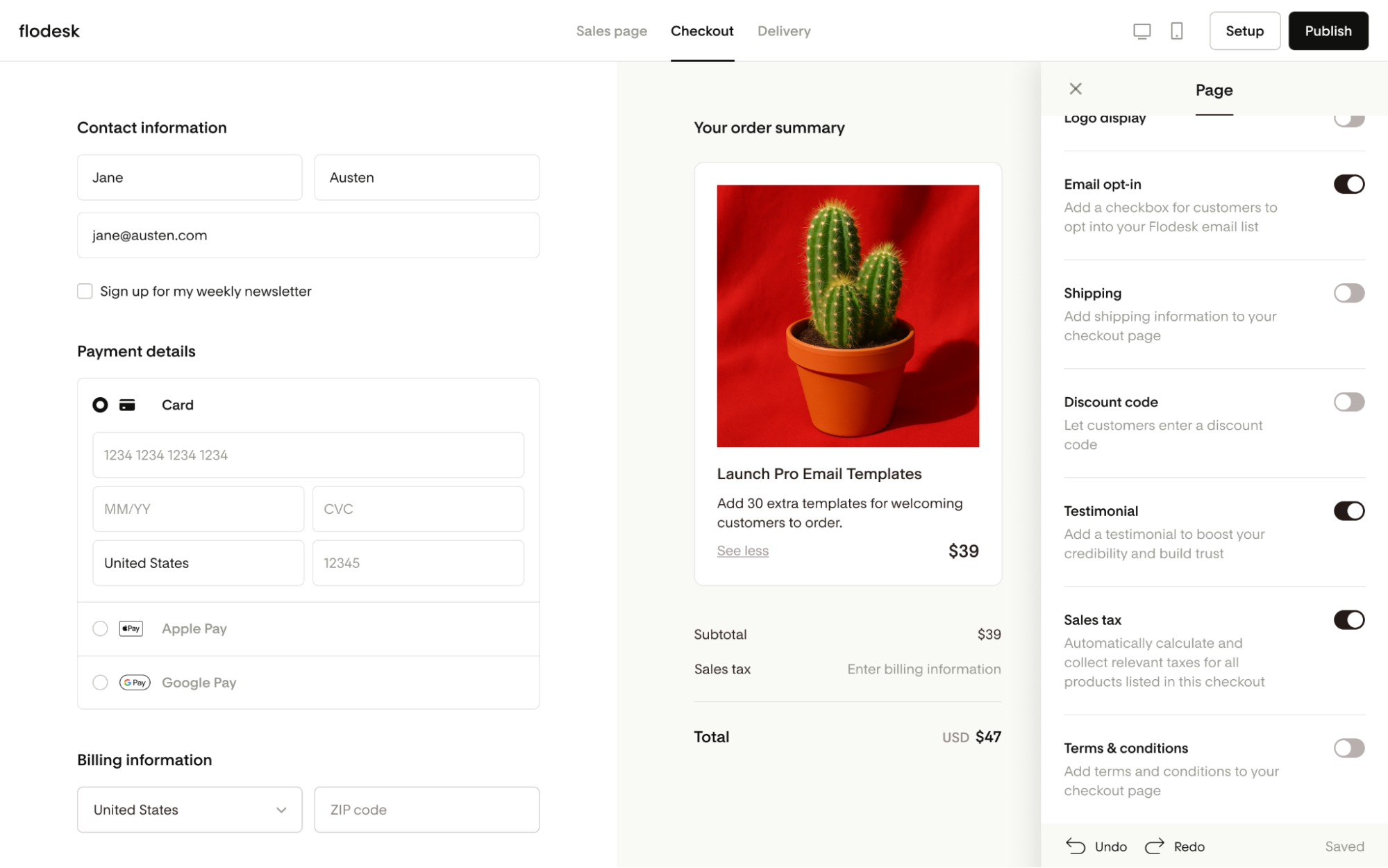
Each Flodesk checkout has its own Sales Tax toggle under Page settings, which you can access by clicking the background area. You can edit the Sales tax toggle for any active checkout.
The toggle status determines whether Flodesk calls the Stripe Tax API. This means that even if you have enabled Stripe Tax in your Stripe account, if you toggle sales tax OFF for a specific Flodesk checkout, no sales tax will be collected on that checkout.
Toggle ON: tax is calculated at checkout
Toggle OFF: no tax is collected
If Stripe Tax is not enabled, this toggle will remain off.
4. Assign tax categories to products
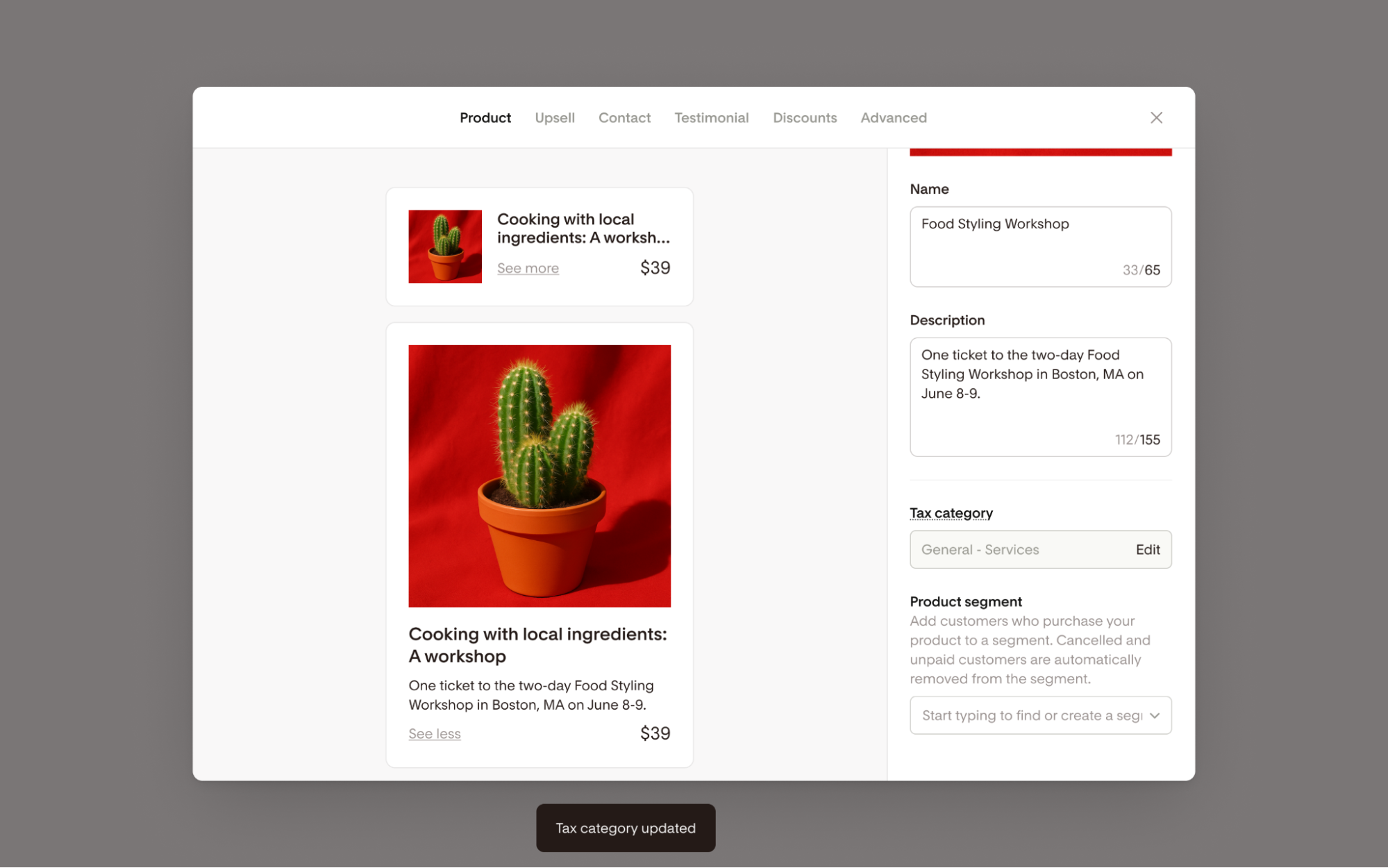
Each main product and upsell includes a tax category selector:
This tells Stripe what kind of product you’re selling
Tax categories affect whether and how tax is applied
A default category is prefilled based on your Stripe Tax settings, but you can change it if needed in Flodesk by clicking Edit.
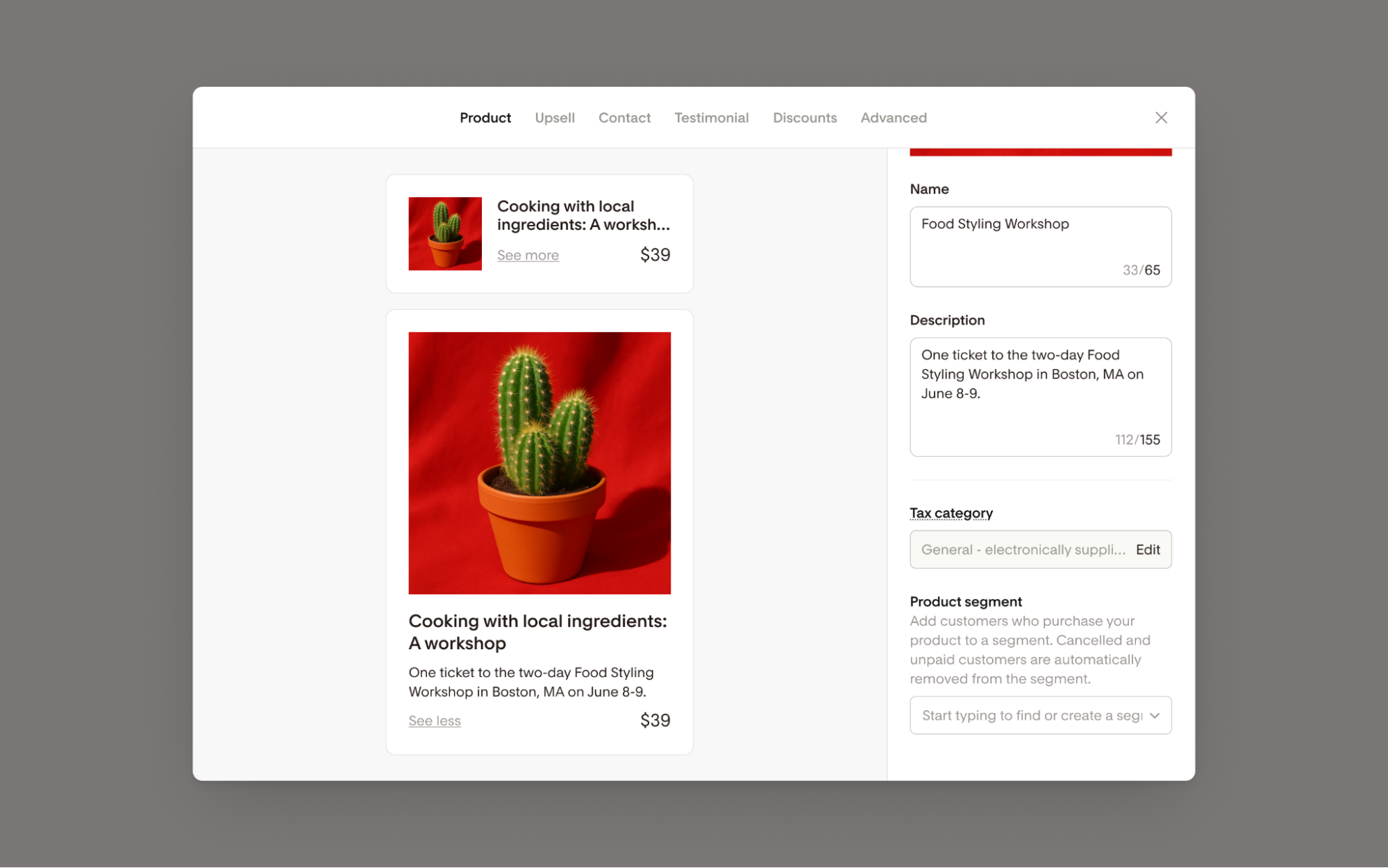
This opens the tax category selector.
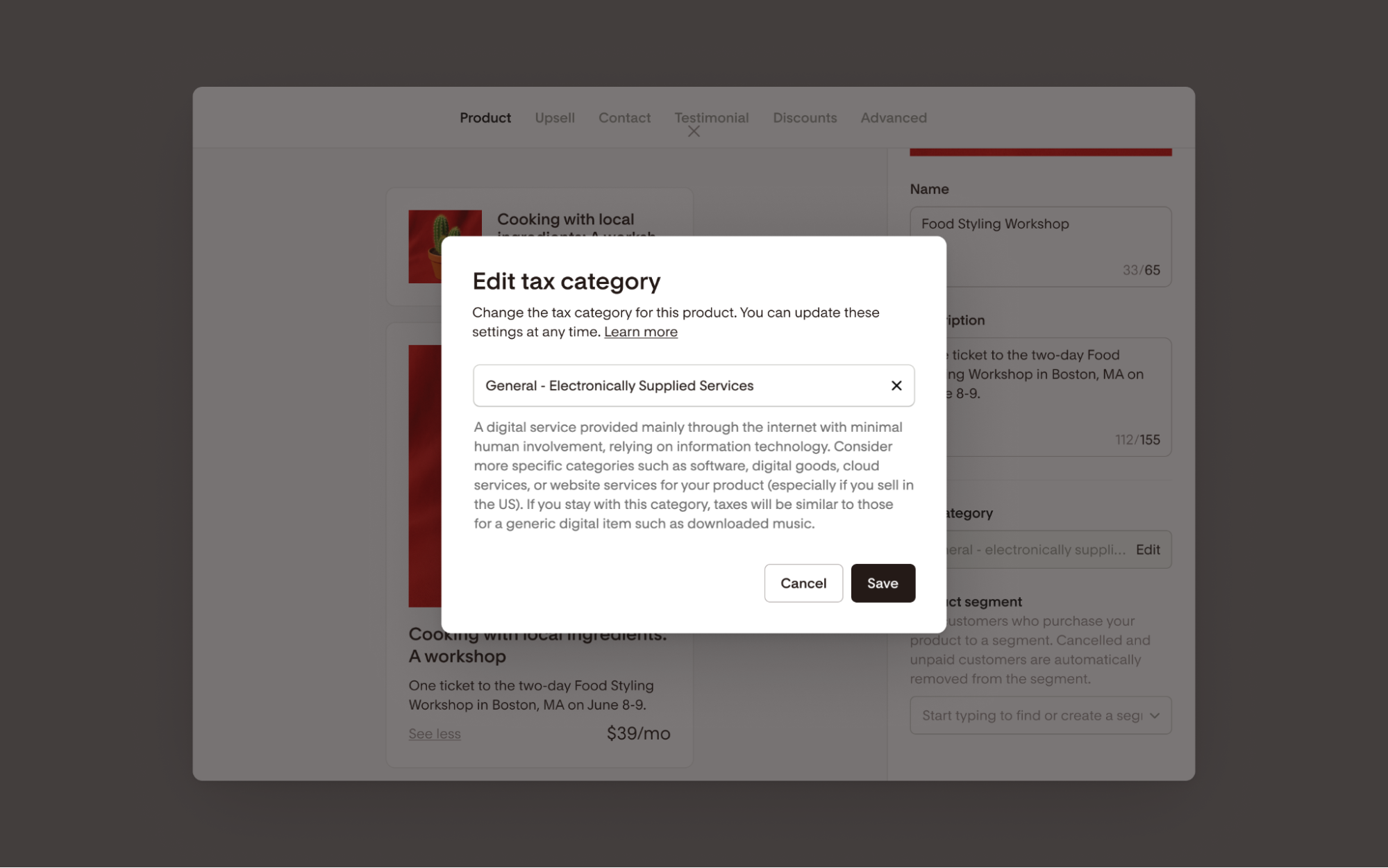
Select the tax category that you want to apply to your product.

Save your changes.
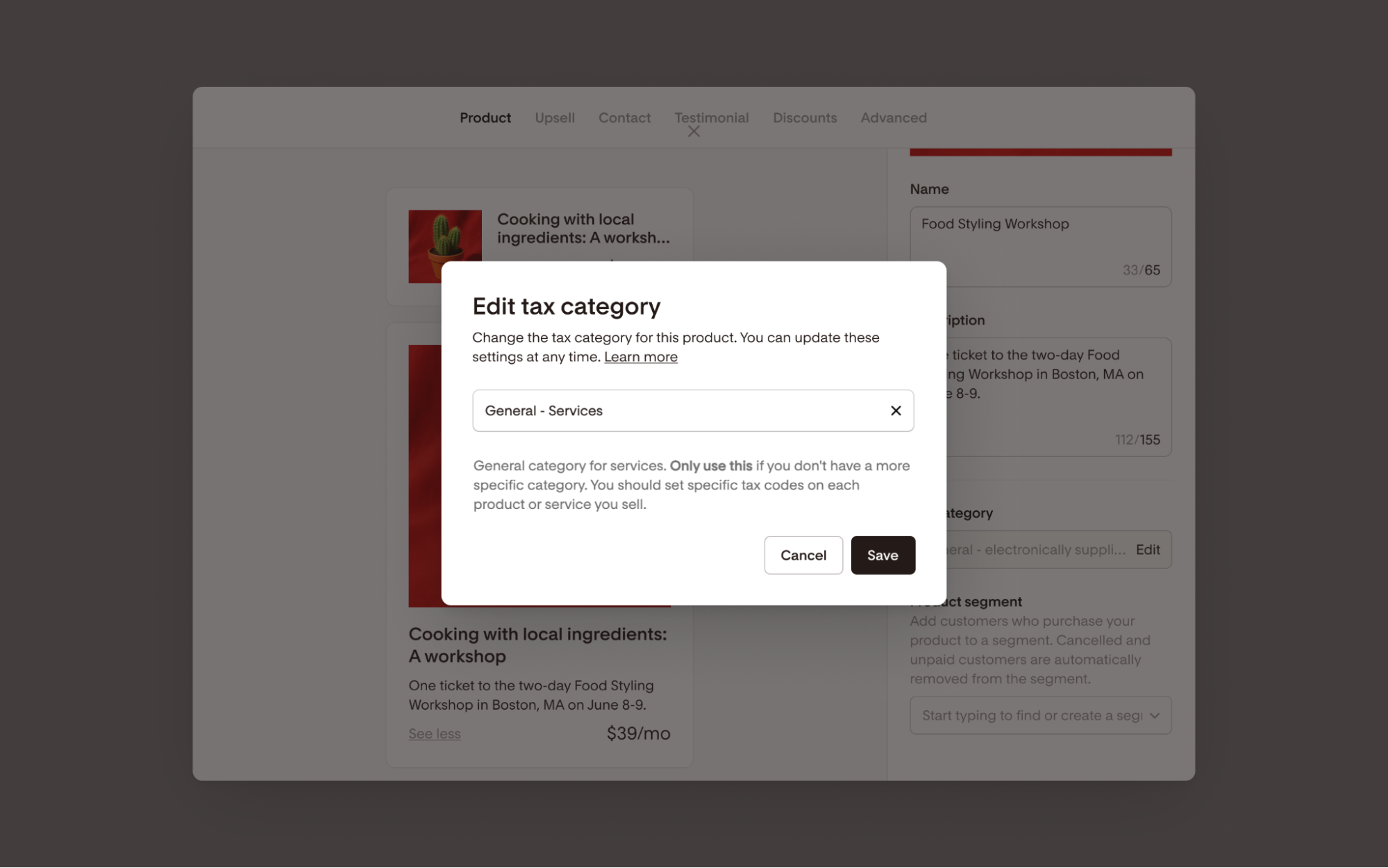
The new, updated tax category will apply to your product (or upsell) upon purchase.
What buyers see at checkout
Tax calculation timing
Sales tax is calculated after the buyer enters their billing address (country/state + postal code)
Before that, buyers will see a prompt like: “Enter postal code” in the Sales tax line
Purchase cannot proceed if this field is left empty
Inclusive vs. exclusive tax
Stripe automatically determines whether tax is:
Added on top of the price (common in the US & Canada)
Included in the displayed price (common in many other regions)
This depends on the selling currency and the buyer's location.
Example - exclusive / added on top of the price:

Example - inclusive / Included in the displayed price:

If no tax applies
If tax is not required:
A sales tax line still appears
The amount will show $0
If tax calculation fails:
The buyer can purchase the product
The order will process without tax
VAT invoices and receipts
VAT invoices are not automatically generated by either Flodesk Checkout or Stripe Tax, although your Stripe dashboard can produce an invoice when requested, which will include the VAT ID.
However, your order confirmation email can act as a VAT-compliant invoice if it includes the required details such as:
Invoice date
Unique invoice number
Seller name, address, and VAT ID
Buyer name and address
Description of goods or services
Net amount, tax amount, and total
Tax rate applied
You do not need to send a separate invoice unless a buyer requests one.
Subscriptions and payment plans
For subscriptions, tax is calculated each time a payment is collected
Rounding differences between installments are expected
Subscription renewals automatically recalculate tax based on the billing address on file and applicable laws and regulations, meaning renewal amounts can change
If the buyer’s billing address changes between subscription renewals, a new tax rate applies automatically
For payment plans, tax is calculated on the total order amount and is paid on the initial payment
Where to see tax details
For buyers
Checkout summary
Order confirmation emails
Delivery / thank-you page
For you (the seller)
Order notification emails
Individual order details (checkout analytics)
FAQs
Do I need Stripe Tax to collect sales tax in Flodesk Checkout?
Yes. Sales tax and VAT collection only work if Stripe Tax is enabled.
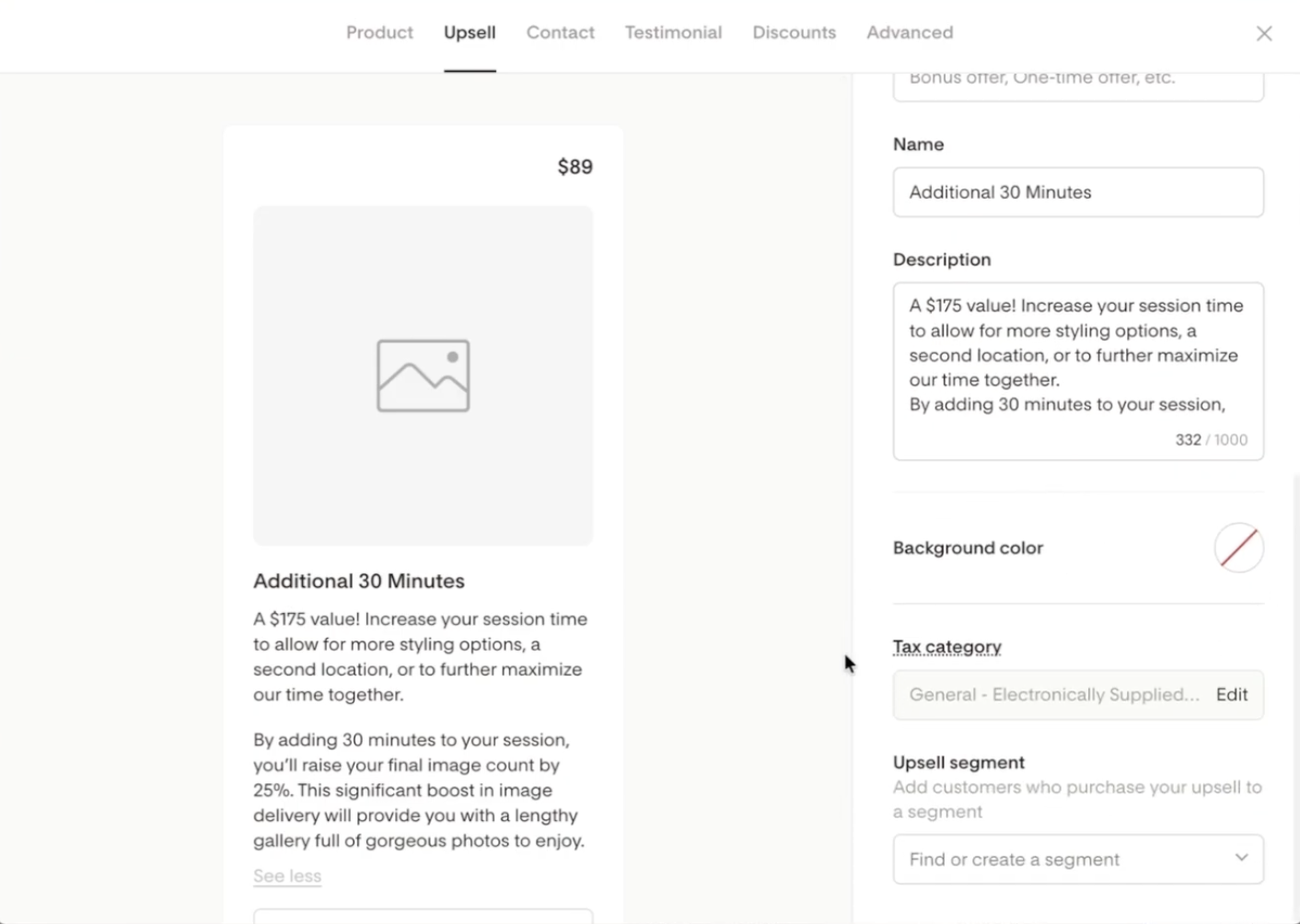
Can I enable sales tax for my upsell item?
Yes. Go to the Upsell tab in your Checkout setup to access and edit the tax category for your upsell offer.
Can I manually set tax rates in Flodesk?
No. All tax logic comes directly from Stripe Tax.
Is sales tax calculated before checkout loads?
No. Tax is calculated after the buyer enters their billing address.
What happens if Stripe Tax is pending or disabled?
Sales tax toggles will be turned off and tax will not be collected.
Does Flodesk issue VAT invoices?
No, but your order confirmation email can serve as a VAT-compliant invoice if it includes required fields.
What if the buyer’s billing and shipping addresses are different?
Tax is always calculated using the billing address.
Why don’t I see sales tax at checkout?
Common reasons include:
Stripe Tax is not enabled
No active tax registrations
Merchant/Seller is using Stripe Express (instead of Stripe Standard)
Buyer location is not taxable
Can I set up multiple tax registrations in Stripe?
Yes, you can set up multiple tax registrations in Stripe to manage sales tax, VAT, and GST across various countries or regions. Through the Stripe Tax Dashboard, you can add, manage, and schedule multiple registrations to ensure accurate tax collection based on your business's obligations.
How does sales tax work with shared checkout templates?
When a checkout is shared with another merchant, the sales tax setting is determined by the recipient merchant’s Stripe Tax setup, not the original checkout template.
Here’s how the Sales Tax toggle behaves in Flodesk after a checkout template is shared:
If Stripe Sales Tax is enabled - the Sales Tax toggle will be ON
If Stripe Sales Tax is pending - the Sales Tax toggle will be OFF
If Stripe Sales Tax is disabled - the Sales Tax toggle will be OFF
This ensures sales tax is always collected (or not collected) based on the merchant’s own Stripe Tax configuration.
If I’m using Team seats to add team members to my account, what can they access?
Admin | Manager | Editor | |
Manage Stripe Account | ✅ | ✅ | ❌ |
Enable Sales Tax Toggle | ✅ | ✅ | ✅ |
Edit Product Tax Code | ✅ | ✅ | ✅ |
Publish Checkout (consistent with current treatment) | ✅ | ✅ | ❌ |